Finance¶
Who this is for: Finance staff who run payroll, manage cutoffs, and clear approvals. Time: ~15 minutes. You'll need: the Finance module (the $ icon in the left nav).
Finance drives every pay run: opening and closing cutoff periods, pulling employees into a period, adjusting individual invoices, clearing time/reimbursement/dispute/quiz/referral approvals, then processing and sending payslips.
1. The Finance home¶
Open Finance. The hub summarises what needs attention and links to every sub-area.
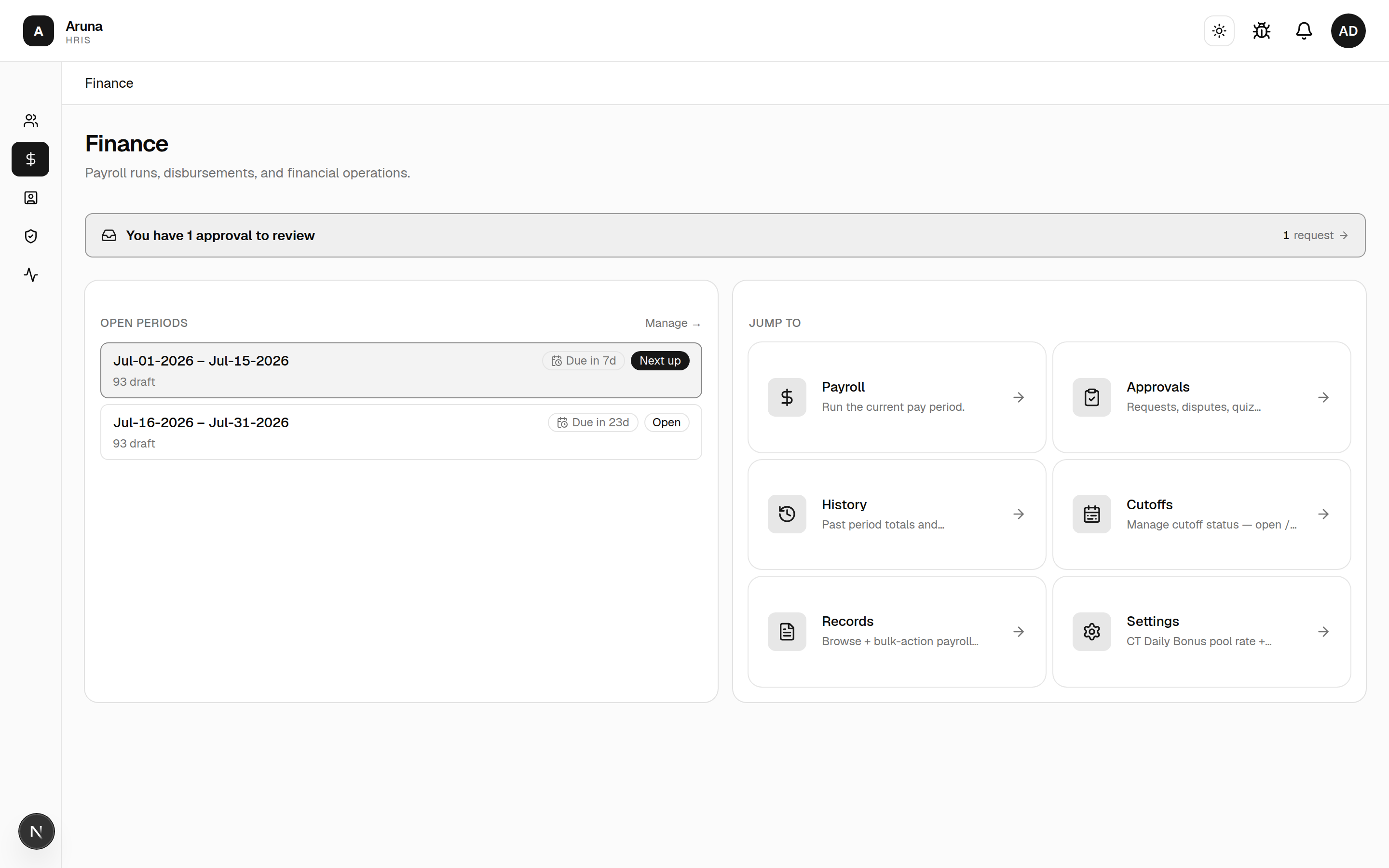
- The banner tells you whether anything is pending Finance review.
- Open periods shows the current and next cutoff with their due dates.
- Jump to cards: Payroll, Approvals, History, Cutoffs, Records, Settings.
2. Cutoffs — the period lifecycle¶
Open Finance → Cutoffs.
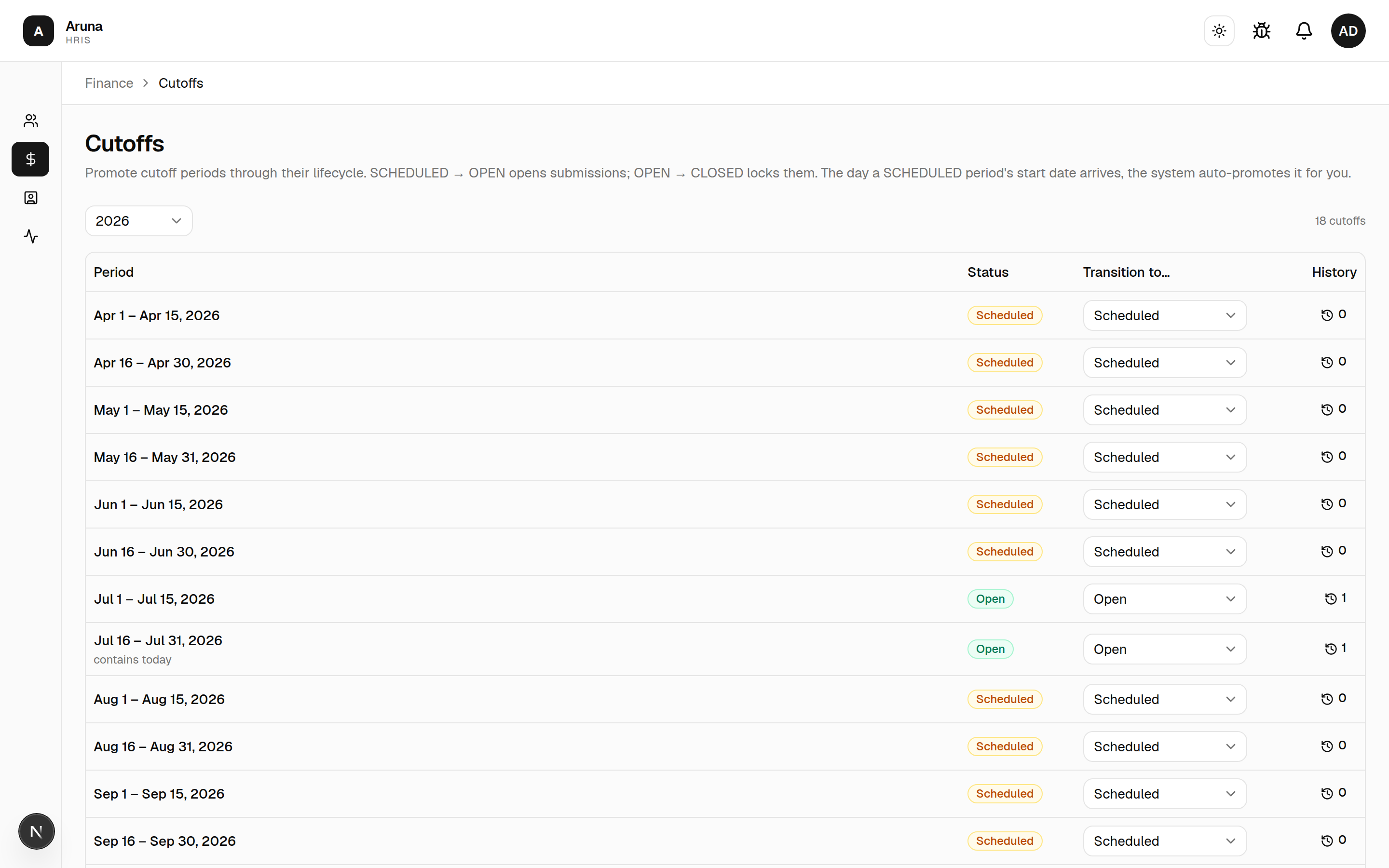
Each period moves through a lifecycle:
SCHEDULED → OPEN → CLOSED
- SCHEDULED → OPEN opens submissions for that period.
- OPEN → CLOSED locks it.
- The day a SCHEDULED period's start date arrives, the system auto-promotes it to OPEN for you.
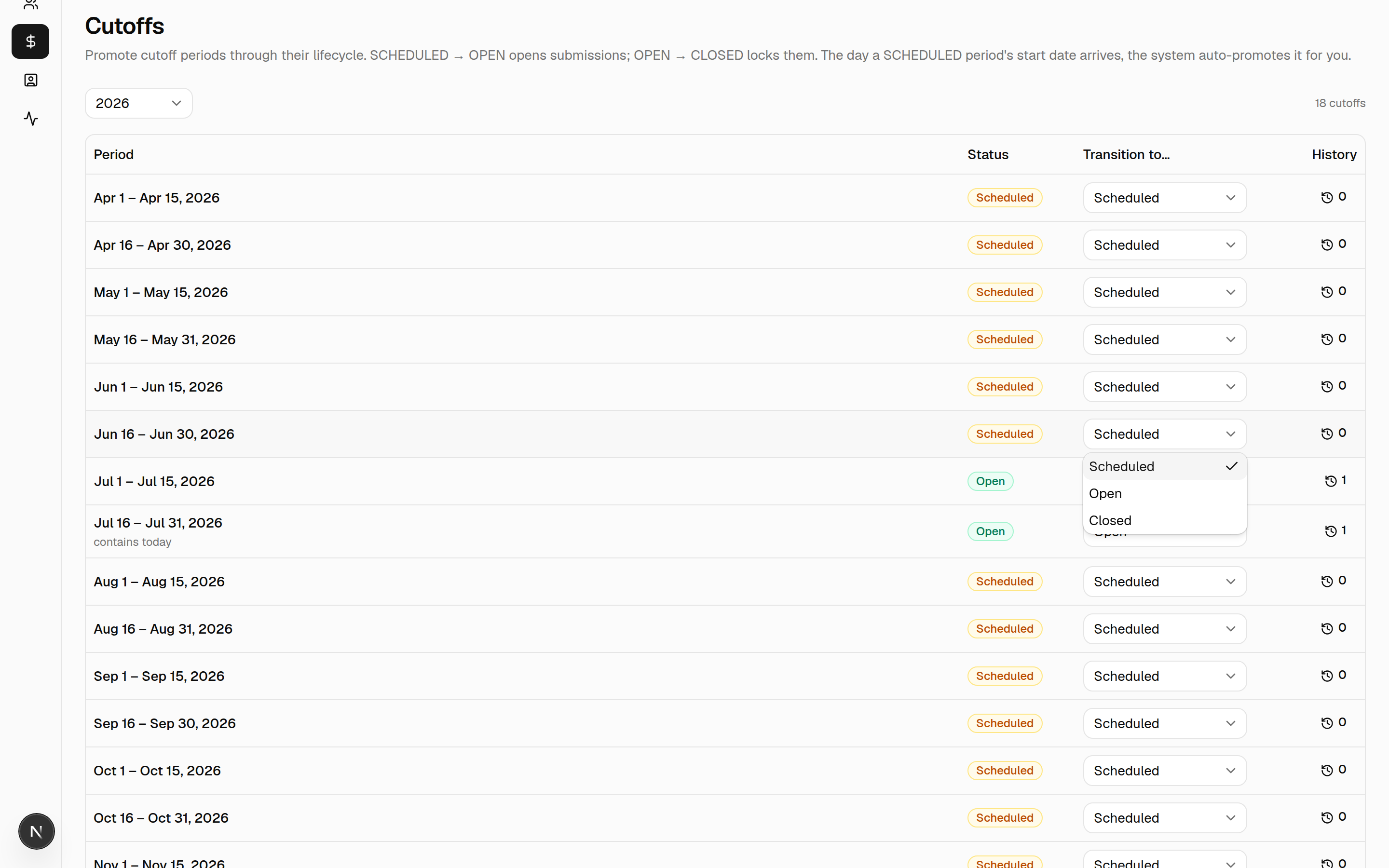
- The period containing today is flagged. Use the Transition to… dropdown to move a period manually between Scheduled, Open, and Closed.
3. Payroll records — running a period¶
Open Finance → Records (Payroll). Everything for a pay run lives here, on one per-period surface.
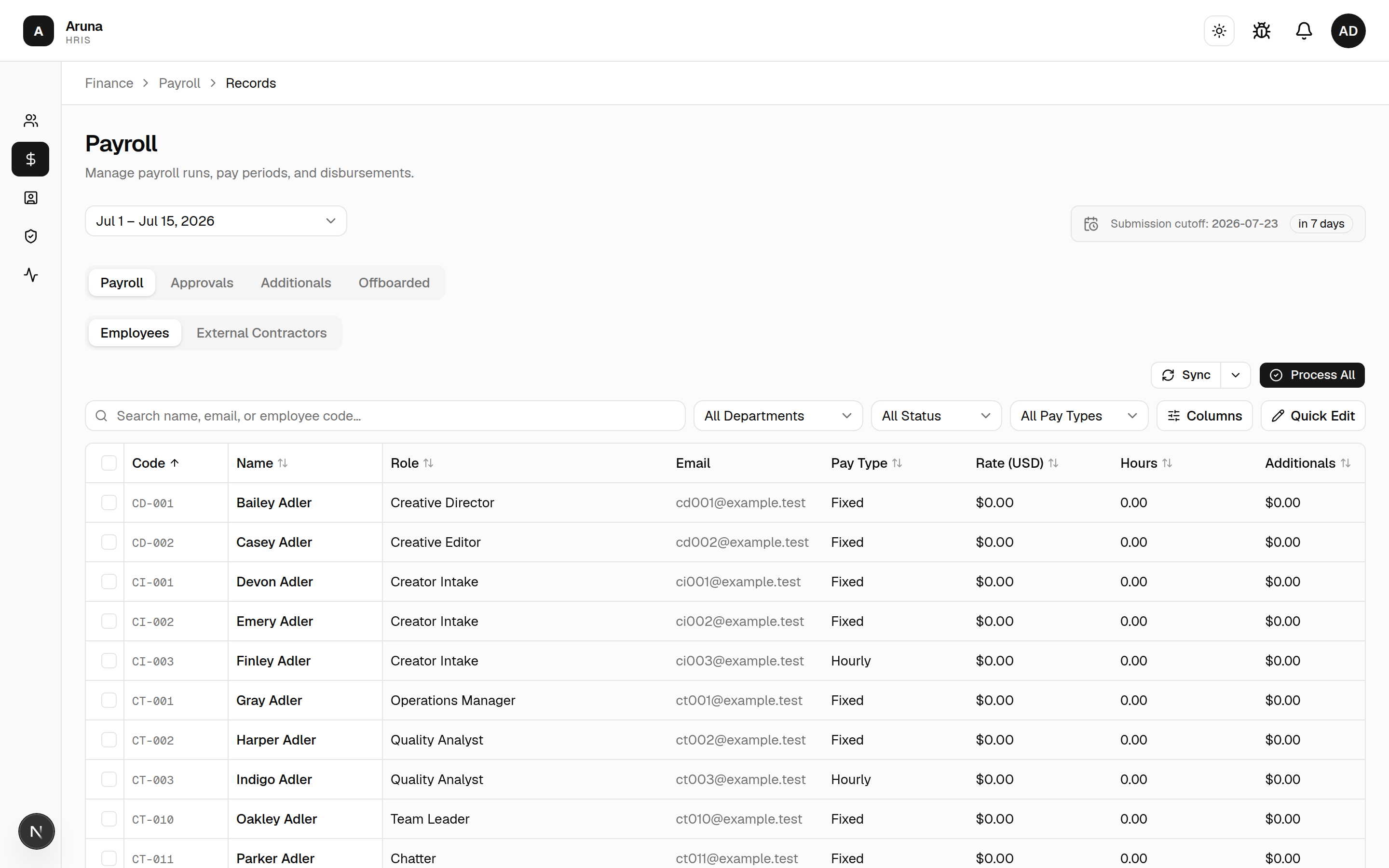
- Pick the period (top-left); the submission cutoff countdown is on the right.
- Pull Employees loads all active employees into the period so their tracked hours and pay populate. It confirms first — it creates a draft payroll record for every active employee who doesn't already have one (anyone without an active assignment or rate is skipped).
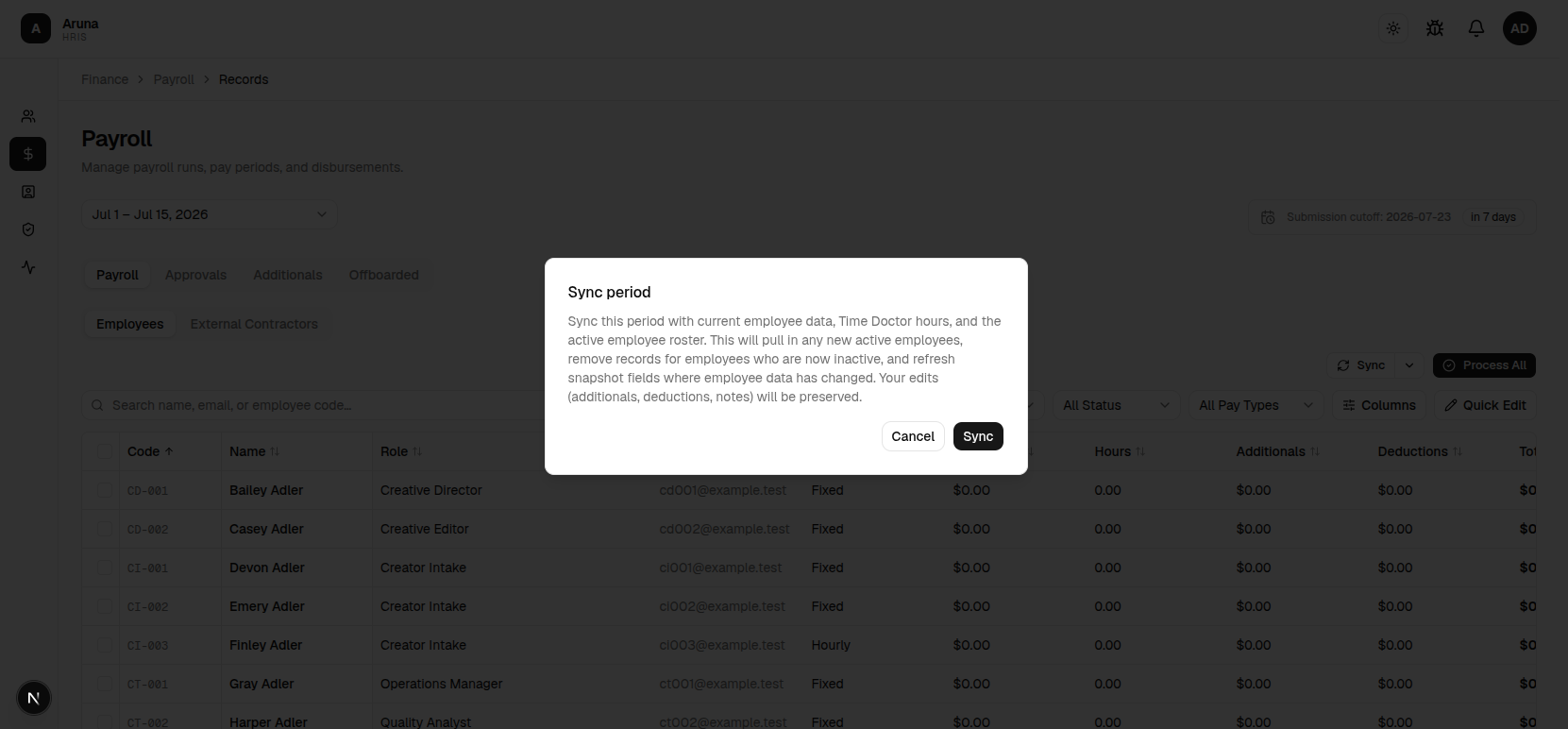
Pull runs in the background. It kicks off a job and the button stays busy while it works — the page keeps responding and a toast lands when it finishes. (The Time-Doctor fetch is slow on large periods; running it inline used to time out.) The same applies to Sync and Reset below.
- Top-level tabs: Payroll (the main run), Approvals, Additionals (the CT/SOT/TMT calculated breakdowns), and Offboarded (final-pay review).
- Inside Payroll, toggle Employees vs External Contractors (a contractor only appears once they have a payout for the period — an affiliate commission from a Sync, a fixed rate, or a manual line item). The contractor roster itself is managed under People & Culture → External Contractors.
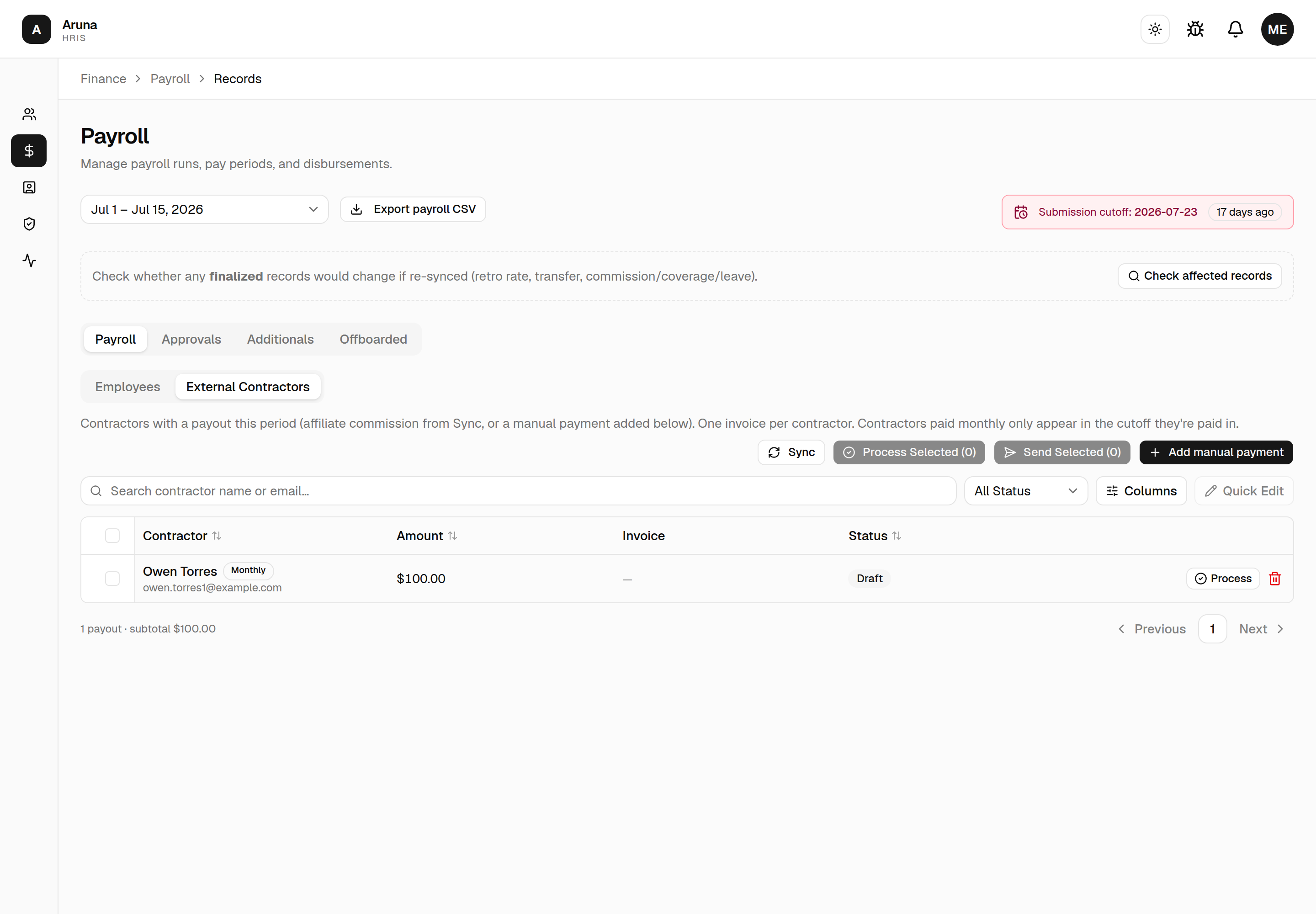
The tab has its own Sync / Process Selected / Send Selected / Add manual payment row — contractor payouts are materialized by this Sync, not the employee one. A row badged Monthly belongs to a contractor paid once a calendar month rather than per cutoff, so the amount is a full month's pay. Those contractors appear in one cutoff a month only — the one P&C nominated on their profile — so if someone you expect is missing, check their pay schedule before assuming the Sync failed. Add manual payment still works for them in their off cutoff.
Employees paid monthly¶
A fixed-salary employee can also be on a monthly schedule (P&C sets it under Adjust Pay). Unlike a contractor, they still get a payslip in both cutoffs — but their salary is issued in one half only:
- On their nominated cutoff, base pay is the whole month's salary, and the
Rate column reads
/ month. - In the other cutoff, base pay is $0 and the record says why ("Monthly salary issued in the 2nd cutoff"). Their earnings still land and are still paid there — commission, bonuses, retainer, overtime and rewards all belong to the cutoff they were earned in.
- Salary deductions are the exception. Unpaid leave, absences and SOT partial-cover docks reduce the salary, so they're applied on the cutoff that pays it and cover the whole month. On a Sync, the payout cutoff re-derives them from both halves; the off cutoff books none. So an unpaid day in the first half of June shows up as a deduction on the June 16–30 payslip, not as a negative payslip in the first half.
- A row that ends up at $0 with nothing else on it is skipped by the ArunaPay push with the reason "Monthly employee — salary is issued in the 2nd cutoff", not the generic "Amount is not positive".
So an unexpectedly small payslip in the first half of a month is worth checking against the employee's pay schedule before treating it as a Sync problem.
Keeping a period fresh — Sync & Reset¶
Once employees are pulled, use the Sync split-button to re-materialize auto-calculated pay after any change (commission, coverage, retainers, leave, absences all re-compute on a Sync):
- Sync without Time Doctor — the fast path. Recomputes all the system-owned line items but keeps the hours already pulled.
- Reset (in the dropdown) — destructive: deletes every draft line item, clears notes, and re-pulls from scratch. Use only when a period is badly out of sync.
Sync and Reset also run in the background (same as Pull) — the button shows a busy state and a result toast lands when the job completes.
If a period drifts (a mapping or approval changed after the last Sync), a resync-needed banner appears prompting you to Sync.
Pull vs. Sync. On an empty period the two do the same thing (both add a draft row for every eligible employee). Once records exist they differ: Pull only adds anyone missing; Sync also refreshes the existing draft rows — re-pulls Time-Doctor hours, re-materializes commission/coverage/ retainer/leave, and drops now-inactive people — then adds anyone missing.
Export the whole period to CSV¶
The Export payroll CSV button (next to the period selector) downloads every payroll on the cutoff in one file — employee payrolls and external contractor payouts, distinguished by a Type column. Employee rows carry the full snapshot (code, department, role, pay type, rate, hours, additionals, deductions, total, status, invoice id); contractor rows carry name/email and the payout total. Like Pull/Sync, it runs as a background job — the button shows a busy state and the download starts when the file is ready. (The Additionals-tab breakdown views have their own per-breakdown Export CSV too; those run the same way.)
The payroll table¶
Each row is one employee's payroll for the period, with a status (see §7), hours, rate, additionals, deductions, and the invoice total. You can:
- Search / filter by status, pay type, or department, and sort any column.
- Select rows (checkboxes) for batch process/send.
- Quick-edit mode (toolbar toggle) makes the Additionals/Deductions and Note cells editable inline for draft rows without opening each record.
- Click a row to open that person's full payroll detail (next section).
4. A single person's payroll & invoice¶
Click any payroll row to open the detail page — one employee's full invoice for the period. This is where you audit and adjust an individual's pay.
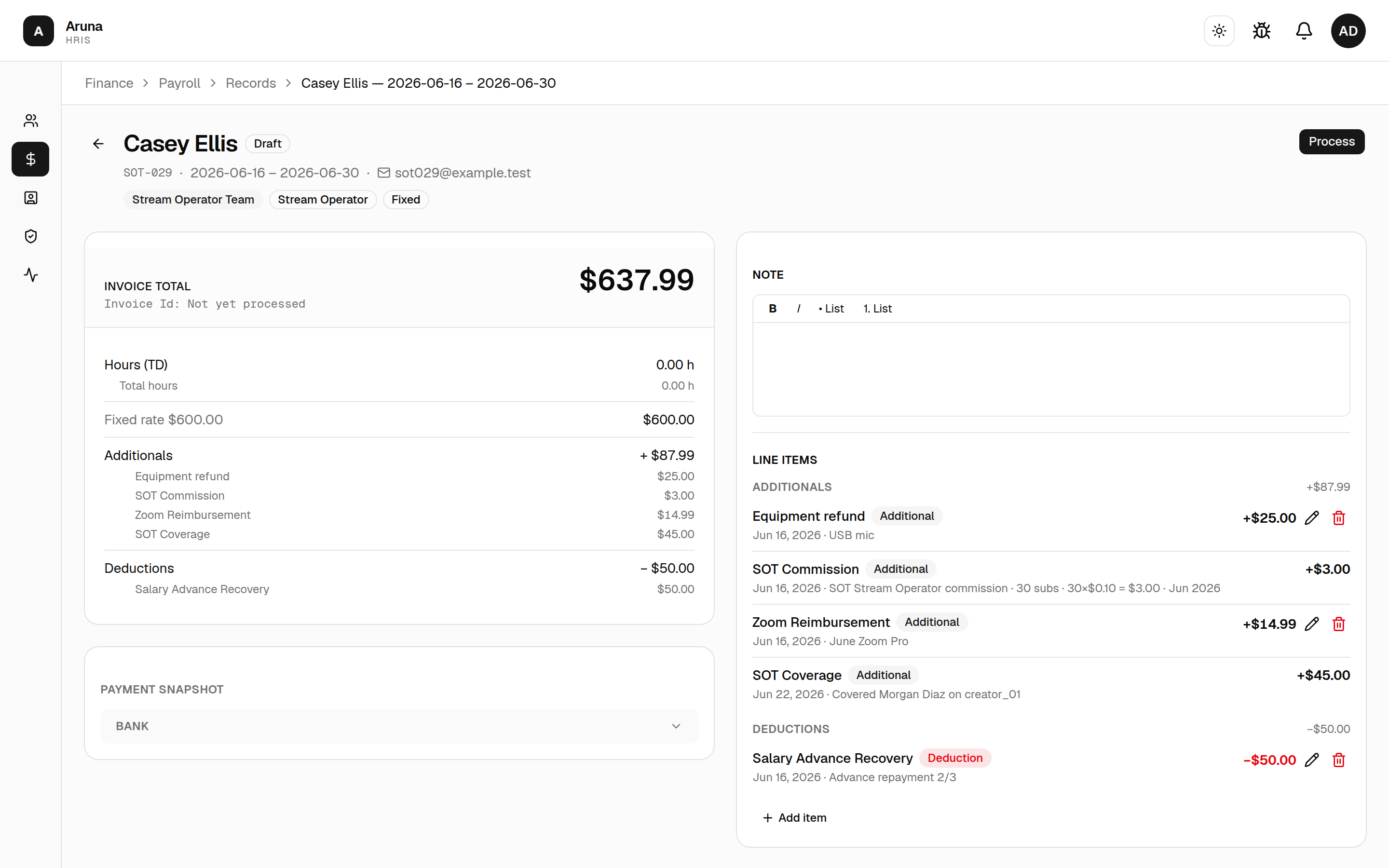
The page has:
- Header — name, employee code, period, email, department / role / pay-type badges, and a status badge (Draft / Processing / Executed / Sent).
- Invoice summary card (left) — the invoice total, the Invoice Id
(shows "Not yet processed" until you process it), an hours breakdown
(Time-Doctor hours + any extra hours line items → total hours), the base
(hourly =
hours × rate; fixed = the fixed rate), then Additionals and Deductions grouped by type. Multi-item groups (e.g. per-day commission or CT daily bonus) collapse into one line you can expand to the day level. - Payment snapshot (left) — the bank / crypto payout details captured for this run.
- Note (right) — a rich-text note on the invoice. Edits auto-save (you'll see "Saving…/Saved").
- Line items (right) — add / edit / delete manual additionals and deductions (next section).
- Requests and Disputes (bottom) — the time-adjustment / zoom / quiz requests and any payslip disputes tied to this person, decided inline.
Viewing & downloading the invoice PDF¶
- Once a record is processed, a View Invoice File button (and an eye icon in the table) opens the invoice PDF inline in a new tab.
- Once sent, you also get Download PDF.
The detail page is editable only while the record is a draft. After it's processed or sent it becomes read-only — to change anything you must Convert to draft first (see §7).
5. Line items — manual additionals & deductions¶
On the detail page's Line items panel, click Add item to add a manual adjustment to someone's pay. Each line item is either an Additional (adds to the total) or a Deduction (subtracts).
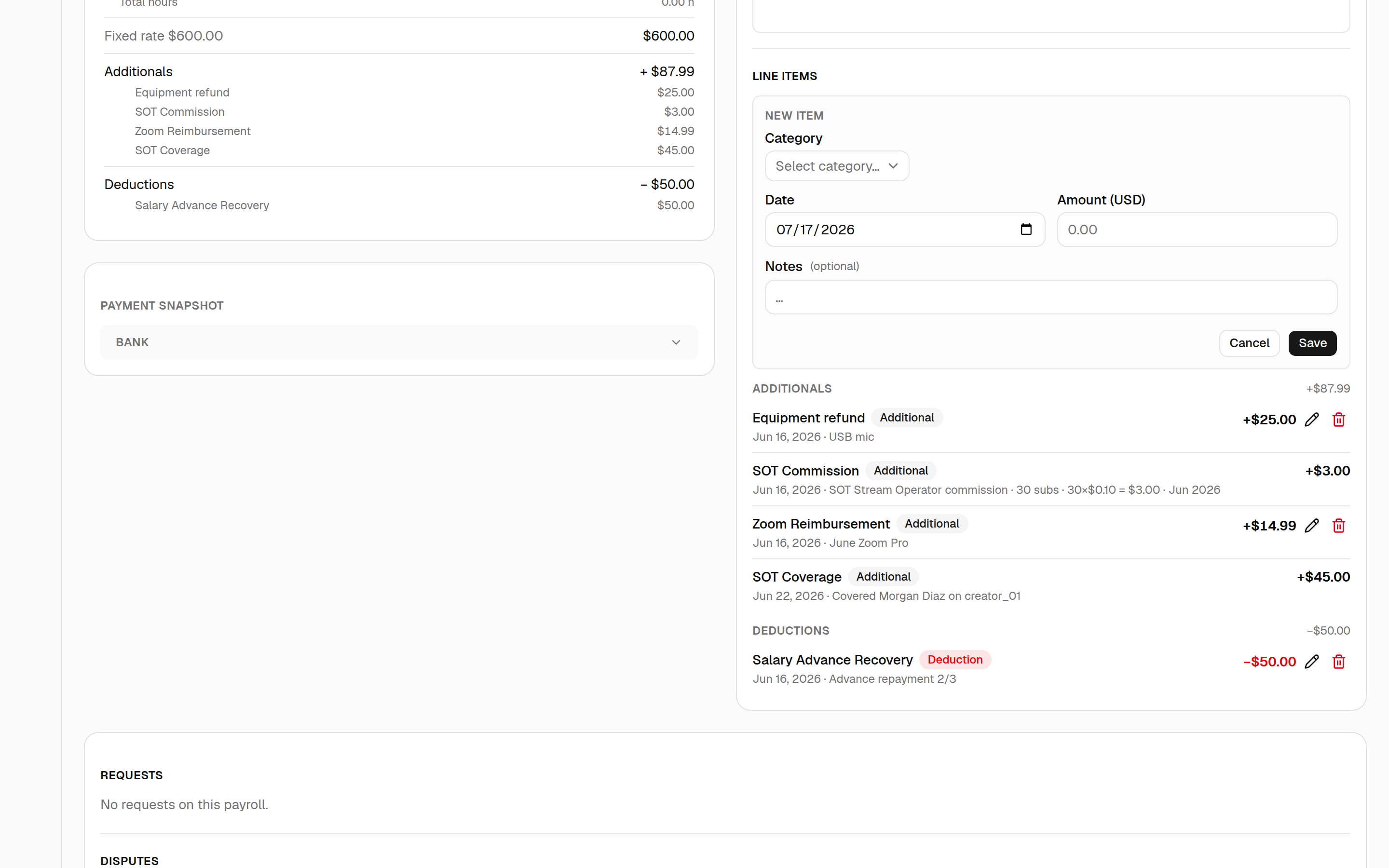
The form:
- Category — grouped into:
- Additionals: Zoom Reimbursement, Quiz Reward, Referral Bonus, Cover Shift Bonus, Additional Hours.
- Deductions: Absent Deduction, Salary Advance Recovery, Offboarding Proration.
- Other: Custom (free-text) — you type the label and pick the direction (Additional or Deduction) yourself.
- Date — defaults to today.
- Amount (USD) — except for Additional Hours, where you instead enter Hours and the amount auto-computes at the employee's implied hourly rate.
- Notes — optional.
Edit or delete a line item with the pencil / trash icons; deleting warns that it recalculates the payroll total.
System-owned rows can't be hand-edited. Auto-calculated categories — Commission, CT Daily Bonus, SOT commission/coverage, Retainer Fee, Affiliate Commission, and anything created by an approved request/dispute/leave — are owned by the system. They're wiped and rewritten on each Sync, so the category dropdown deliberately omits them and their rows show no edit control. To change those, fix the underlying source (the mapping, the approval, the Time-Doctor hours) and Sync — don't try to patch the line item.
6. Approvals¶
Under Records → Approvals, clear everything that affects a payslip before you process it. There are four tabs, all scoped to the selected period.
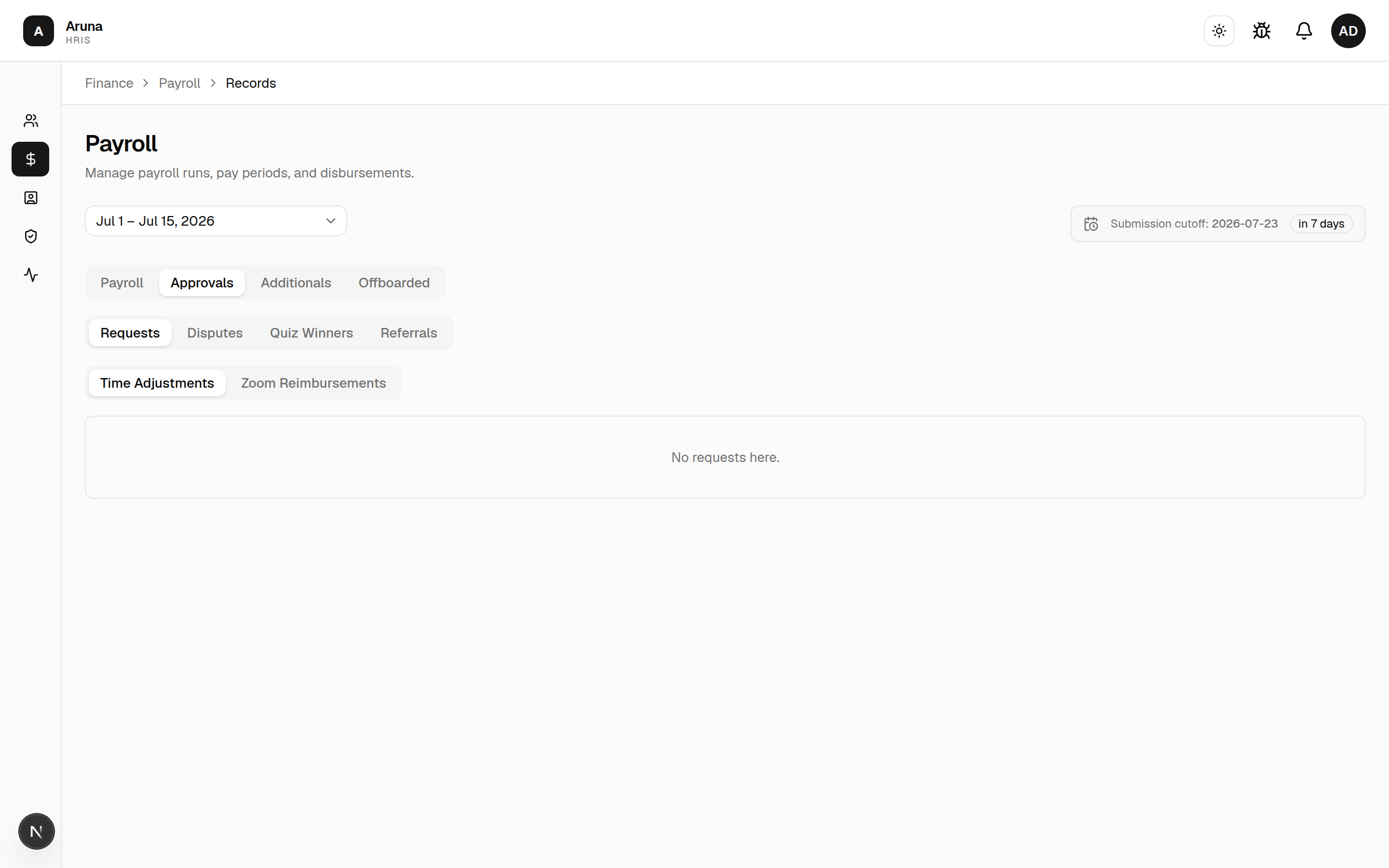
Pending-count badges. The Approvals view tab shows a badge with the total number of items waiting on Finance, and each sub-tab (Requests, Disputes, Quiz Winners, Referrals) shows its own count — so nothing gets forgotten. The counts are only "needs-your-action" items; already-decided rows aren't counted.
Each row opens a decision dialog — the button reads Decide when it's your turn to act, or View when it's already settled or waiting on someone else.
- Requests → Time Adjustments — an employee's claim to correct tracked hours. The row shows the date, the claimed window, and the net hours. Finance approves or rejects at the validator-approved amount — it doesn't adjust the hours (the validator owns that number). Approving flows the approved hours into that person's pay. Once Finance approves, the request is locked (no re-edit); a rejected one can still be revisited.
- Requests → Zoom Reimbursements — shows the local amount + currency and the USD amount; approving adds a Zoom Reimbursement to the payroll. Finance can override the USD amount on approval — the override is recorded on the request, so the reimbursement data (and the row's USD) then show the amount actually paid, not just the original FX figure (which is kept for audit).
- Requests → Reimbursements — every other out-of-pocket claim: a client dinner, tokens, a licence. The row leads with the employee's subject, since that's the only thing telling two claims apart, then the local amount and USD. Finance is the only approver — there's no manager step, same as Zoom. Approving books the claim on the payslip with the subject in the line's notes. The USD override works exactly as it does for Zoom.
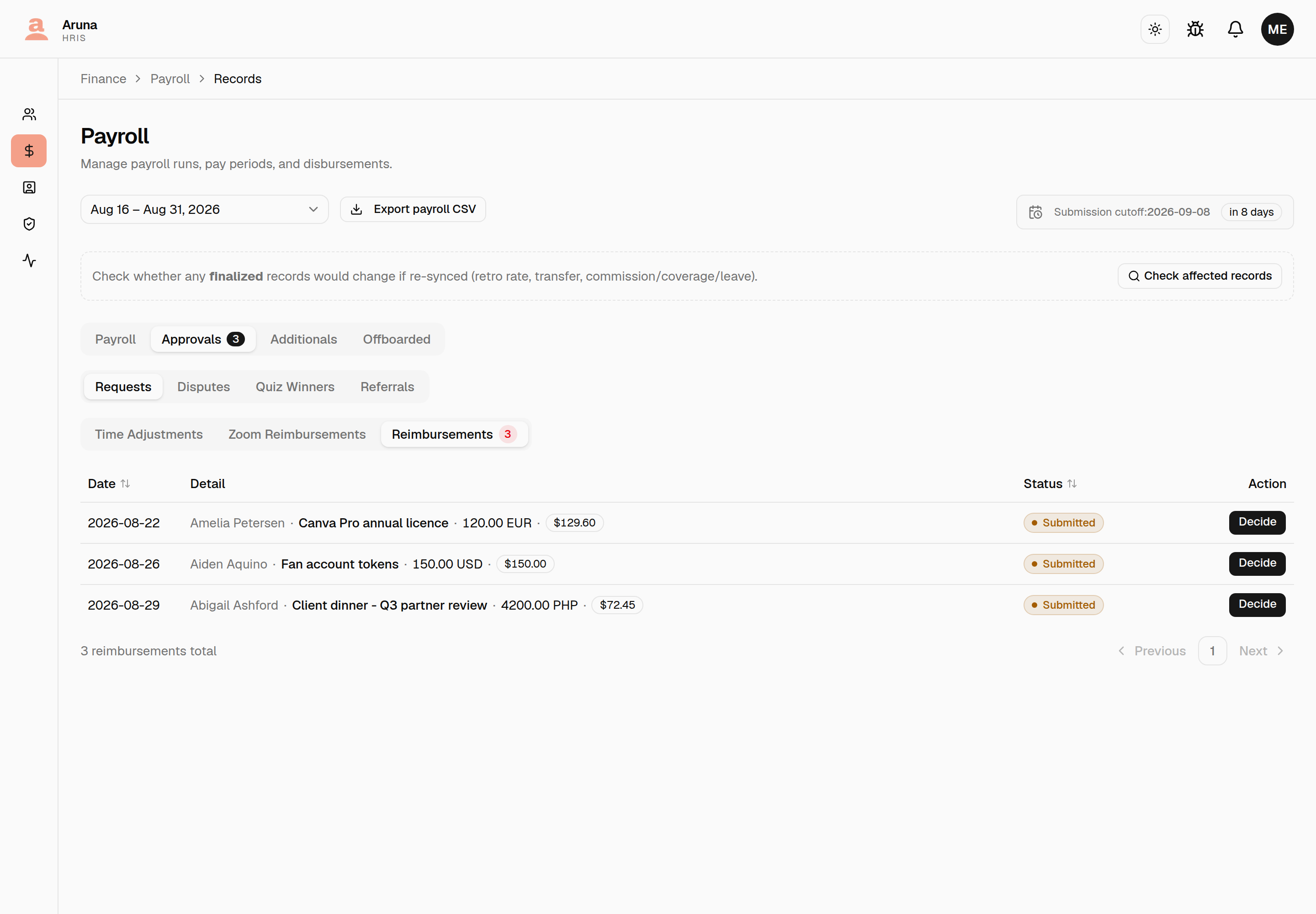
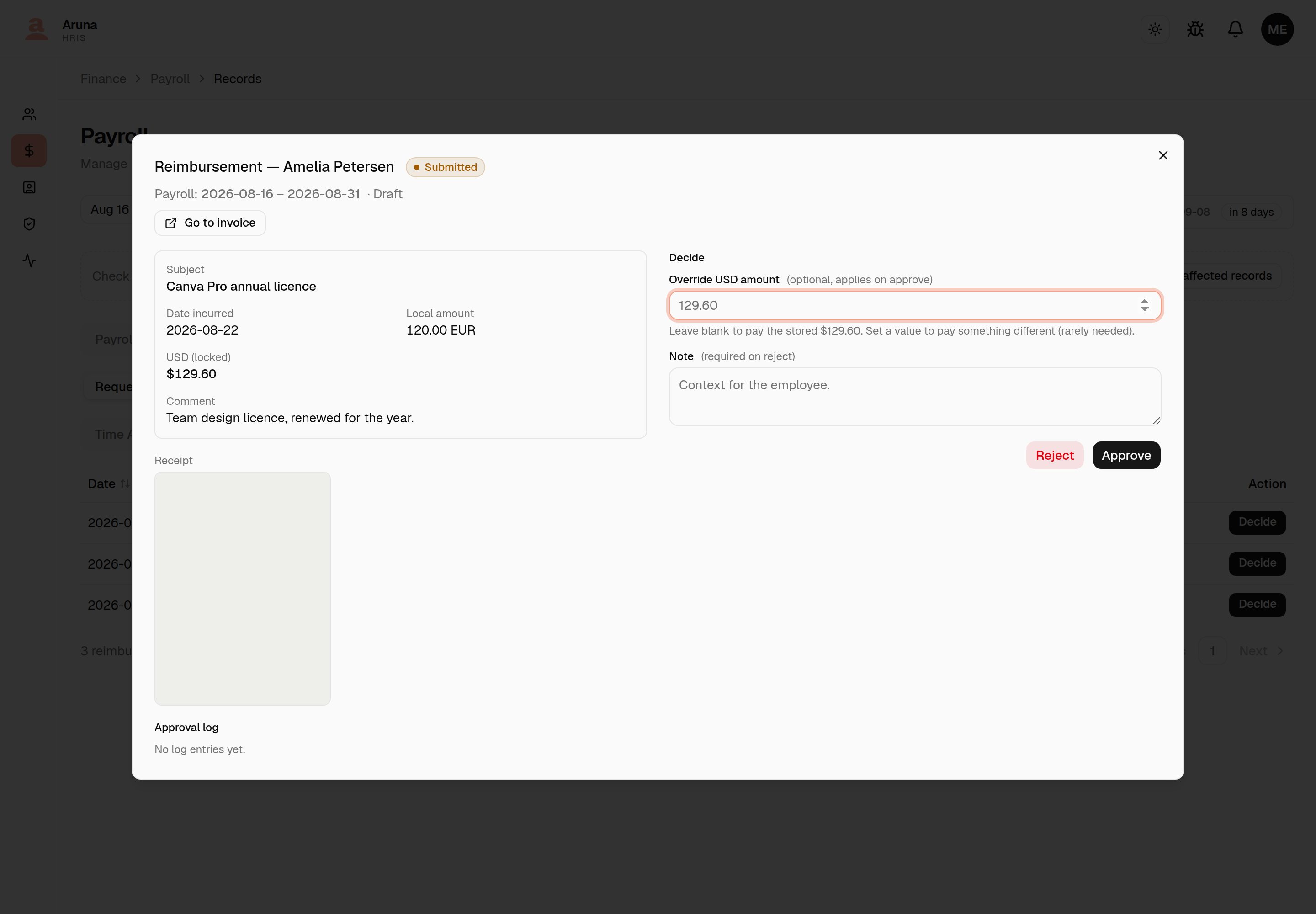
A rejection needs a note. That note is what the employee sees, and it's what lets them correct the claim and resubmit — a duplicate claim is not auto-rejected here (two client dinners on the same day for the same amount are both plausible), so it's on Finance to spot a genuine double. - Disputes — payslip disputes; see §8. - Quiz Winners — CT/SOT quiz-win payouts submitted by managers; the row shows the win date and quiz kind. Approving adds the prize to the winner's payroll. - Referrals — referral-bonus payouts. Referrals are two-stage: P&C approves first, then it reaches Finance ("awaiting finance"). The dialog states the fixed $100, paid to the referrer 6 months after the referee's hire date; the Finance action is "Approve as Finance · create line item", which posts the bonus onto the referrer's open-period payroll.
Approved requests/quiz/referrals materialize as system-owned line items on the relevant payroll — you won't hand-edit them; re-open the request to change a decision.
7. Processing & sending payslips¶
A payroll record moves through Draft → Processing → Processed → Sent (with a Failed state if PDF generation errors — use Retry).
- Draft — editable; hours, notes, and manual line items can all change.
- Processing — transient while the invoice PDF generates.
- Processed ("Executed") — locked, invoice PDF + Invoice Id generated, no email sent yet.
- Sent — the invoice email has gone to the employee.
Bulk (tick the rows you mean)¶
Both bulk actions work off the checkboxes, on the Employees and External Contractors tabs alike — there is no "process everything" button. These lock invoices and send real emails, so the selection is the record of what you intended.
- Process Selected (n) — locks the ticked draft records and generates their invoice PDFs. No emails are sent; you can review before sending. Runs in the background and the table shows live progress.
- Send Selected (n) — emails the invoice to the ticked processed records.
Both stay visible but greyed out until the selection contains something they
apply to. The counts are status-aware: Process Selected (3) next to
Send Selected (5) means your selection holds 3 drafts and 5 processed records,
and each button touches only its own. So you can tick a mixed set — or the
header checkbox for everything on screen — and each row gets the operation that
fits it.
The header checkbox covers the rows currently loaded
It ticks everything on the current page (200 rows), not the period as a whole. Periods sit well under that today, so in practice it's everything — but on a period larger than one page, work through the pages.
Per person (detail page or row)¶
- Draft → Process.
- Processed → View Invoice File, Send invoice, or Convert to draft.
- Sent → View, Download PDF, Resend email, or Convert to draft.
Convert to draft (fixing after the fact)¶
Convert to draft unlocks a processed/sent record so you can edit it again. If it was already sent, you're warned that re-processing sends a revised invoice under the same invoice number. This is the normal path when a late approval or dispute changes someone's total.
Processing locks the record. Draft edits (line items, notes) are disabled once processed/sent — Convert to draft to reopen. There's no hard gate that forces every approval to be cleared before sending, but a pending-disputes banner and the Disputes column flag anything outstanding, and approving a dispute forces the record back to draft anyway.
8. Disputes¶
An employee can dispute a payslip within its dispute window. Finance settles disputes in two places — the Approvals → Disputes tab (the cross-period queue) and the Disputes section on a person's detail page. Both open the same decision dialog.
A dispute shows the amount in question, the employee's discrepancy details, any attachments, and its status: Open → Approved / Approved with adjustments / Rejected.
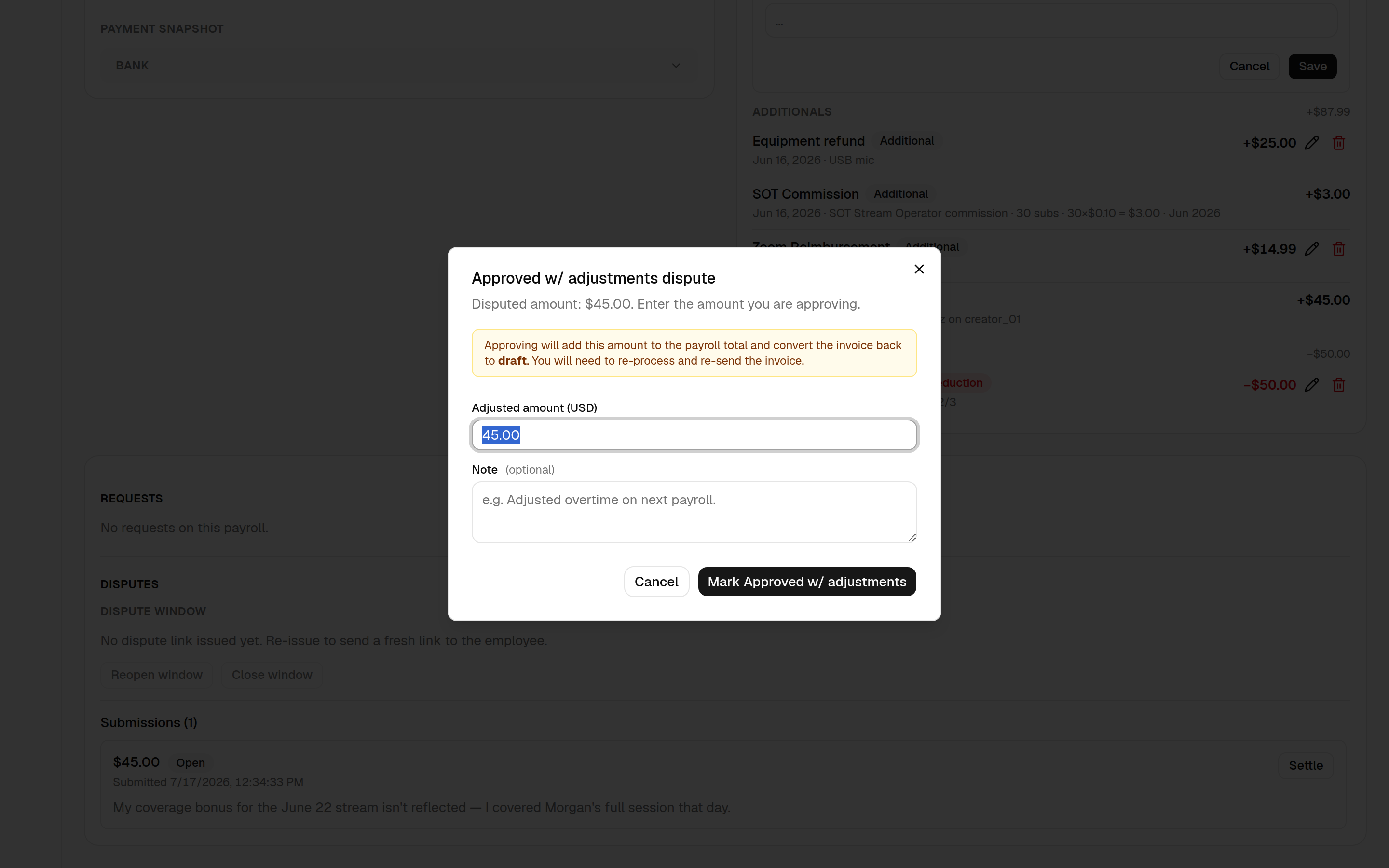
Settling an open dispute — pick one:
- Approve — accept the disputed amount in full.
- Approve with adjustments — enter a different Adjusted amount (USD) (prefilled to the disputed amount; must be > 0).
- Reject — decline it. You can add a note for HR/payroll context (the employee doesn't see it).
Approving converts the invoice back to draft. Both approve outcomes add the settled amount to the payroll total and revert the record to draft — you then re-process and re-send. Rejecting doesn't change pay. A settled dispute can be reopened if you need to redo the decision.
Marking a dispute as being worked on. Each open dispute has a Processing toggle. Tick it and a Processing badge appears on the row — a purely visual cue for the Finance team that someone's already on it, so two people don't pick up the same dispute. It changes nothing about the settlement and sends no notification or email; untick it any time.
The dispute window¶
On the detail page you also control the dispute window itself — its status (Active / Expired / Closed / Revoked), expiry, and reopen count. Use Reopen window to let an employee (re)submit after it closed, or Close window to end the dispute period early.
9. Offboarded employees¶
The Offboarded tab lists people who left mid-cutoff, with their last working day and net total, and a Review invoice shortcut into each record.
Final pay for an offboarded fixed-salary employee is not auto-prorated — the banner tells you to open each invoice and add an Offboarding Proration deduction manually (it's a selectable deduction category on the line-item form). Prorate the salary down to the days actually worked, then process and send as usual.
10. History & settings¶
- Finance → History — the ledger of processed payroll, for reconciliation and lookups. Three tabs, one scope each: Periods (a cutoff), By Payee (one person across cutoffs — employees and external contractors alike), and Invoices Sent (the archive of what was emailed).
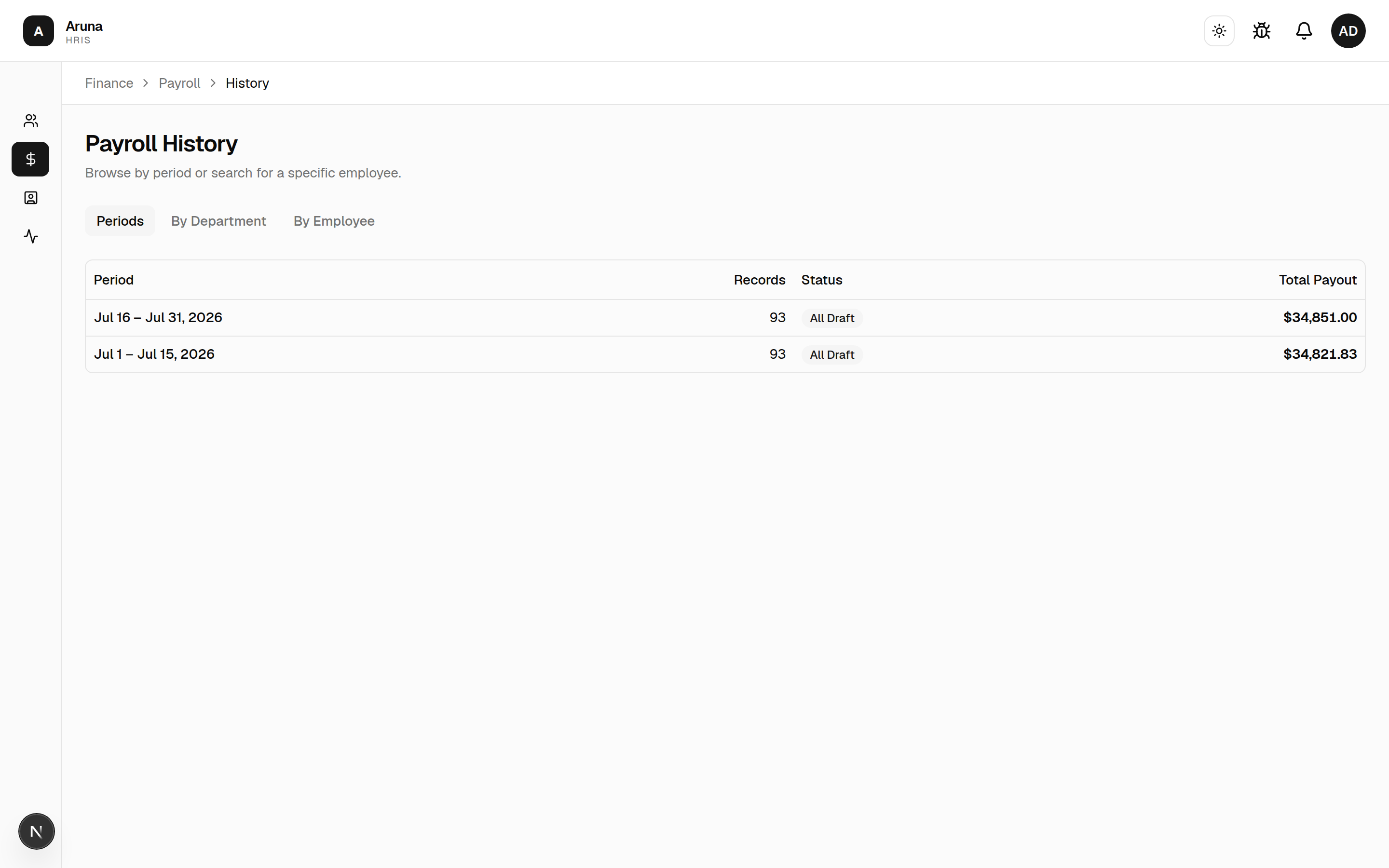
A record joins history the moment it's processed — drafts are still in flight and don't appear, so a period with nothing processed isn't listed at all. Every row opens the payslip read-only: its line items, send history, and activity log, with none of the buttons that would change it.
- Finance → Settings — the CT Daily Bonus pool rate, validation tolerance, shared roles, and the retainer fee per model (the TMT $150 default lives here).
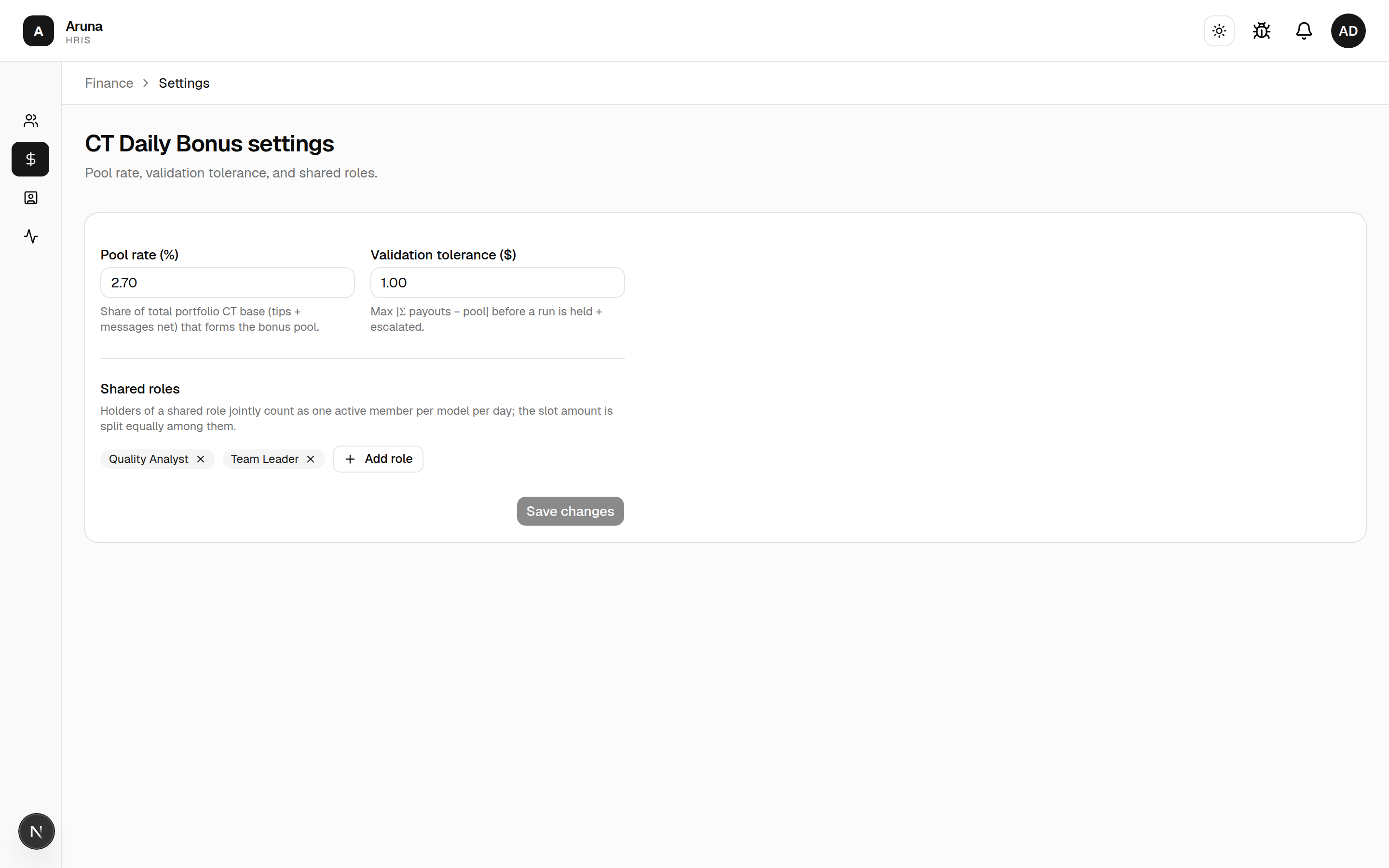
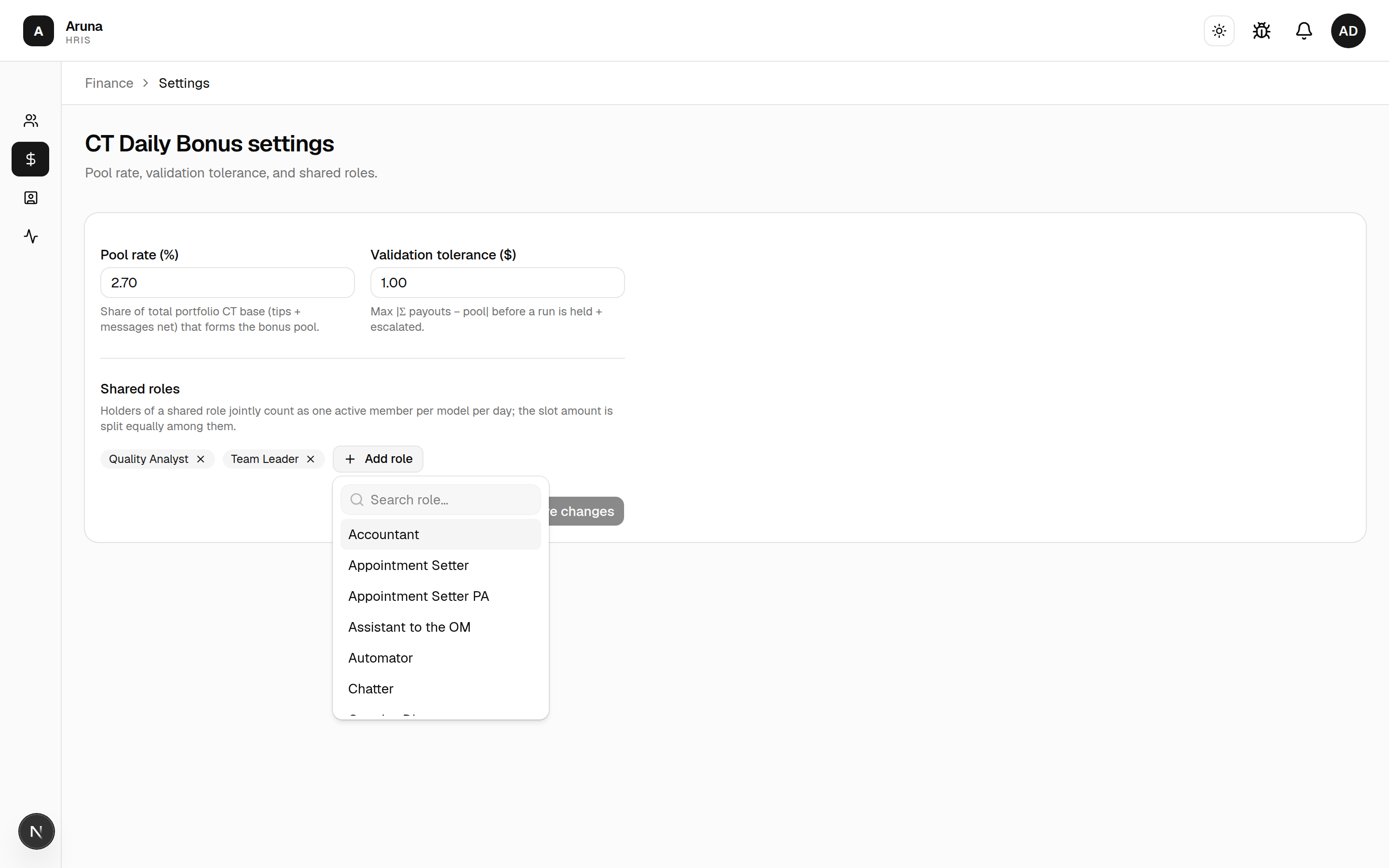
Shared roles — holders of a shared role jointly count as one active member per model per day, splitting that slot's amount. Use Add role to pick one.
Troubleshooting¶
| Problem | What to do |
|---|---|
| Period won't accept submissions | It's still Scheduled — transition it to Open in Cutoffs |
| Payroll table is empty | Click Pull Employees for that period |
| Someone's hours are missing | Confirm P&C mapped them to a Time Doctor user, then Sync |
| Commission / retainer / bonus looks off | Fix the source mapping, then Sync — those rows are system-owned and rewritten on sync |
| "Resync needed" banner is showing | Something changed since the last sync — click Sync to re-materialize |
| Can't edit a line item | It's system-owned (auto-calculated) — change the source and sync instead |
| Can't edit an invoice at all | It's processed/sent and read-only — Convert to draft first |
| Approved a dispute, now the invoice is draft | Expected — approving adds the amount and reverts to draft; re-process and re-send |
| Offboarded person's final pay is wrong | Open their invoice and add an Offboarding Proration deduction manually |
| Payslip email didn't arrive | Re-open the sent record and use Resend email |
Tracking Link Affiliate¶
Talent managers file a cutoff sheet of Fanmetrics lifetime-revenue snapshots for their tracking links. Revenue attributable to a link earns 15%, split 10% to the manager and 5% to an external affiliate.
Your acceptance is the gate. Nothing on a sheet reaches a payslip or a contractor invoice until you accept it — and accepting writes the money immediately, not on the next Pull/Sync.
The queue¶
Payroll → Approvals → Tracking Links. The tab badge counts sheets awaiting a decision.
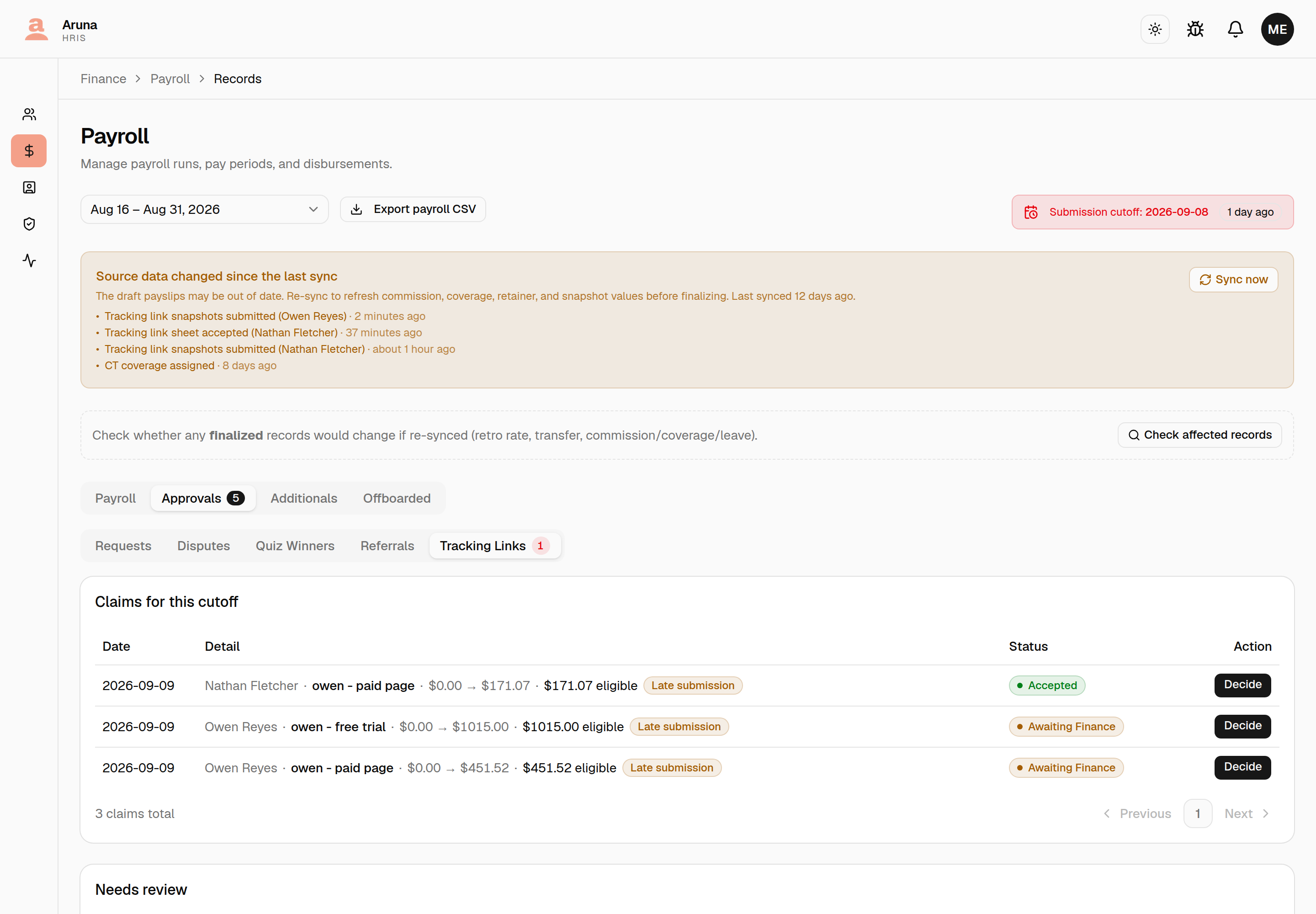
One row is one sheet — one manager, one cutoff — because that is what you accept or reject. Each row shows the manager, how many links are on the sheet, what it is worth, whether evidence is attached, and whether any row is flagged. Opening a row takes you to the sheet.
Three lists, and they answer different questions:
- Sheets for this cutoff — everything filed for the selected period, whatever its status. The record for that cutoff.
- Awaiting your decision — every undecided sheet in any period, longest wait first. This is what the tab badge counts, so an old sheet can't go quiet when you change the period selector. Undecided sheets also sort to the top of the list above.
- Flagged rows — rows that cannot pay, which means chargebacks: lifetime revenue fell. A record, not a queue. Rows are never decided one at a time, so open one to see the figures and go to the sheet it sits on.
Deciding a sheet¶
One manager, one cutoff, every row with its split — and the evidence.
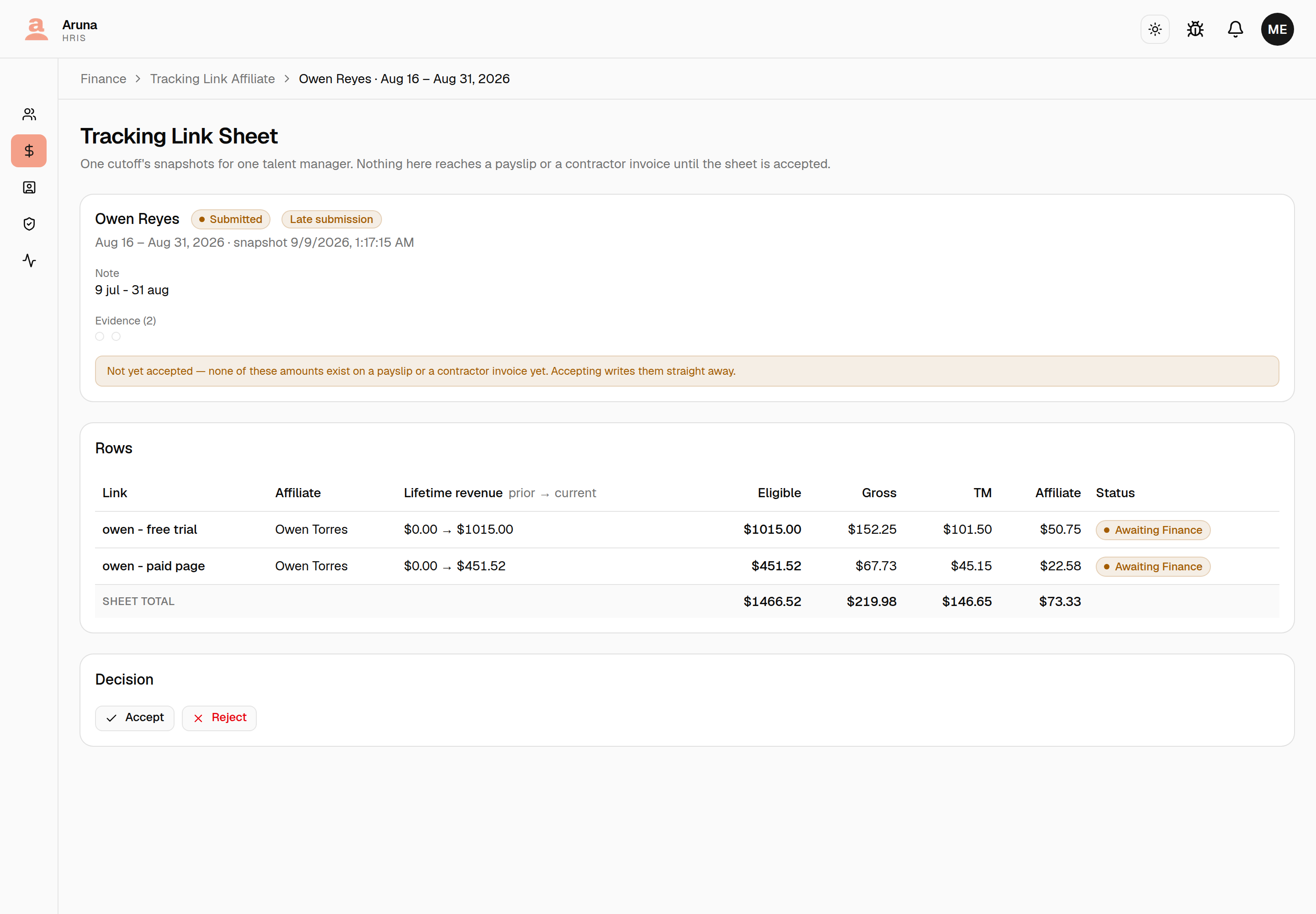
Check the evidence against the typed figures before accepting — that is the only real control here, and it is not a formality. The revenue is hand-entered from a Fanmetrics dashboard, there is no API behind it, and nothing compares the screenshots to anything: your reading of the picture against the numbers is the check.
Then:
- Accept — writes the money at once. The 10% lands on the manager's draft payslip; each affiliate's 5% is released if their balance with that manager has reached the threshold, otherwise it carries forward.
- Reject — keeps it off both rails, and requires a note. That note is the only thing the manager has to work from, so say what's wrong.
Rejection is reversible: you can accept a rejected sheet later if you change your mind. The one exception is a sheet whose affiliate payment has already settled — that money moved on-chain, and the system refuses the rejection rather than leave an invoice stranded.
Two things follow from a rejection, and they matter:
- Its figures stop counting. The manager's next cutoff measures from the last sheet you didn't reject. A rejected figure never sets the baseline.
- The manager can then withdraw it and re-file that cutoff. That is the only way a wrong figure gets fixed — nothing on a filed sheet is editable, so your rejection note is what tells them what to change. They can also withdraw a sheet before you decide, so one may disappear from your queue on its own.
Accepting touches nothing but the sheet. A row has no status of its own to reconcile: whether it pays is arithmetic. A chargeback row records revenue going down, so it carries no money and stays that way after acceptance — there is nothing to pay a percentage of.
Held balances¶
The 5% is held per (manager, affiliate) pair until it reaches $10, then releases in full.
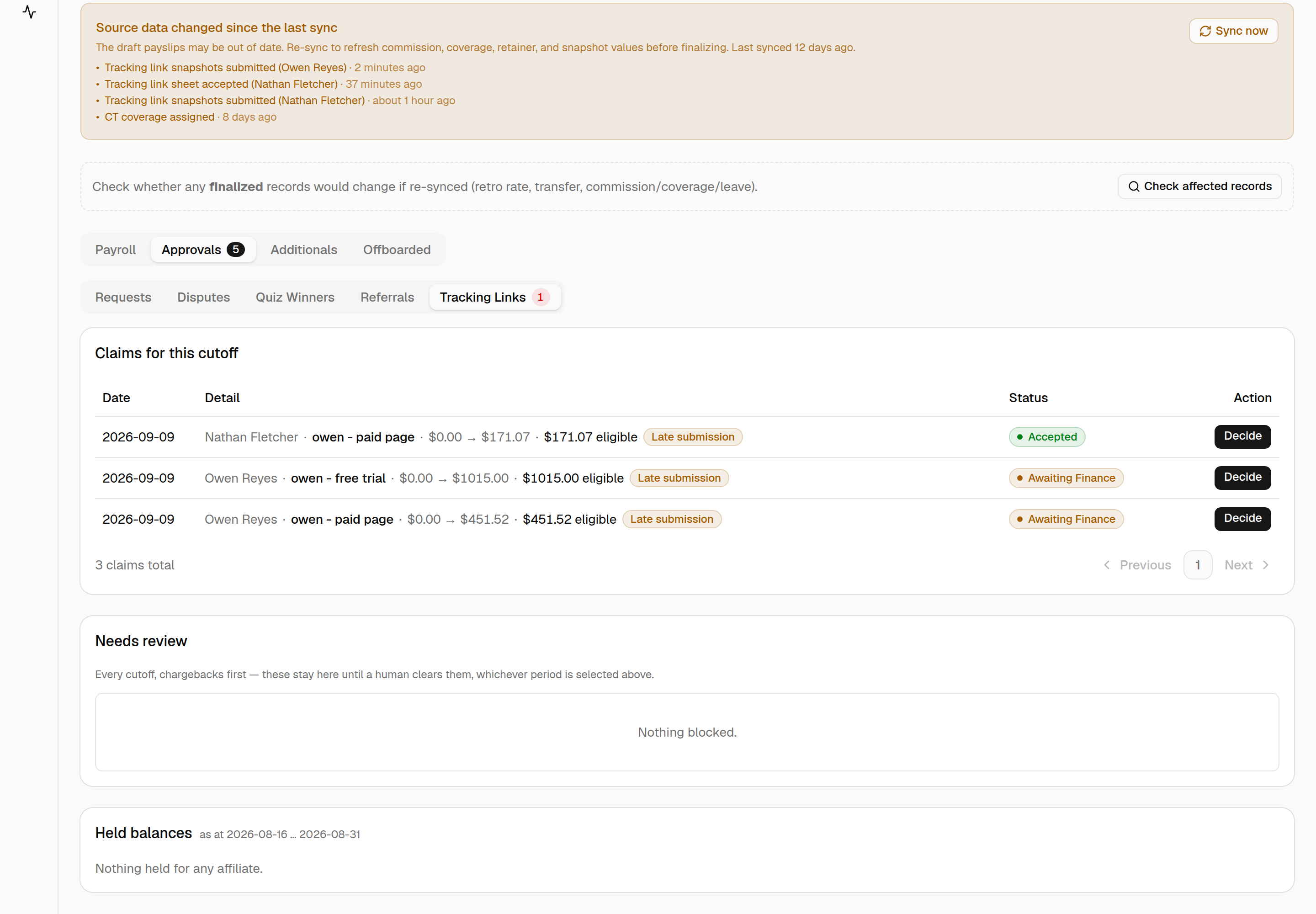
Two things worth knowing:
- Pooling is per manager. One affiliate's paid-page and free-trial links under the same manager add up together. The same affiliate working with two managers keeps two balances — so they can be owed $12 across two managers and be paid nothing.
- Figures are cumulative to the selected cutoff, not that cutoff's own activity. Picking an earlier period shows a smaller liability rather than money having gone missing.
An inactive affiliate is shown but never written a release — their payment would be skipped by the payout batch while the invoice claimed otherwise.
Each cutoff releases on its own. An earlier cutoff's payout that hasn't been processed yet doesn't hold up a later one: syncing the later cutoff releases only what built up since, onto that cutoff's invoice, and the earlier invoice keeps its own line. No amount is released twice — once a release takes a figure, no other cutoff can.
After acceptance¶
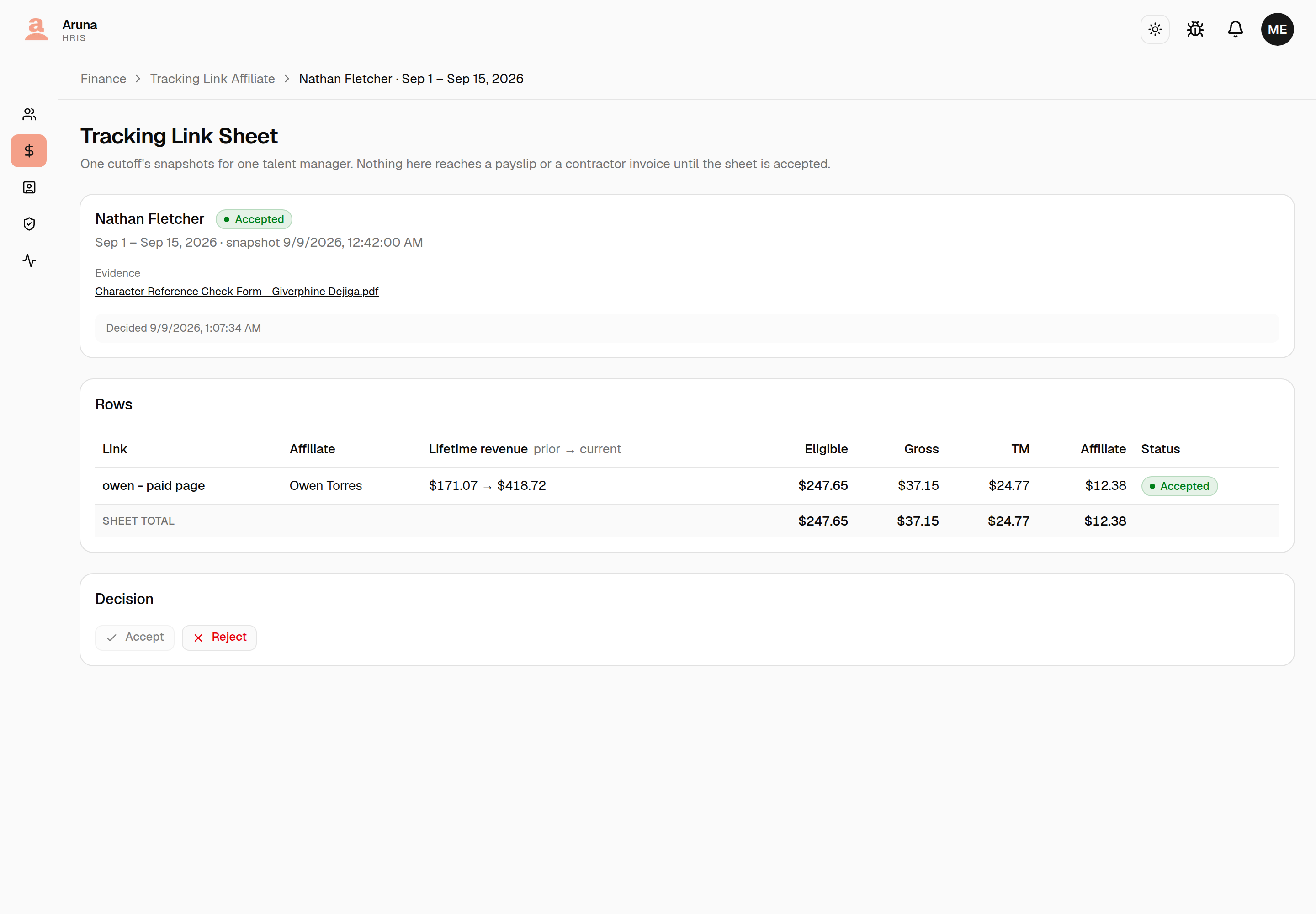
The manager's 10% appears as a Tracking Link Commission line item on their draft payslip for the cutoff the revenue belongs to — including a monthly-paid manager's off half, because it's an earning, not a salary adjustment.
Each released 5% appears as a Tracking Link Affiliate line on the affiliate's contractor payout, labelled with the manager it came from, with a breakdown naming each link. Two managers releasing to one affiliate in the same cutoff produce two lines on the one invoice.
Both are system-owned: they re-derive on every Pull/Sync and can't be hand-edited.
Troubleshooting¶
| Problem | What to do |
|---|---|
| Accepted a sheet but the payslip is unchanged | It writes immediately — check the manager has a draft payroll row for that cutoff |
| Need to undo an acceptance | Reject the sheet; it comes off both rails at once |
| "cannot be rejected — the money has moved" | The affiliate's payout has settled. Rejection can't recall it |
| An affiliate is never paid | Their balance with that manager hasn't reached $10, or they're inactive |
| Held balance didn't appear on this cutoff's invoice | Run contractor Sync for that cutoff. An earlier invoice still in draft doesn't block it — if the line is still missing, the balance built up since that earlier release is under $10 |
| A row reads Chargeback | Lifetime revenue fell. It records the drop, pays nothing, and always will — there is no positive revenue to pay on |
| A manager filed a wrong figure | Reject the sheet with a note saying what's wrong. They withdraw it and re-file; you can't edit it for them |
| A sheet reads Withdrawn | The manager replaced it after your rejection. It's kept for the record and pays nothing |
| A manager says they can't file a cutoff | They've filed a later one. Reject that sheet and they can file in order |
| Held balance looks too small for a period | The figure is cumulative to the selected cutoff — pick a later one |