CT (Chatting Team) Manager
Who this is for: Chatting Team managers.
Time: ~12 minutes.
You'll need: the management.ct module for the core surfaces, plus a
grant per tool below (management.ct.overtime, management.ct.personal_sales,
…) — P&C grants them individually, so you may have some and not others. Read
Department Managers — the basics first.
Everything in the manager basics guide applies to you — Time Validations and Leaves & Absences work the same way. This guide covers the CT-only tools.
The CT management landing
Open Management and select the CT tab. Alongside Time Validations and Leaves, you get the CT toolset:
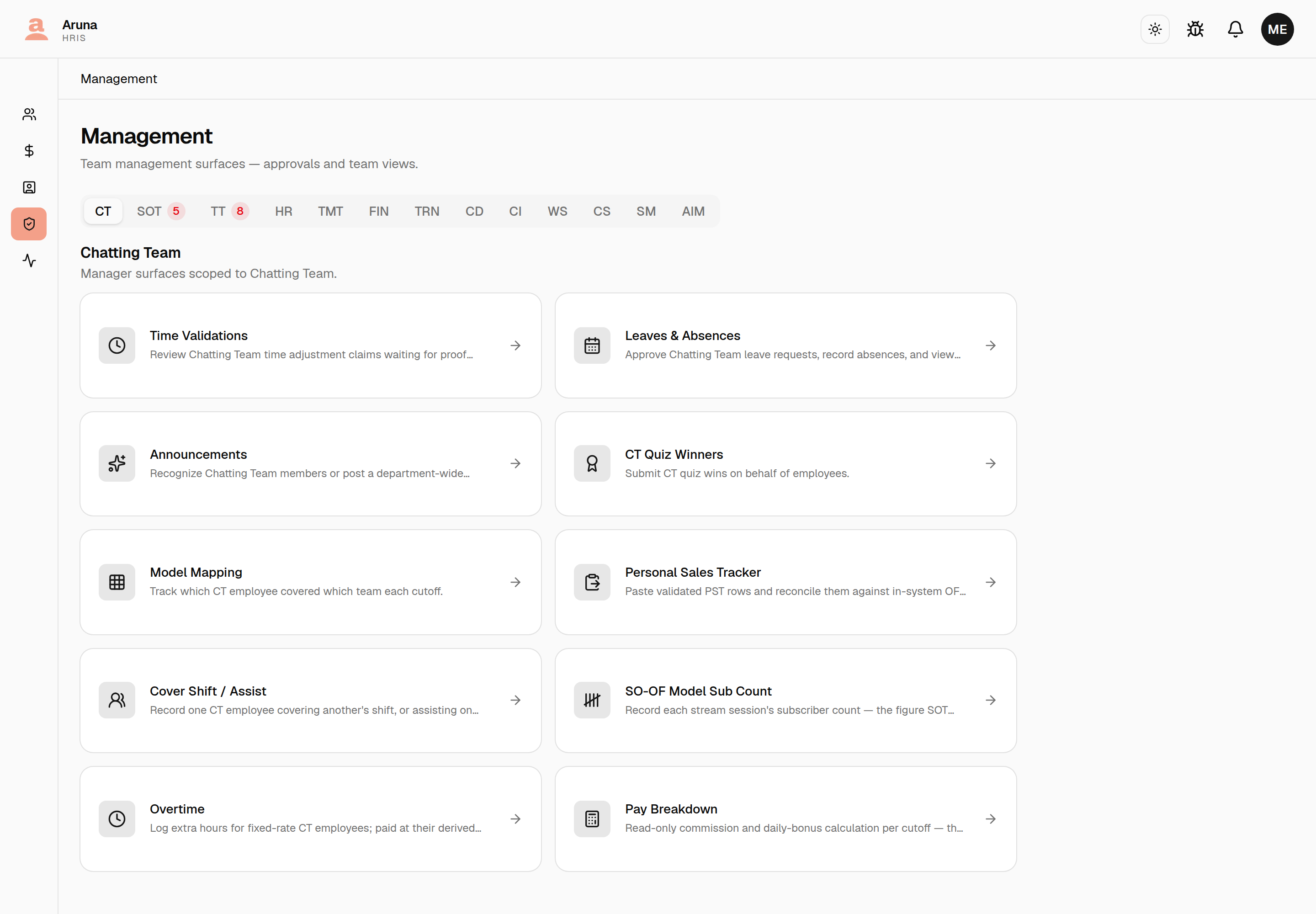
- CT Quiz Winners — submit CT quiz wins on behalf of employees.
- Model Mapping — track which CT employee covered which team each cutoff.
- Personal Sales Tracker — reconcile pasted PST rows against in-system transactions for commission.
- Cover Shift / Assist — record one CT employee covering another's shift, or assisting on another model as an extra body.
- SO-OF Model Sub Count — record each stream session's subscriber count.
- Overtime — record extra hours for fixed-rate CT employees; paid at their derived hourly rate on the next payroll sync.
- Pay Breakdown — read-only commission and daily-bonus figures per cutoff.
How these fit together
Most of your day-to-day is crediting the right chatter for the right sales. Three surfaces feed that, in a chain:
- Model Mapping and Cover Shift / Assist record who was working which model, when — as coverage assignments. Regular team coverage, moving-support duties, and one-off cover shifts are all coverage assignments under the hood.
- Personal Sales Tracker (PST) takes a chatter's validated sales sheet and ties each in-system OF transaction to one of those assignments.
- Pay Breakdown rolls the attributed transactions up into commission that lands on the payslip Finance runs.
The key rule (post-#322): a PST upload must attribute to a cover shift, an assist, or a moving-support assignment. Regular team rows are not valid PST targets. So before you can upload a chatter's personal sales, that chatter needs a cover-shift or a moving-support row in the cutoff — otherwise the upload is blocked and the page points you to Model Mapping or the cover-shift form to create one first.
The rest of this guide walks each operation in that order: set up coverage (Model Mapping + moving support), record cover shifts, then upload PST against them.
1. Model Mapping
Open Model Mapping. This is the per-cutoff record of which CT employee covered which team.
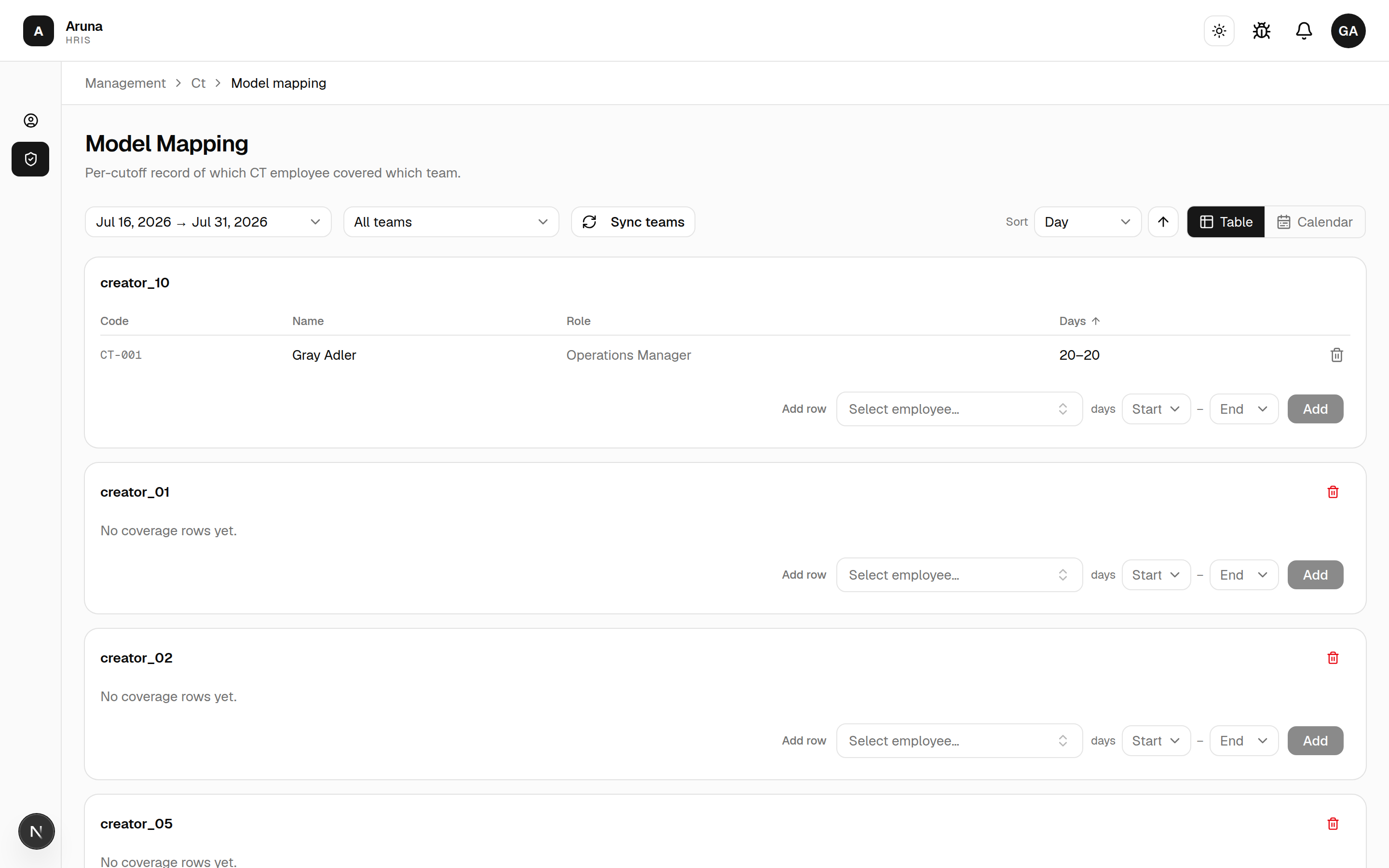
- Pick the cutoff period at the top.
- If nothing exists yet, Set up teams for this cutoff to start.
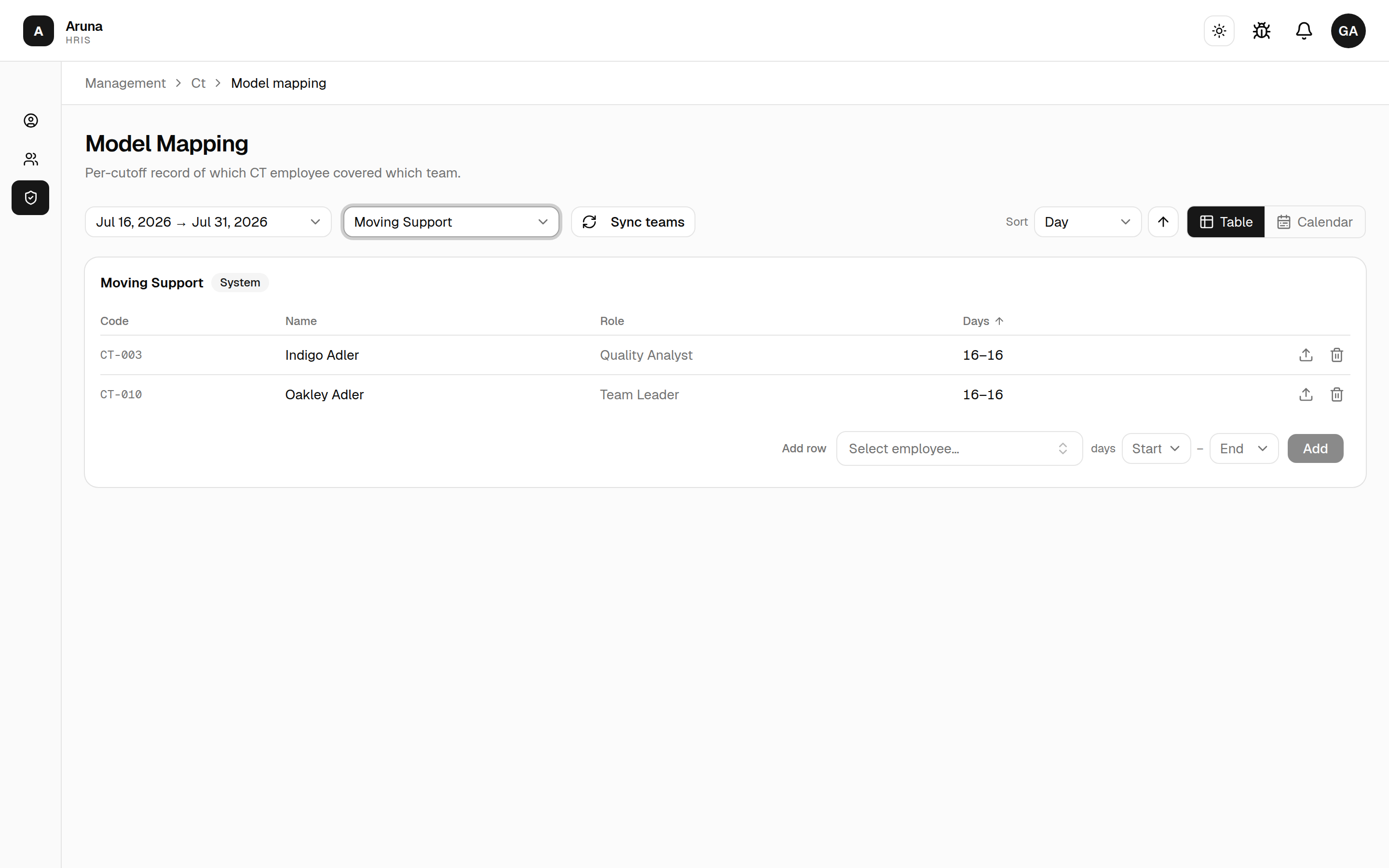
Once set up, you get a per-model editor. For each model, add a coverage row: pick the employee, the days, and the start/end. Use Sync teams to refresh the model list, and switch between Table and Calendar views.
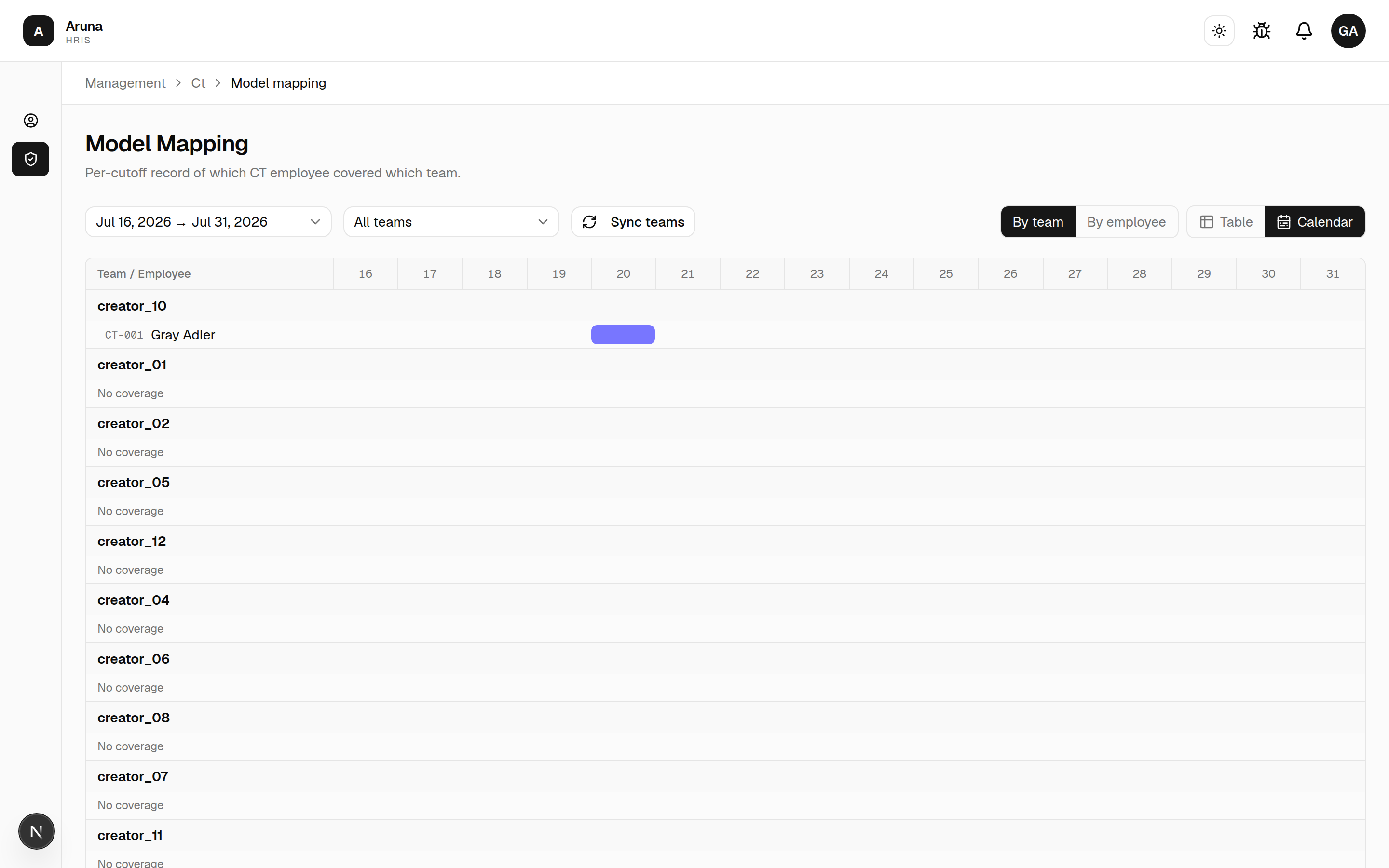
Switch to the Calendar view (and By team / By employee) to see coverage laid out across the cutoff's days.
- Mapping drives who is credited for each model's coverage that period, which feeds commission.
Operations on this page, step by step
- Set up teams for this cutoff — the first thing you do on a fresh cutoff. It creates the per-model model teams and the fixed system teams (including Moving Support) for that period. Until you run it the board is empty.
- Sync teams — re-runs the setup to pull in any models added since. Existing rows are kept; new model teams appear. Run it if a model is missing from the board.
- Add row (on any team card) — pick the employee, then a start day and end day from the cutoff's day range. Start day must be on or before end day. This is the coverage assignment.
- Remove row (trash icon) — deletes a single coverage assignment. Removing an empty team card deletes the team.
- Table / Calendar and By team / By employee — read-only views of the same data; they don't change anything.
Moving support duties
Moving Support is a system team on the Model Mapping board (it appears automatically after Set up teams — you don't create it, and it isn't tied to a single model). Use it to record a chatter who floated across models rather than covering one fixed team or one named person's shift.
- Find the Moving Support card on the Model Mapping board and Add row: employee + the day range they floated.
- Each moving-support row is a valid attribution target for Personal Sales Tracker. That's why these rows — and only these rows — show an Upload PST icon and a clickable employee name: both jump straight to that chatter's PST page so you can attribute their sales to the moving-support assignment.
- Use moving support (vs. a cover shift) when there's no single "covered-for" person — the chatter helped across several models and you just need somewhere to hang their personal sales for the cutoff.
Which one to record: a cover shift replaces one named person on one model for a specific time window (and can dock that person as absent). An assist is the same shape minus the replacement — the chatter worked another model's account as an additional body, so nobody is named and nobody is marked absent. Moving support is open-ended floating help across models with no single team. All three are coverage assignments and all three can receive PST — pick whichever matches what actually happened.
2. Cover Shift / Assist
Open Cover Shift / Assist. This surface records a CT employee working a model team outside their own roster, in two flavours:
- Cover — they stood in for a named chatter who wasn't working that shift. That person is marked absent for those days.
- Assist — they helped on another model's account as an additional body. Nobody is covered and nobody is marked absent.
Both carry a time window, both pay the same solo commission on the sales you attribute to them, and both are valid targets for a personal-sales upload — see Personal Sales Tracker. The Cover vs Assist panel at the top of the page repeats this if you need it in the moment.
The list has All / Cover / Assist tabs, and each row carries a badge so you can tell the two apart at a glance.
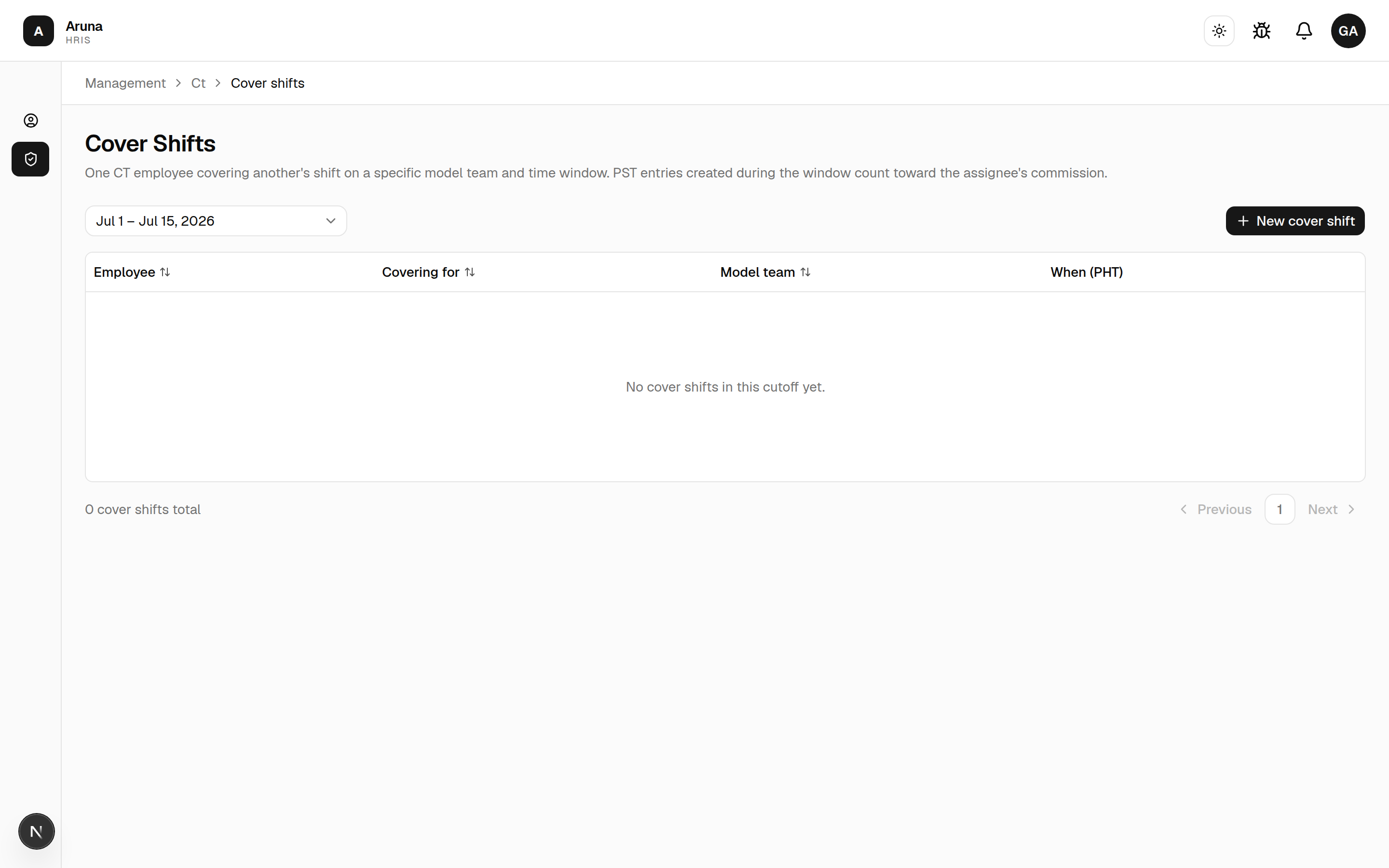
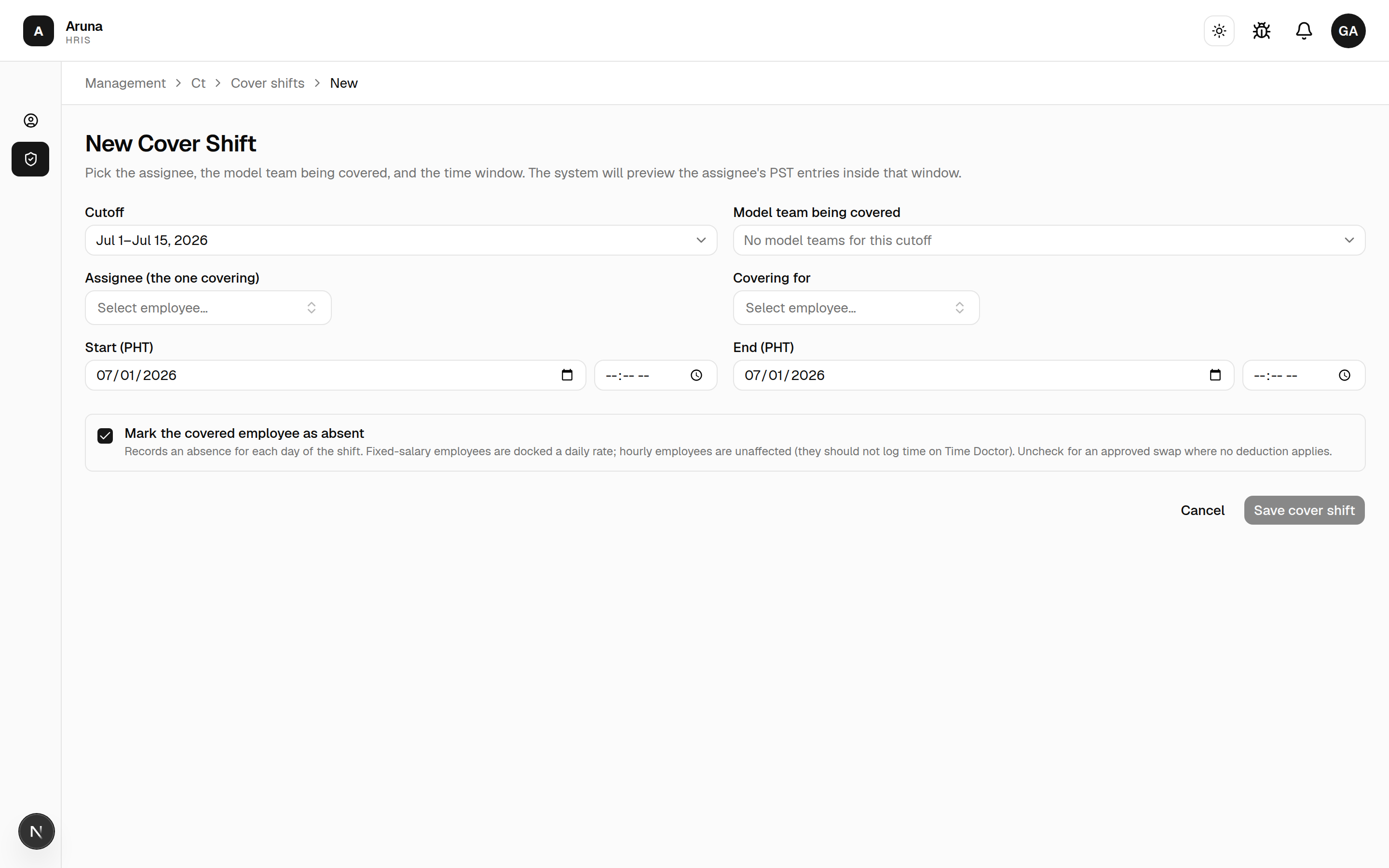
Click New shift to record one. The form opens on two tabs — Cover and Assist — because the two need different fields:
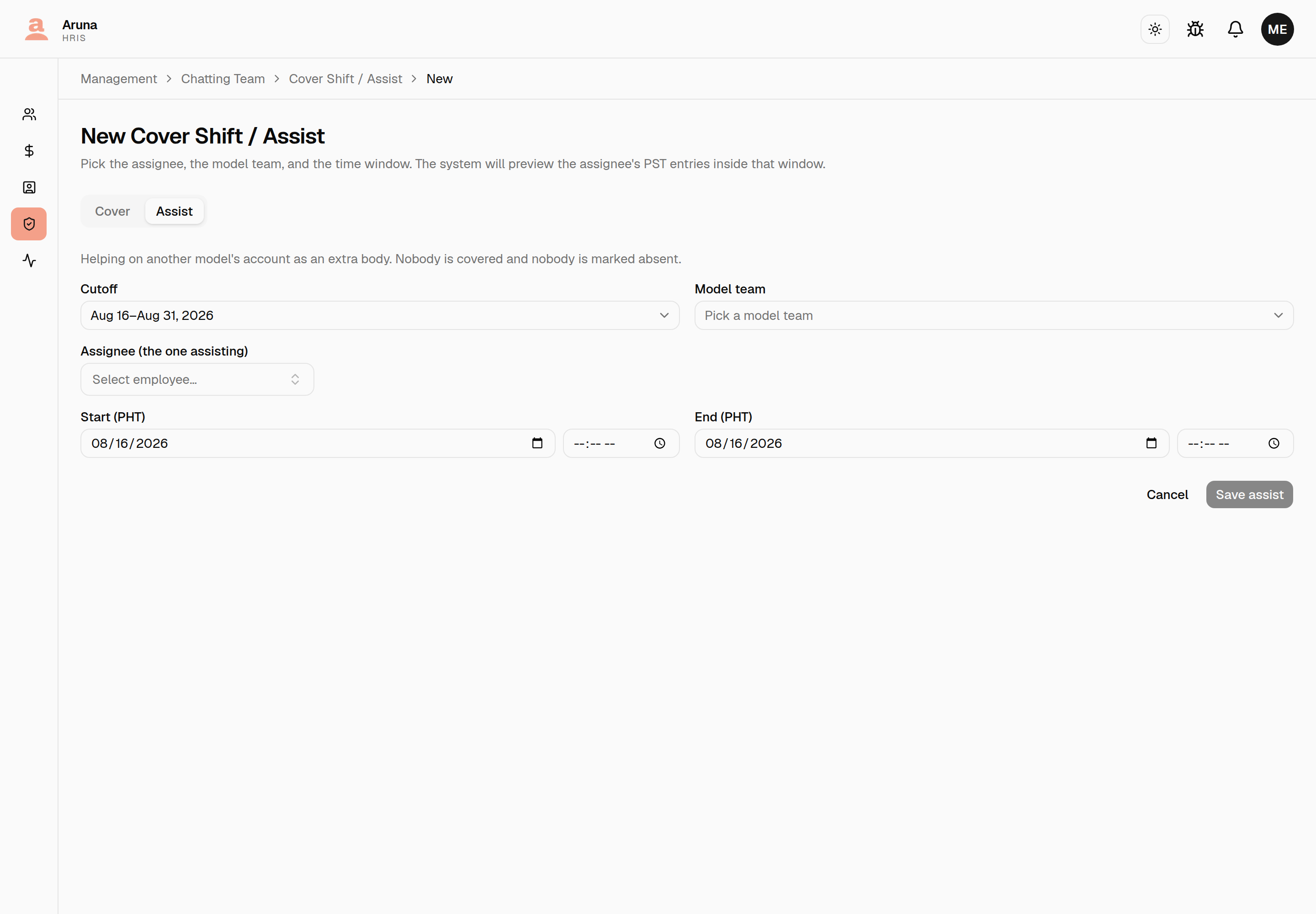
The Assist tab drops the two fields a cover needs and nothing else does — there is no Covering for picker and no mark-absent toggle, because an assist replaces nobody:
Filling the form, field by field
- Cutoff — defaults to the earliest open cutoff. The team, employee, and day lists below are all scoped to this cutoff, so set it first.
- Model team being covered — only model teams appear here (system teams like Moving Support are excluded — a cover shift is always for a specific model). If the list is empty, the cutoff hasn't had its teams set up yet in Model Mapping.
- Assignee (the one covering) — the chatter who actually worked the shift. This is who gets the coverage credit and who you'll later attribute PST to.
- Covering for — Cover tab only. The person whose shift it was. Must be different from the assignee (the form won't submit if they match). The Assist tab has no such field: an assist replaces nobody.
- Start / End (PHT) — each is a date + time in Philippine wall-clock. The date prefills to the cutoff's first day as a hint; correct it to the real shift window. The time window matters: it's what PST uses to flag transactions that fall outside the shift.
- Mark … as absent (default on) — Cover tab only. Records an absence for each day of the shift. Fixed-salary employees are docked a daily rate; hourly employees are unaffected (they shouldn't be logging Time Doctor time anyway). Uncheck it for an approved swap where no deduction applies. The Assist tab doesn't show this at all — there's no one to mark absent.
Click Save. A cover shift moves the coverage credit to the person who actually worked it; an assist adds credit for the helper on top of the model's own roster. Neither changes that team's shared commission — but both count toward the model's daily bonus for the days they cover, so an assist adds a slot and the day's pool divides one way further.
Shortcut from PST: if you start a PST upload for a chatter who has no eligible assignment, the empty state offers Assign Cover Shift / Assist — that link opens this form with the assignee prefilled to that chatter, so you can create the shift and come straight back to upload.
The cover-shift detail page
Click a row in the list to open its detail page. It shows the shift summary (who covered whom, or who assisted on which model, plus the PHT window) and a list of Attributed transactions — every PST entry currently tied to this shift, with gross / net / fee and a refunded badge where relevant.
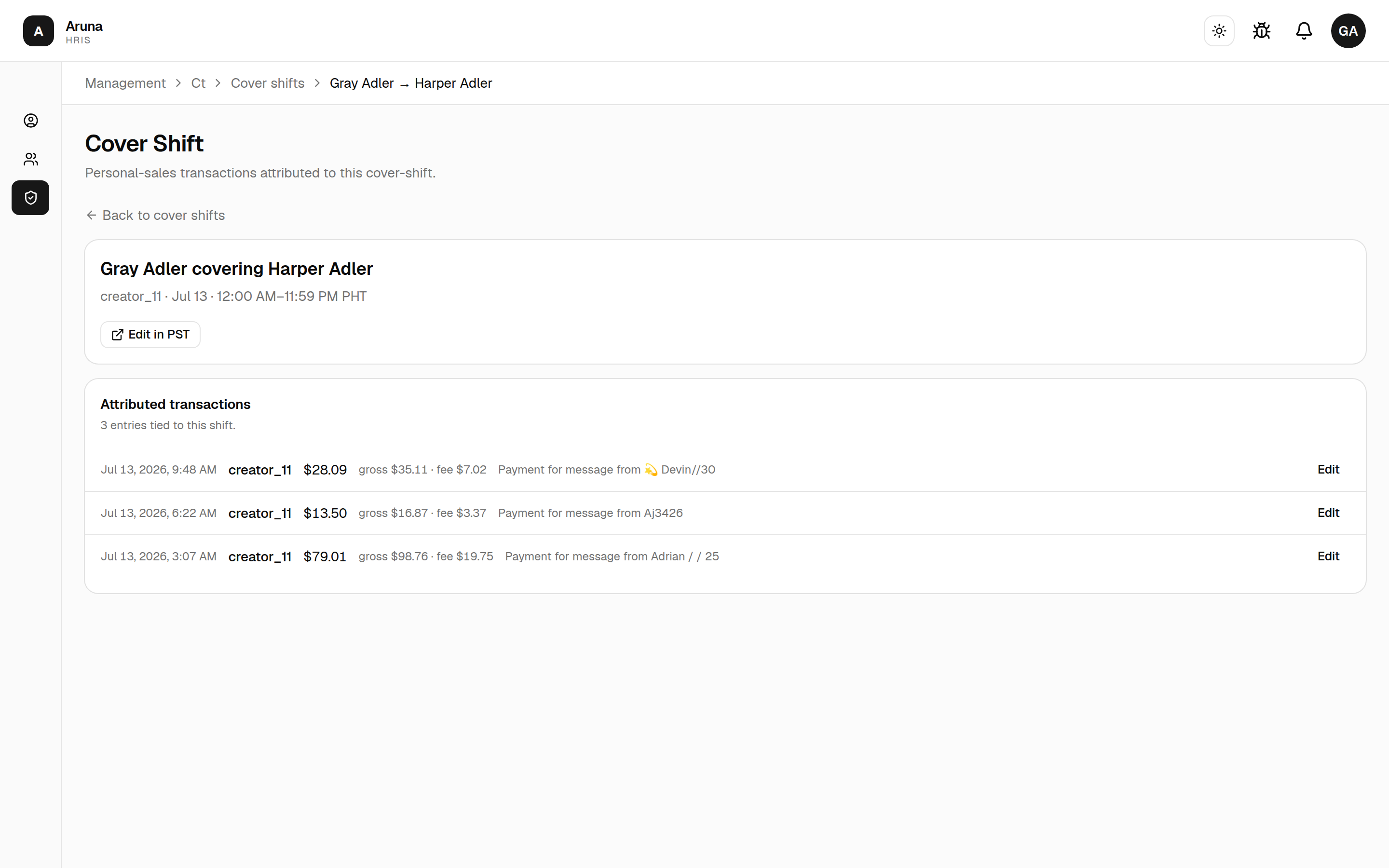
From here:
- Edit in PST (and the per-row Edit) jump to the chatter's PST page with the cutoff preserved, so you can add or remove attributed sales.
- An empty list means no personal sales have been attributed to this shift yet.
3. CT Quiz Winners
Open CT Quiz Winners to submit quiz wins on behalf of employees. The list has Pending / Approved / Rejected / Auto-rejected / All tabs.
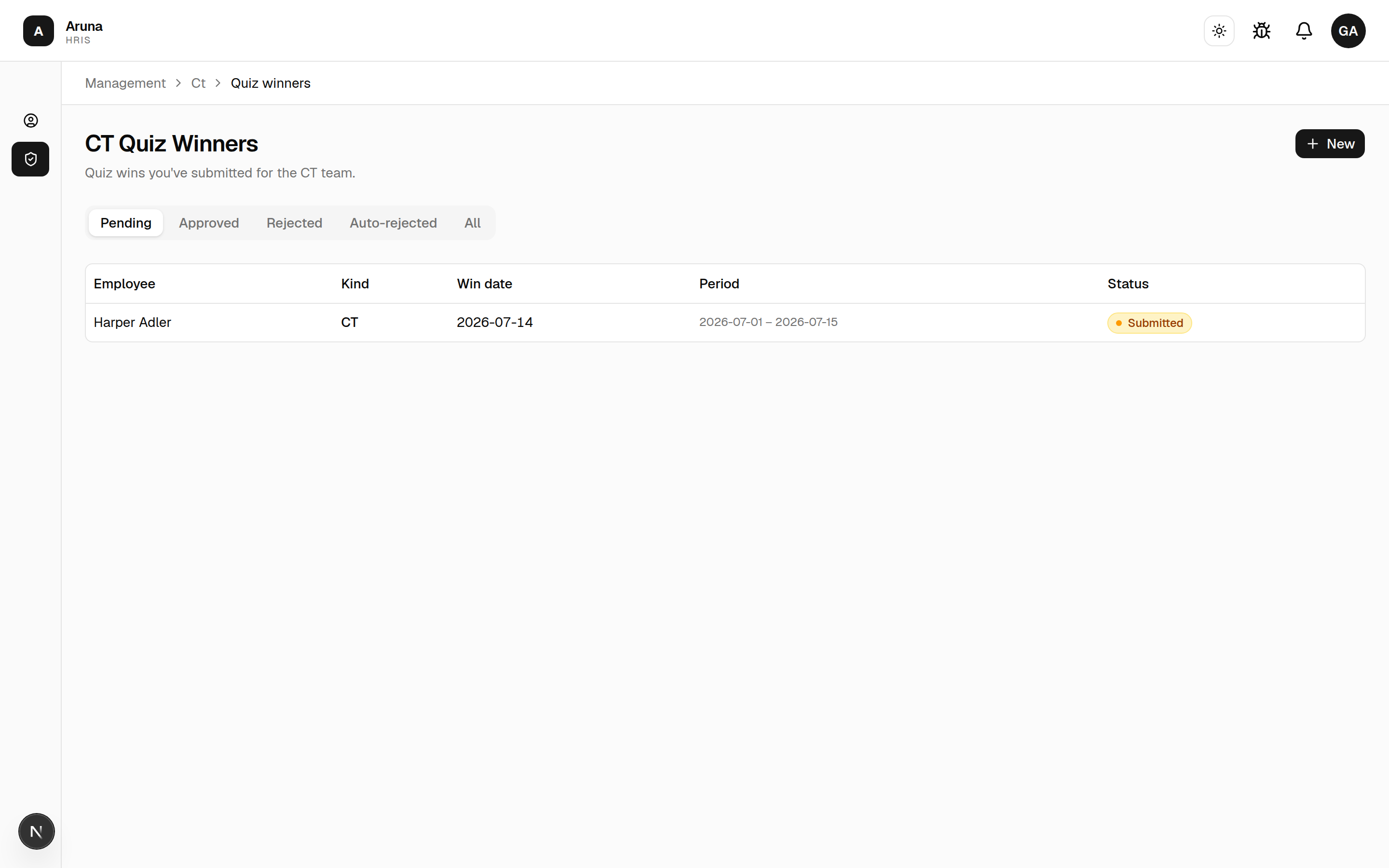
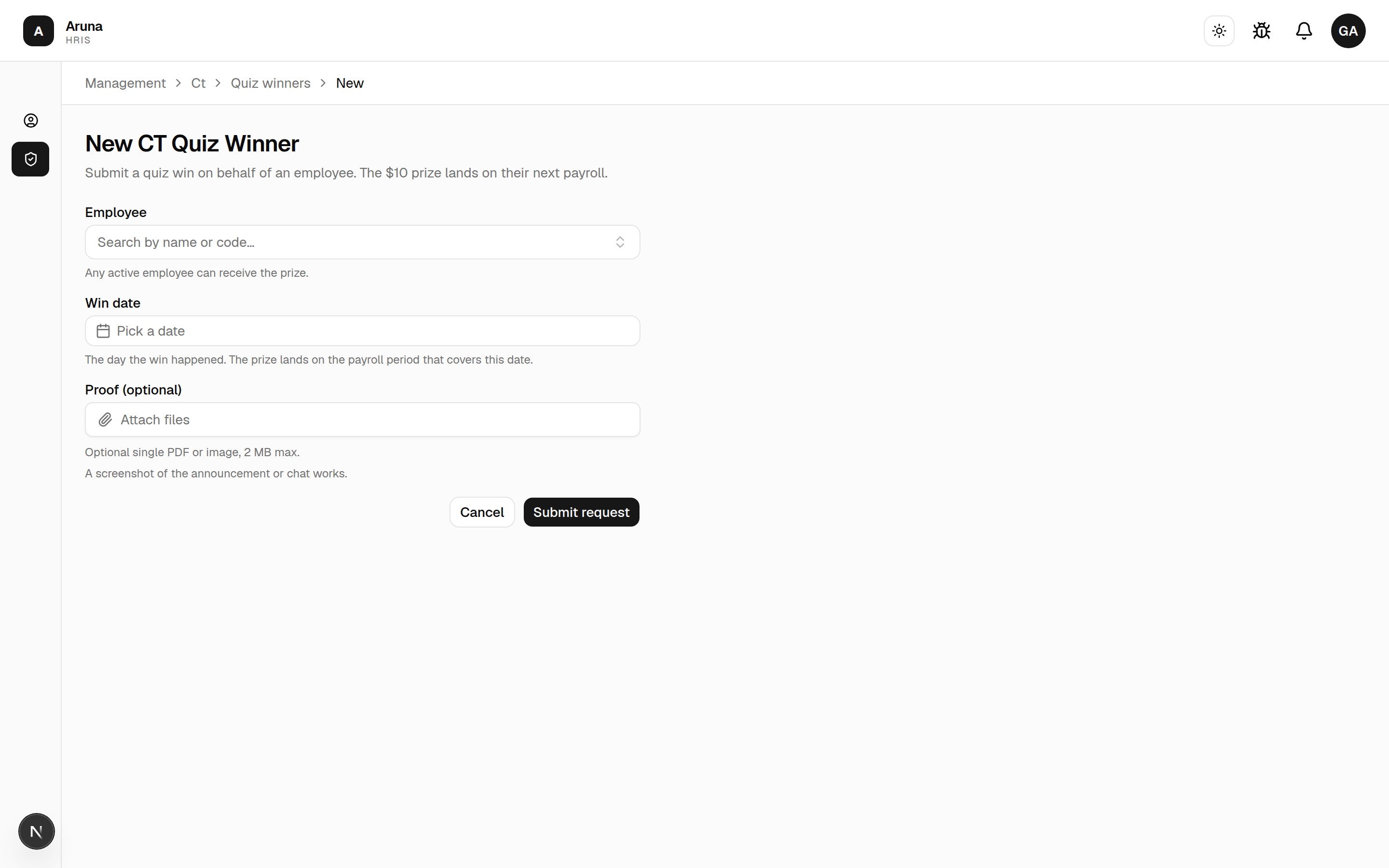
Click New to submit one — pick the employee and the win date; the $10 prize lands on the payroll period that covers that date. Attach proof optionally.
4. Overtime
Open Overtime to record extra hours rendered by fixed-rate CT employees. Overtime is paid at the employee's derived hourly rate (their fixed cutoff salary ÷ the hours in a cutoff — the same basis leave and absences use) and is applied to payroll on the next Pull/Sync: you record it here, and Finance's next sync books it.
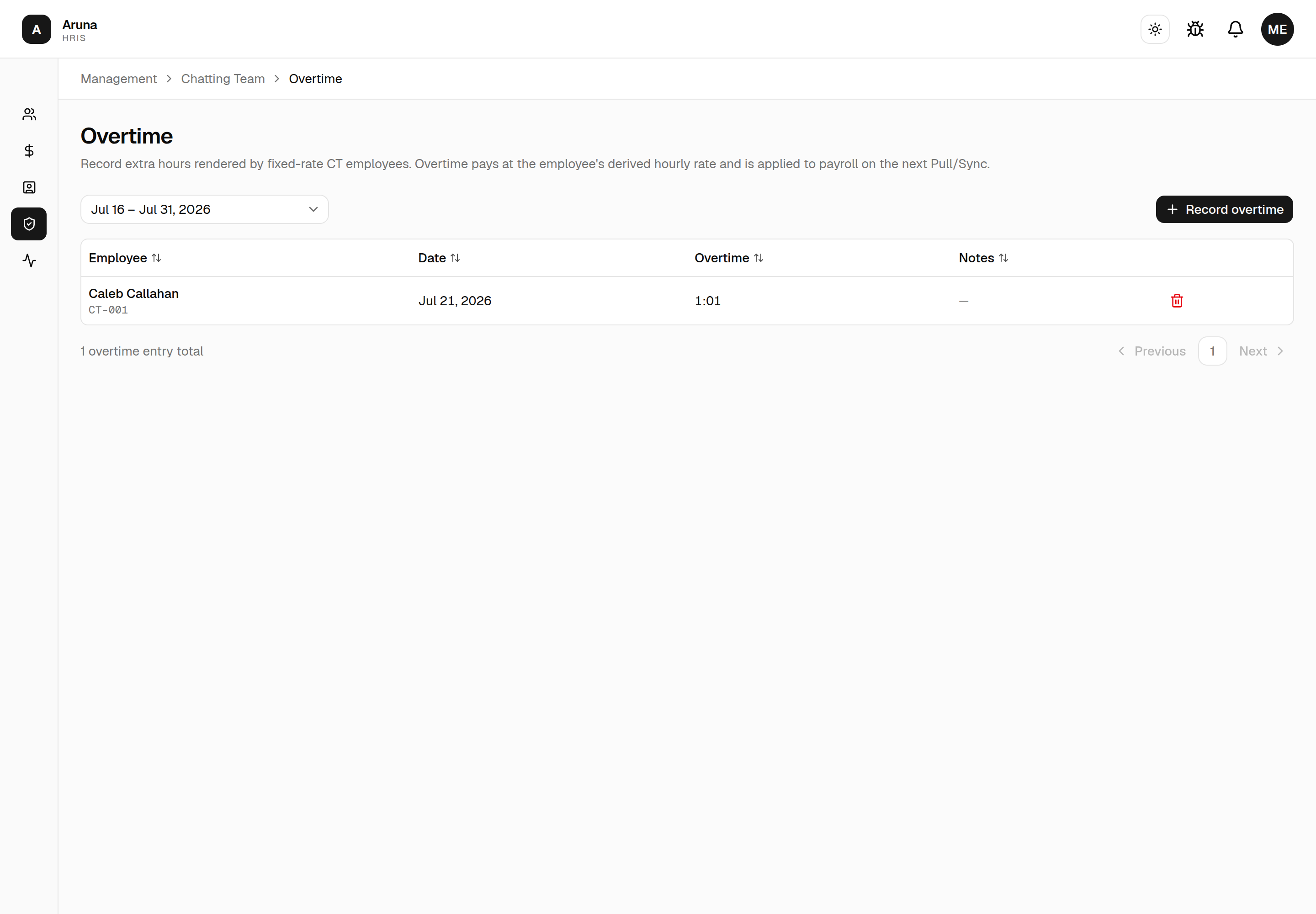
- Pick the cutoff period at the top; the list shows each entry's employee, date, and hours for that cutoff.
- Fixed-rate only. Hourly employees aren't eligible — their hours are already captured by Time Doctor, so an overtime line on top would pay them twice (the form rejects an hourly pick).
Click Record overtime to add one:
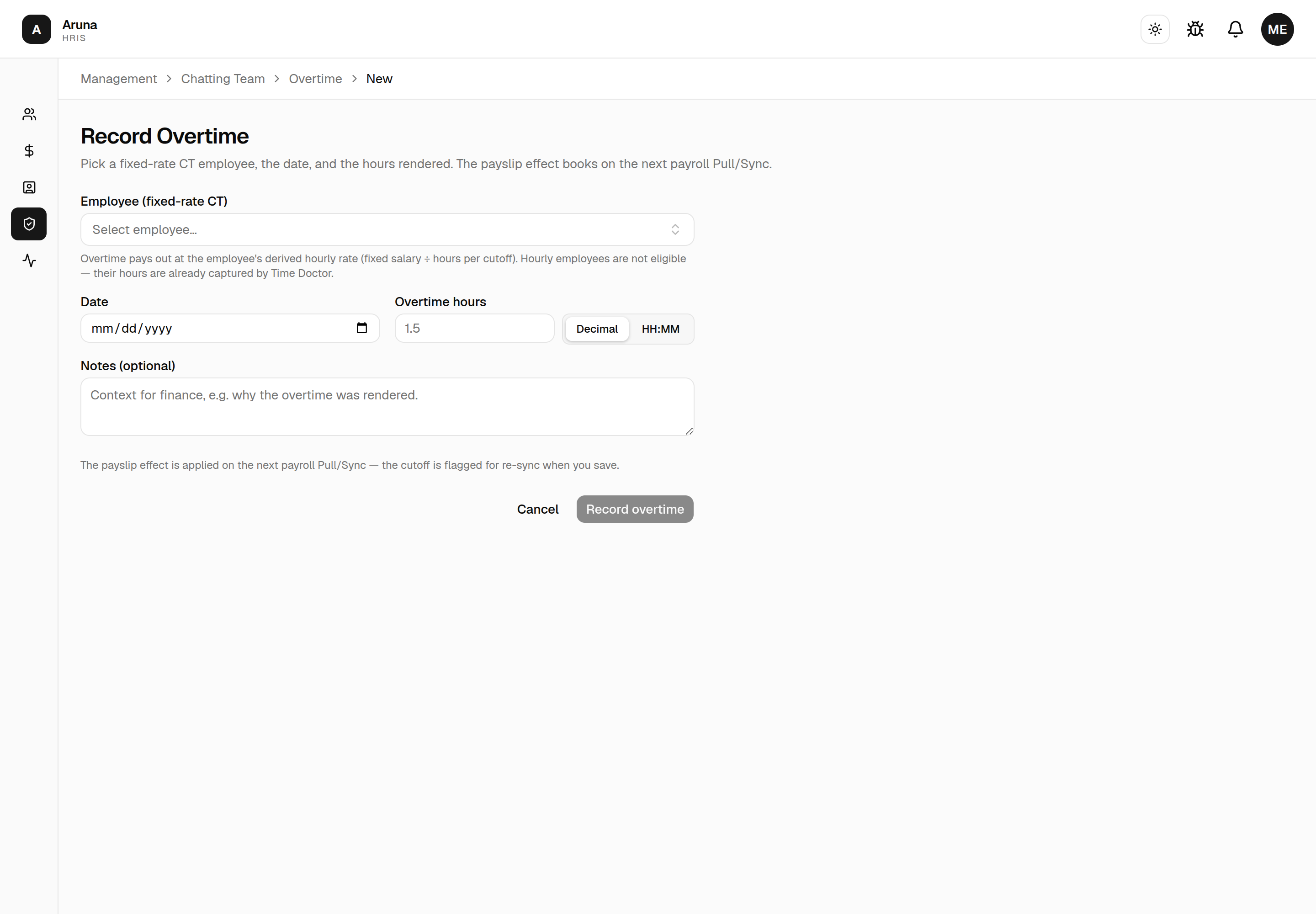
Filling the form, field by field
- Employee (fixed-rate CT) — the searchable picker lists active CT employees. Pick the one who worked the extra hours. Choosing an hourly employee is rejected on save with a "fixed-rate only" message.
- Date — the calendar date the overtime was rendered (date only, no time). The cutoff that contains this date is the one that gets the pay.
- Overtime hours — the number of extra hours, entered either as a
decimal (e.g.
1.5) or in HH:MM (e.g.1:30); the toggle switches between the two. This is a duration, not a clock time. - Notes (optional) — context for Finance.
Click Record overtime. Nothing changes on payroll immediately — the entry flags the cutoff for a re-sync, and the next Pull/Sync books an Overtime line item (amount = hours × the employee's derived hourly rate) on that employee's payslip. Editing or deleting an entry re-flags the affected cutoff so the next sync corrects the payslip.
Why fixed-rate only? A fixed employee's salary is a flat per-cutoff amount, so genuine extra hours aren't otherwise reflected on their pay. Hourly employees are paid from their logged Time Doctor hours, which already include any extra time — an overtime line on top would double-pay them.
5. Personal Sales Tracker
Personal Sales Tracker (PST) is where a chatter's personal sales sheet becomes commission. Each row you confirm ties one in-system OF transaction to that chatter and to one of their coverage assignments — so the money lands on the right payslip.
Every personal-sales entry must be attributed to either of the following (both are set up elsewhere in this guide, then uploaded against here):
- a Cover Shift — the chatter covering a named person on one model, for a specific day + time window; or
- a Moving Support assignment — the chatter floating across models over a contiguous day range.
There is no unattributed option — if the chatter has neither in the cutoff, you have to create one first (see the prerequisite below).
Open Personal Sales Tracker, pick a cutoff, and you get the CT-employee landing list.
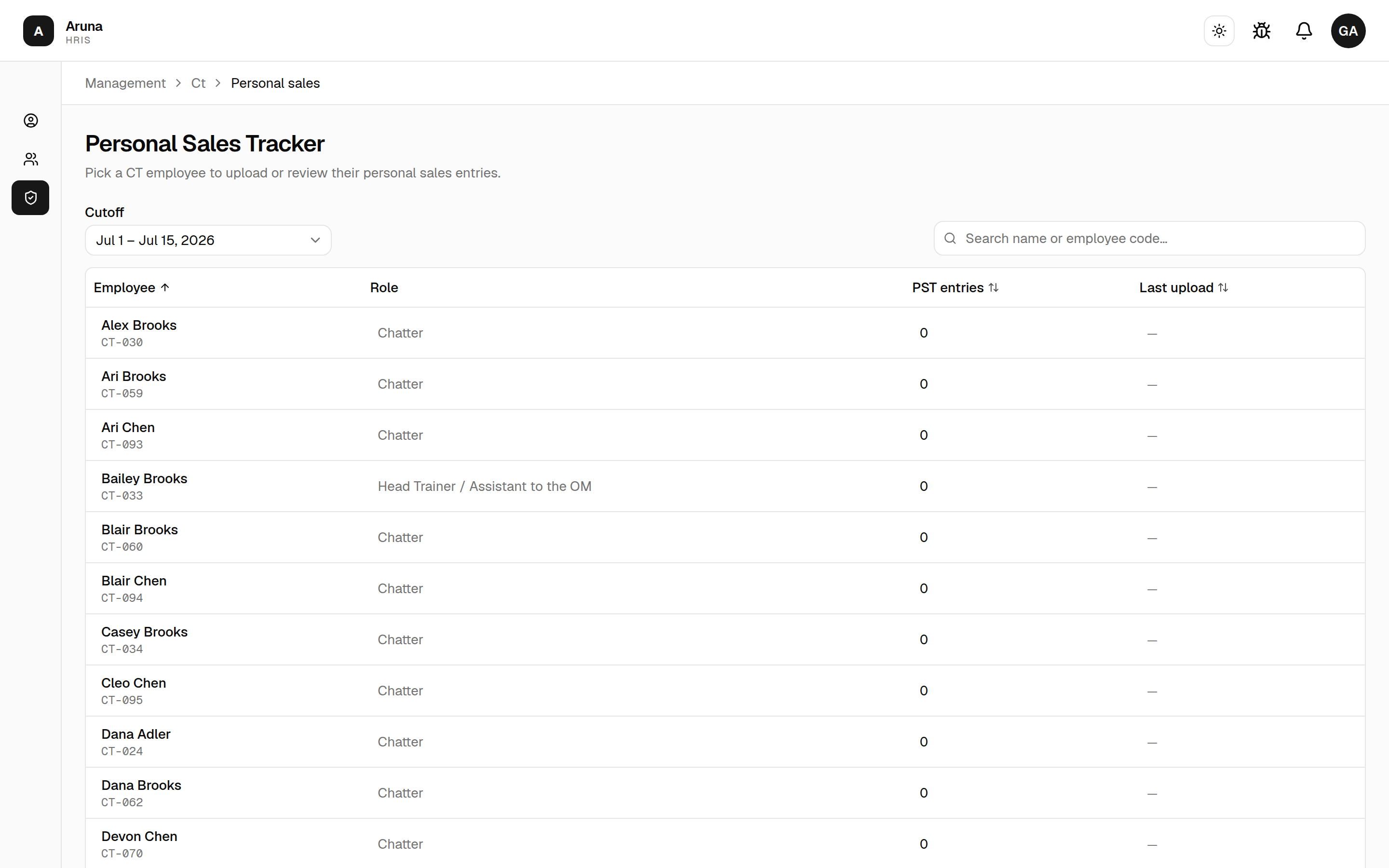
- Scoped to a cutoff; the table lists each CT employee with their PST entry count and last upload for that cutoff (so you can see at a glance who's still outstanding). Search by name or code; sort by any column.
- Click a chatter to open their per-employee PST page. You can also arrive here from the Upload PST icon on a Moving Support row (Model Mapping) or from Edit in PST on a cover-shift detail — those carry the cutoff for you.
Prerequisite: an eligible assignment
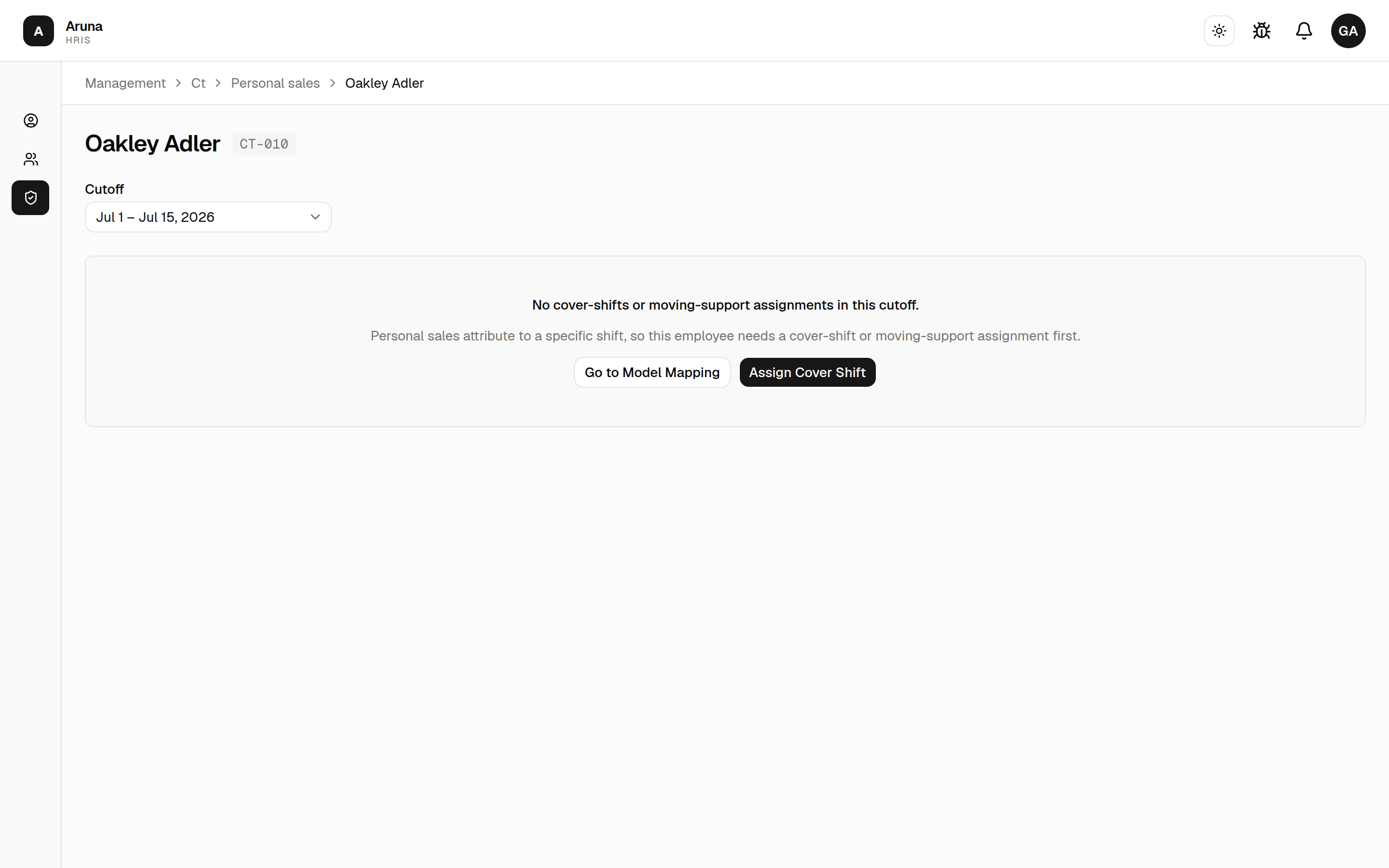
The per-employee page checks whether the chatter has a cover-shift or moving-support assignment in the selected cutoff:
- If they have none, the page blocks the upload and shows an empty state with two buttons — Go to Model Mapping (to add a moving-support row) and Assign Cover Shift (opens the cover-shift form with this chatter prefilled). Create one, then come back.
- If they have one or more, the Add sales button appears.
The upload flow, step by step
The whole flow happens in place on the page — the top-right button changes label as you move through the three modes (list → paste → confirm).
1. Add sales. Click Add sales to enter paste mode.
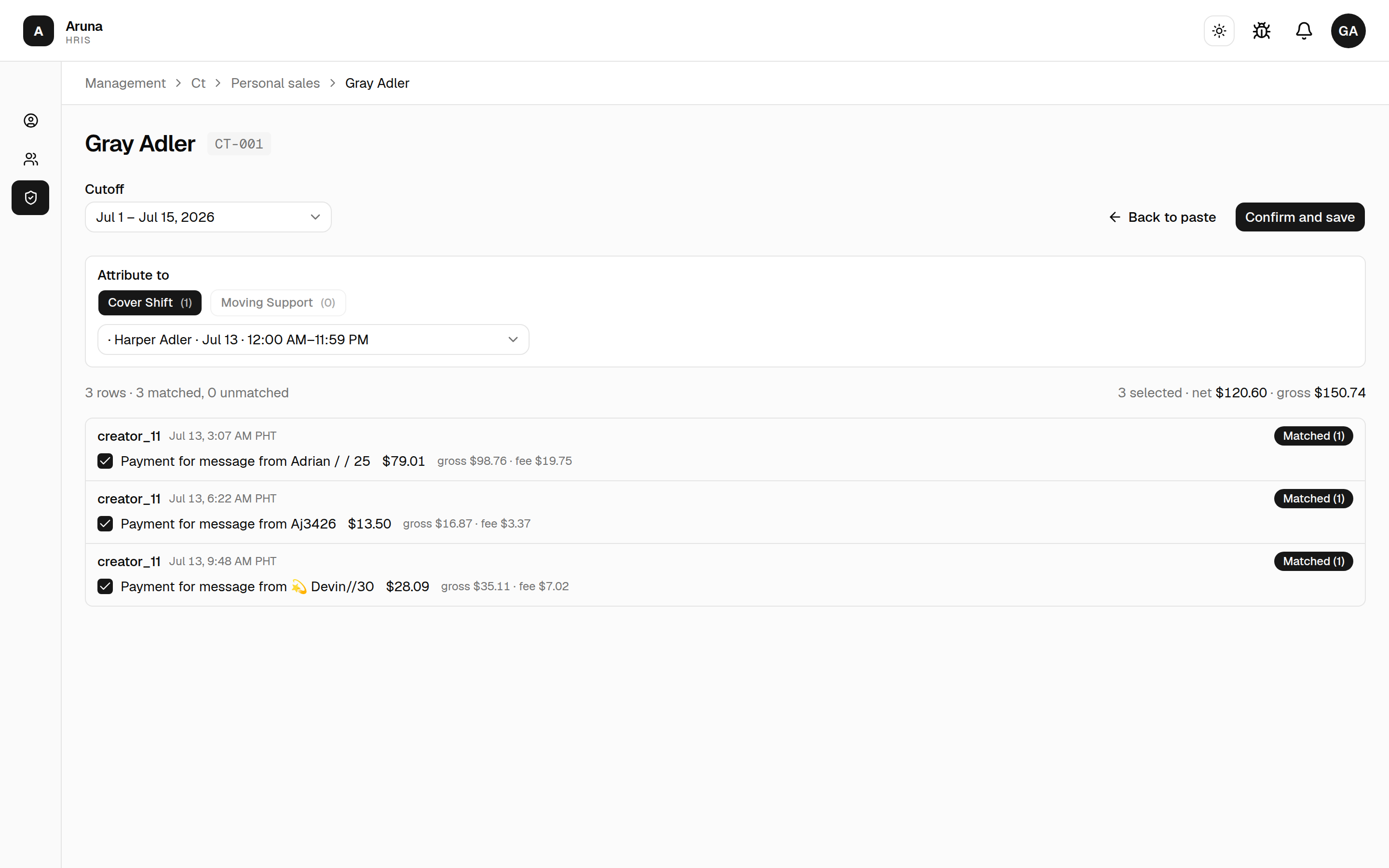
2. Attribute to. Every upload must be attributed to a shift — either a Cover Shift or a Moving Support assignment. There is no "unattributed" option; personal sales always hang off one of these two, which is how the commission reaches the right chatter. Pick the category, then the specific instance from the dropdown. Each button shows a count of available options; if a category has exactly one option (and the other has none), it's auto-selected to save clicks. The whole upload attributes to this one assignment — you pick it once here and every confirmed row inherits it.
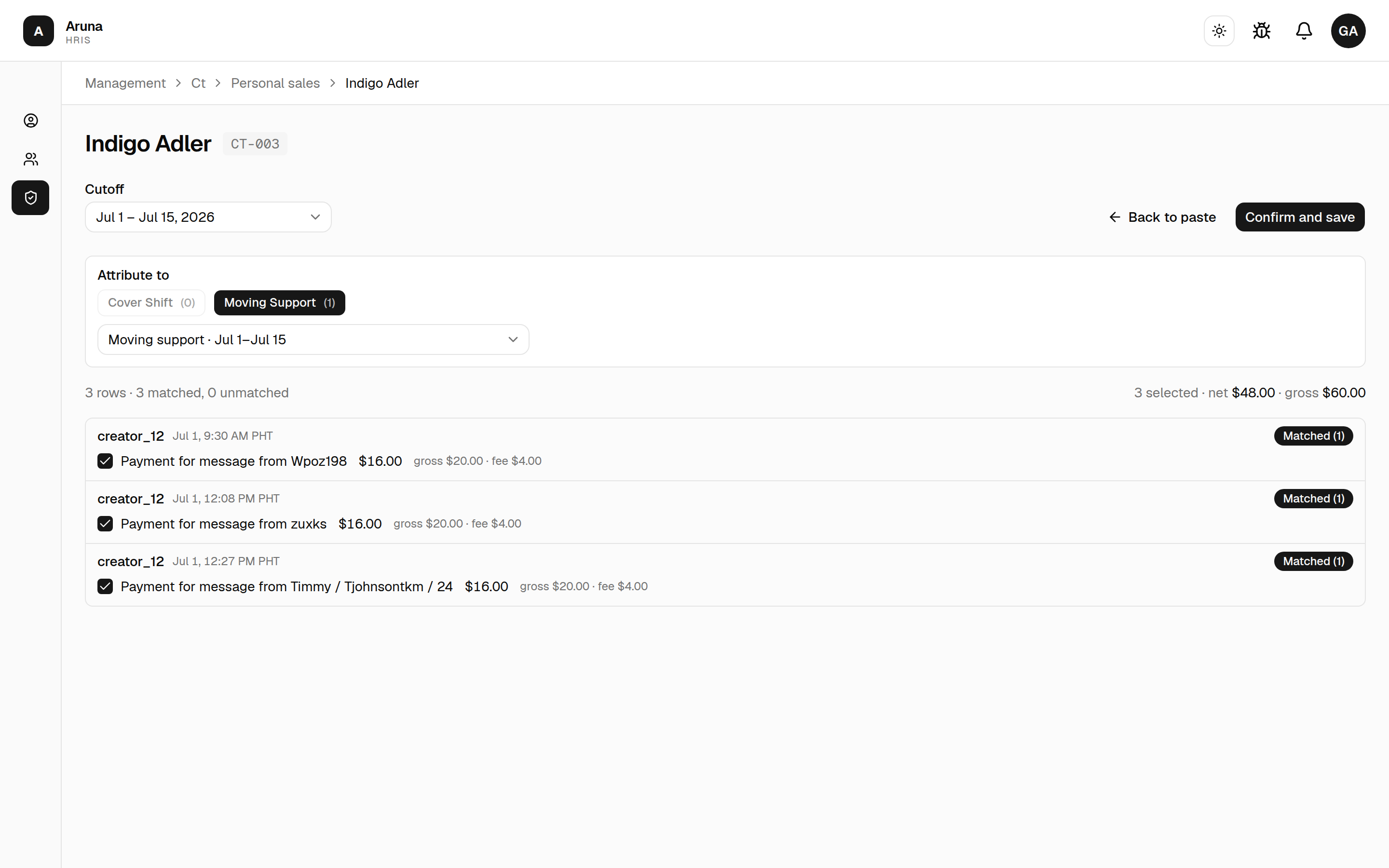
Moving support is a single, contiguous range — not one entry per day. A Moving Support row spans a
start day – end daywindow (e.g. Jul 1–15), and it shows up in the picker as one option covering that whole range. You do not create a separate day-by-day entry to paste against — add the moving-support range once in Model Mapping, then attribute the chatter's sales for any day inside that window to that single entry. (Cover shifts, by contrast, are pinned to a specific day + time window.)
3. Paste the rows. Paste the data rows from the validated PST sheet — data rows only, no header. The columns are tab-separated (date/time, gross, fee, net, description, model). HRIS reads only the model name and the timestamp; the dollar amounts come from the matched in-system transaction, not from your paste — so a mistyped amount in the sheet can't inflate commission.
The model column must be the model's exact OF username. Matching keys on
model + timestamp, and the model is resolved by its OnlyFans username (the@handle) — not a display name, nickname, or the CT floor's shorthand. If the sheet's model column isn't the exact OF username, the row comes back unmatched even when a real transaction exists at that minute. Keep the sheet's model column set to the live OF username; if a model's handle changes upstream, update the sheet to the new one.
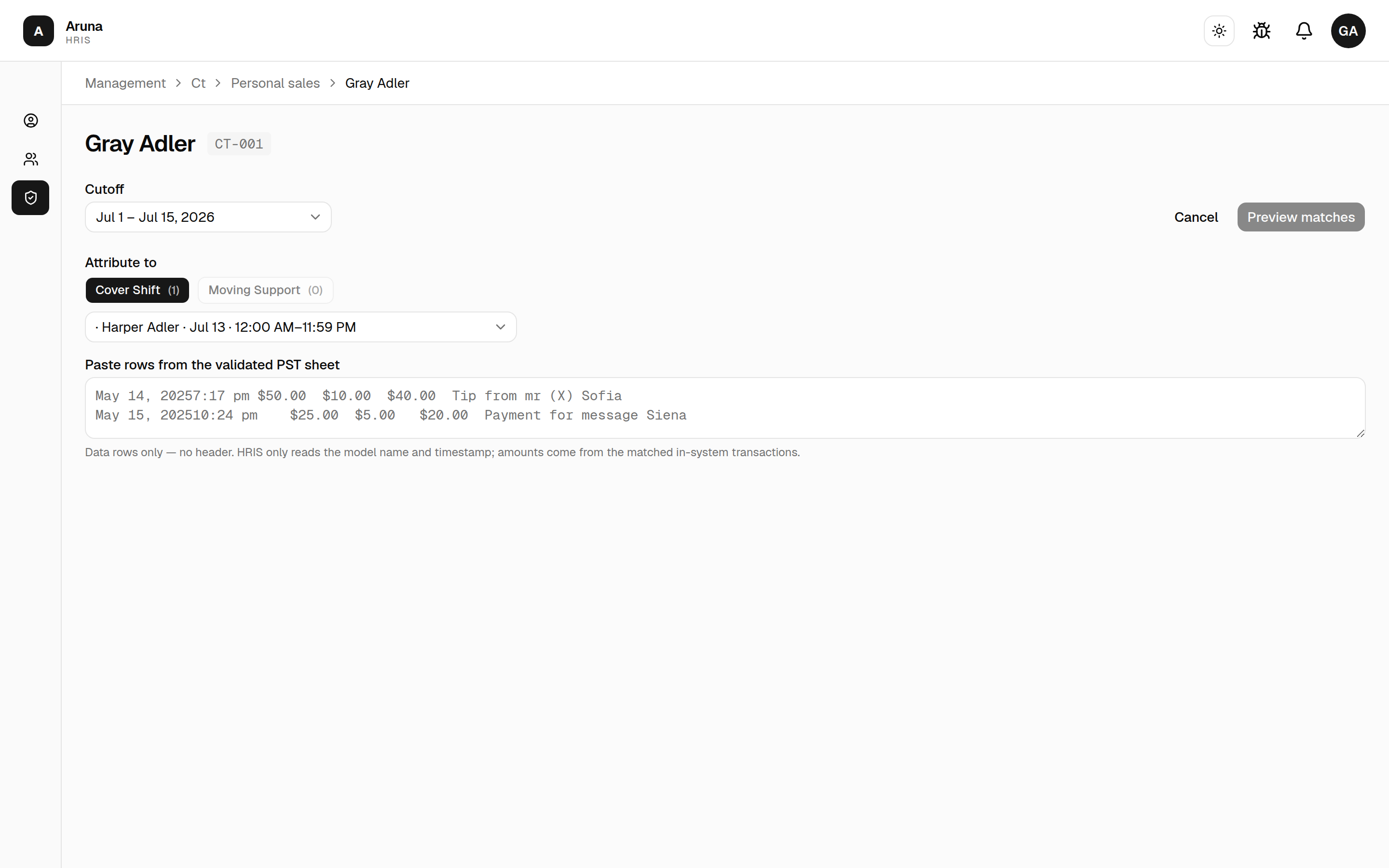
4. Preview matches. Click Preview matches. HRIS parses each row and matches it against in-system OF transactions in a ±60-second window around the timestamp for that model. Each row gets a badge:
- matched — found a transaction; it's checked by default.
- unmatched — no transaction in the window (wrong model, wrong time, or the transaction isn't in-system).
- parse error — the row couldn't be read (bad date/model column).
- no transaction left — two paste rows landed on the same minute but there was only one transaction; rows pair 1:1 in order, and the surplus row gets this badge.
5. Confirm. In confirm mode each matched transaction is a checkbox. Review and adjust the selection; a running net / gross total of what's checked shows at the top. Two things to watch for:
- Already saved (disabled, greyed) — a transaction can credit only one employee. If it's already recorded (for anyone), you can't check it. To re-record it elsewhere, remove the existing entry first.
- Out-of-range warning (amber ⚠) — the transaction's date falls outside the picked assignment's coverage window. It's a heads-up, not a hard block — make sure you attributed to the right shift.
The same flow attributed to a moving-support assignment looks like this — the picker shows Moving Support selected, and its instance is the whole-cutoff contiguous range (e.g. Moving support · Jul 1–Jul 15), so every matched row inside the cutoff hangs off that single entry:
6. Confirm and save. Click Confirm and save. HRIS creates an upload holding each selected entry, tied to the chatter and the assignment. You get a "Saved N entries" toast and drop back to the list.
Reviewing and correcting entries
Back in list mode there are two tabs:
- Entries — every attributed transaction for this chatter in the cutoff, newest first. Delete a single entry, or select several and bulk delete. Deleting is a soft-delete that stamps you as the actor and frees the transaction to be re-recorded to another chatter; it also flags the cutoff for a pay resync so Finance picks up the change.
- History — the list of past upload sessions (who uploaded, when, how many entries), so you can trace where an entry came from.
If commission looks wrong for a chatter: check that (a) their sales were attributed to the right assignment, (b) no transaction is double-claimed elsewhere, and (c) out-of-range rows really belong to that shift. Fix by deleting the mis-attributed entries and re-uploading against the correct cover-shift / moving-support assignment.
6. SO-OF Model Sub Count
Nothing counts subscriptions for you. The system has no way to see how many subs a stream landed — so if you don't record it here, the operators who worked that session are paid nothing for it. This board is where that number comes from.
Open SO-OF Model Sub Count. It's the same calendar the SOT Scheduling Hub uses — Month, Year, Cutoff, and Day — showing every stream session.
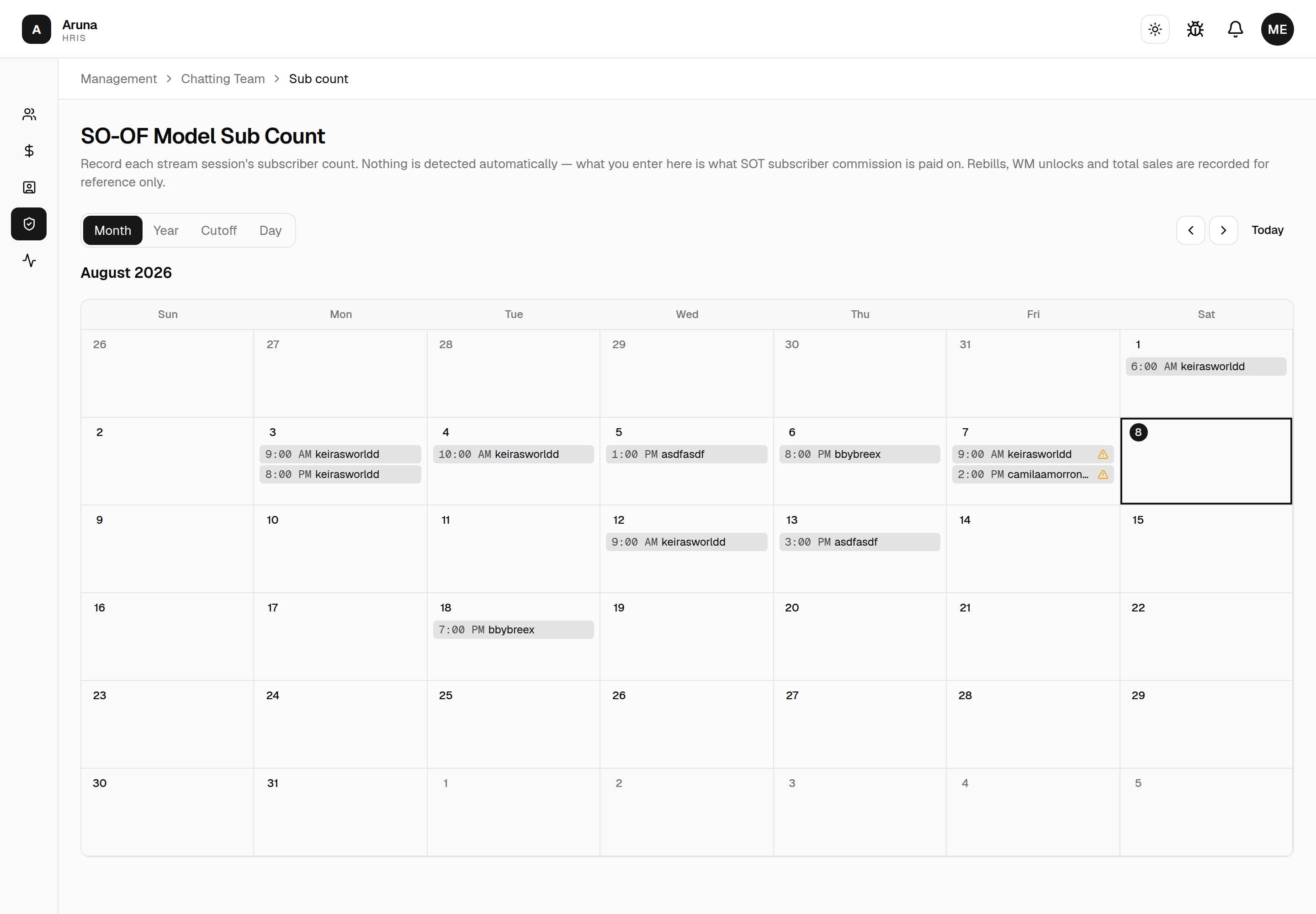
- An amber ⚠ marks a session that has finished but has no count recorded yet. Those are your to-do list.
- The Day and Cutoff views list each session with its recorded count, or Not recorded if nobody has entered one.
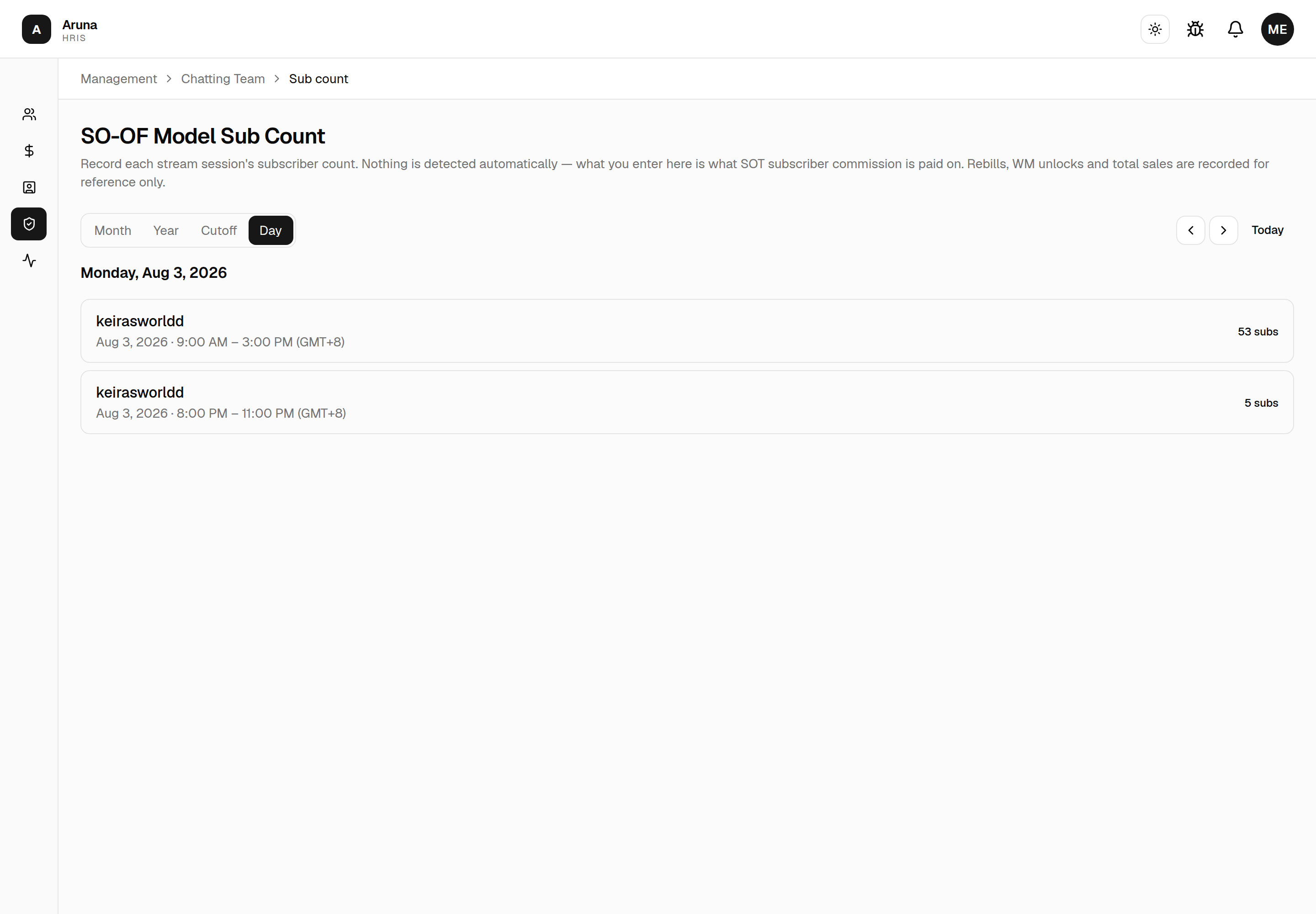
Entering a session's numbers
Click a session to open it.
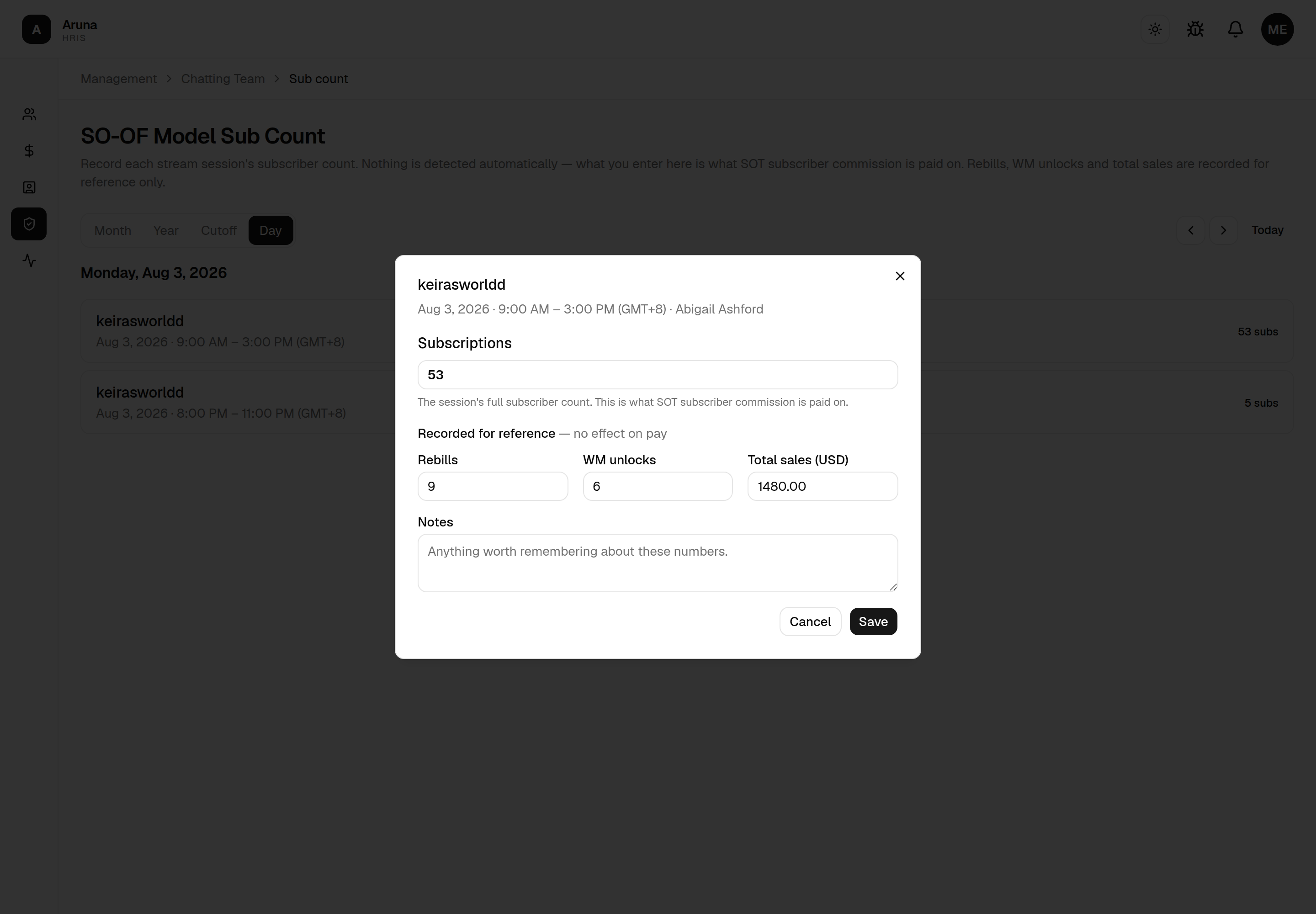
- Subscriptions is the session's full subscriber count. This is the number SOT subscriber commission is paid on — enter what you counted.
- Rebills, WM unlocks, and Total sales are recorded for reference only — no effect on anyone's pay. They're captured here because this is the moment you have the numbers in front of you.
- Notes is free text for anything worth remembering about the figures.
This number becomes money. It's split among the session's stream operators and team leaders and tiered per person for the month. Enter what you counted, not an estimate — and if a session genuinely landed none, save it as 0 so the amber flag clears and everyone can see it was checked.
When you can edit
There's no cut-off for entering a count. Unlike Overtime, a closed period doesn't lock you out — you often only have the number after the fact, and a missing count is a wrong payslip either way.
What you'll see instead is an amber warning on sessions whose payroll has already moved past draft, telling you how many payslips your change can no longer reach. The save still goes through, and every save flags the cutoff so Finance is prompted to re-sync. If some payslips are already processed or sent, tell Finance — their share is frozen and only a re-run picks up the rest.
If a model has stream commission switched off (see Models), the dialog says so. Keep recording the count — it still feeds reporting — but no subscriber commission is paid for that session.
7. Pay Breakdown (read-only)
Open Pay Breakdown to see the same commission and daily-bonus figures Finance sees for a cutoff.
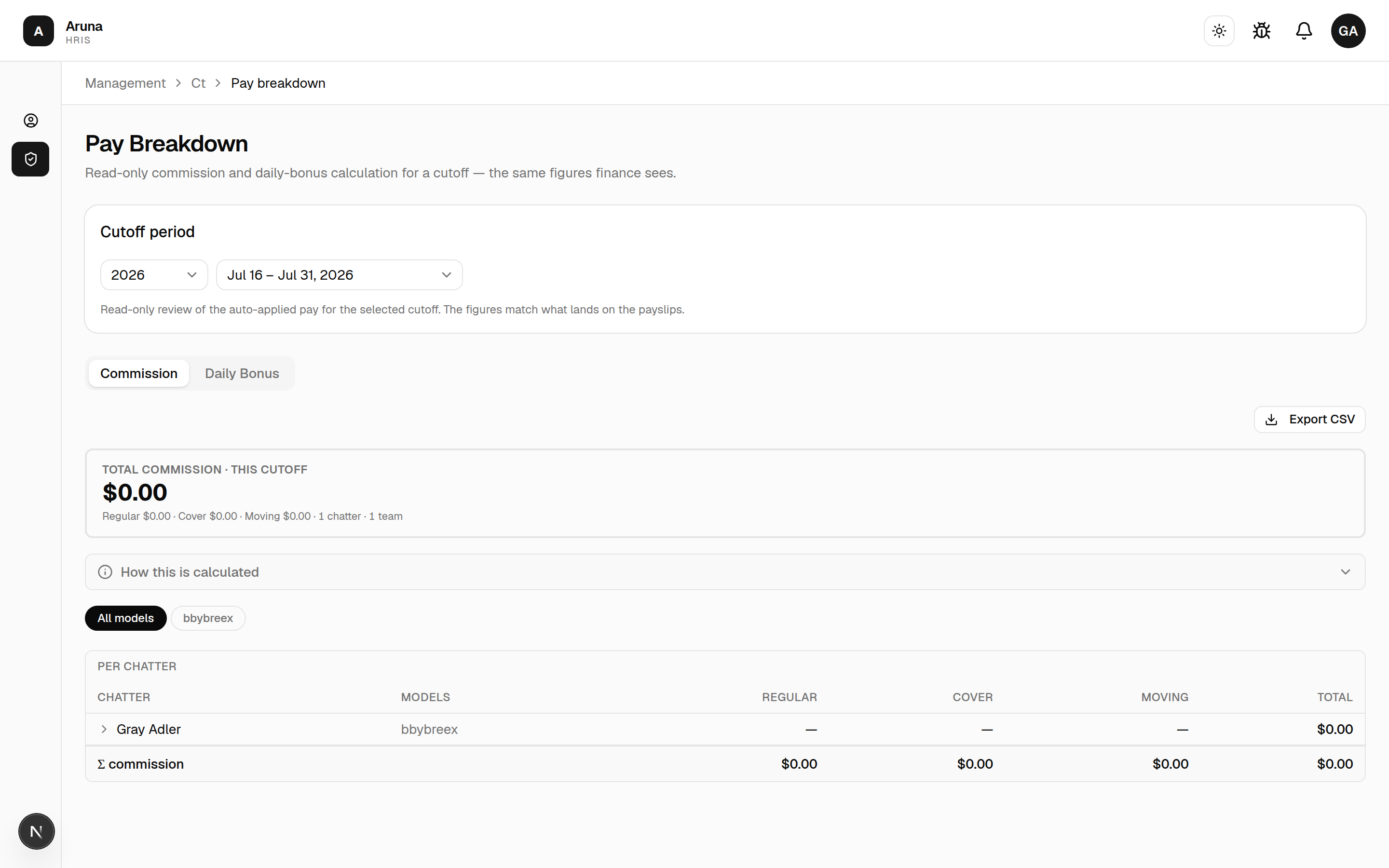
- Choose the cutoff period; switch between Commission and Daily Bonus.
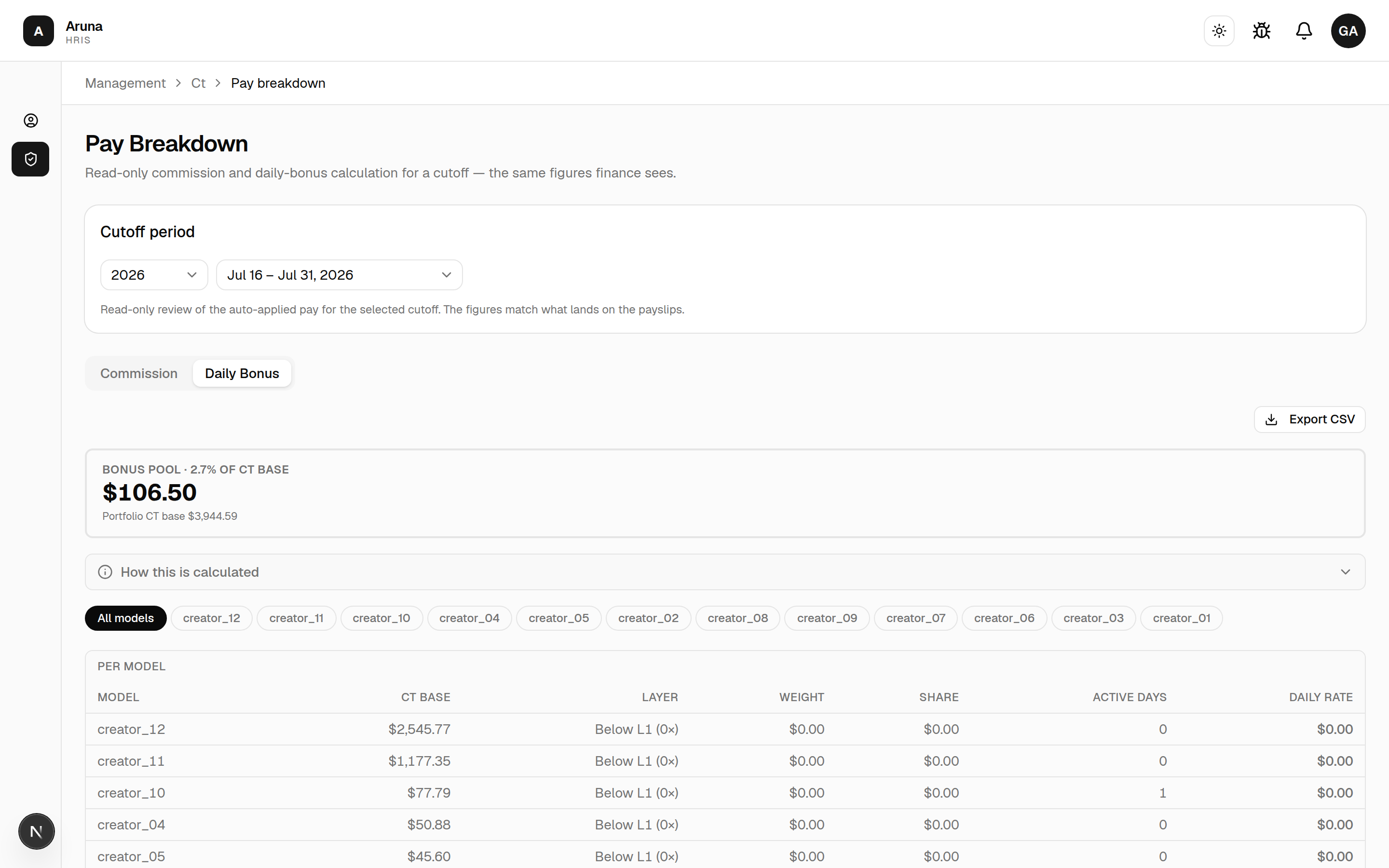 - The summary shows the total for the cutoff (regular / cover / moving) and a
per-chatter breakdown.
- How this is calculated explains the numbers; Export CSV downloads them.
- This view is read-only — the figures match what lands on payslips.
- The summary shows the total for the cutoff (regular / cover / moving) and a
per-chatter breakdown.
- How this is calculated explains the numbers; Export CSV downloads them.
- This view is read-only — the figures match what lands on payslips.
Troubleshooting
| Problem | What to do |
|---|---|
| Model Mapping is empty | Pick the right cutoff, then Set up teams for this cutoff |
| A model is missing from the board | Sync teams to pull in models added since setup |
| Commission looks wrong in Pay Breakdown | Check Model Mapping and Cover Shifts for that cutoff — they drive the credit |
| A cover isn't being paid to the right person | Add/adjust the Cover Shift record for that window |
| Can't start a PST upload — "no cover-shifts or moving-support assignments" | The chatter needs an eligible assignment first: add a Moving Support row in Model Mapping or Assign Cover Shift |
| PST rows won't reconcile | They must match in-system OF transactions within ±60s of the timestamp for that model |
| A PST row is "unmatched" but the sale is real | The model column probably isn't the model's exact OF username — fix the sheet's handle and re-preview |
| A PST candidate is greyed out / "Already saved" | That transaction is already credited to someone. Remove the existing entry first — a transaction credits only one employee |
| PST row shows an out-of-range ⚠ | The transaction date is outside the picked shift's window — attribute it to the correct cover-shift/moving-support instead |
| Overtime isn't on the payslip | It books on the next Pull/Sync — Finance needs to sync the cutoff. Also confirm the employee is fixed-rate (hourly overtime is never booked) |
| Can't record overtime for someone | Overtime is fixed-rate only — hourly employees are rejected (their Time Doctor hours already cover extra time) |
| A session shows "Not recorded" | Nobody has entered its count. Nothing is detected automatically, so until someone does, that session pays its operators nothing |
| Count entered but the operator's commission didn't change | It books on the next Pull/Sync — Finance needs to re-sync the month's second cutoff, which is where SOT subscriber commission lands |
| Sub count dialog says commission is switched off | That model has Stream commission available unticked in the Models module. Recording still works; nothing is paid |
| Amber ⚠ on a session in the sub-count calendar | It finished with no count recorded. Open it and enter the number (0 is a valid answer — save it so the flag clears) |