SOT (Stream Operator Team) Manager
Who this is for: Stream Operator Team managers.
Time: ~7 minutes.
You'll need: the management.sot module for the core surfaces, plus a
grant per tool (management.sot.scheduling, management.sot.quiz_winners,
management.sot.pay_breakdown) — granted individually. Read
Department Managers — the basics first.
Everything in the manager basics guide applies to you — Time Validations and Leaves & Absences work the same way. This guide covers the SOT-only tools, centred on the Scheduling Hub.
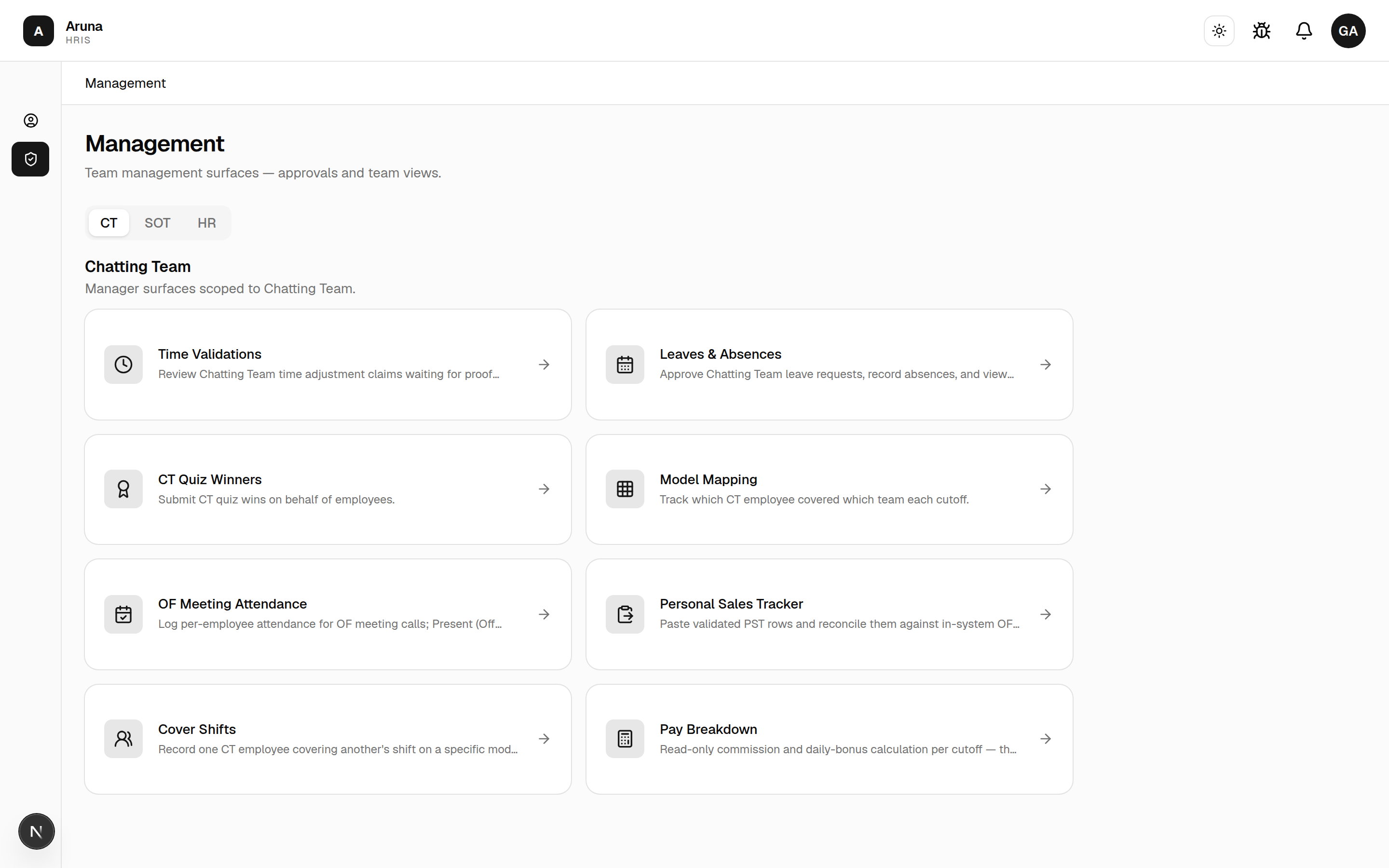
The SOT management landing
Open Management and select the SOT tab.
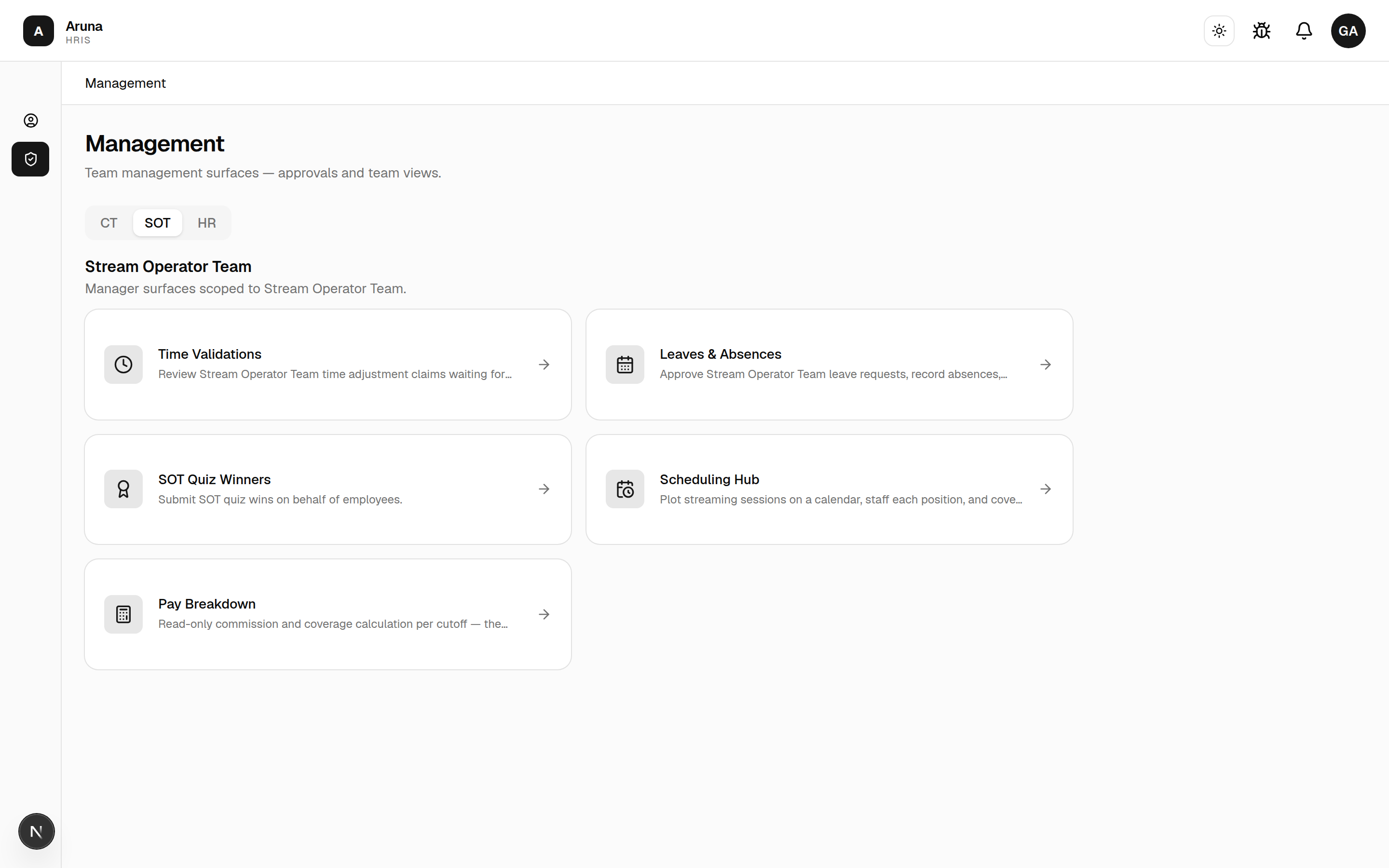
Alongside the two basics you get:
- SOT Quiz Winners — submit SOT quiz wins on behalf of employees.
- Scheduling Hub — plot streaming sessions, staff each position, cover or cancel sessions.
- Pay Breakdown — read-only commission and coverage figures per cutoff.
1. Scheduling Hub
Open Scheduling Hub — the heart of SOT management. It has three tabs:
- Calendar — plot streaming sessions and staff each position.
- Overview — a weekly board of operator + model hours and availability.
- Operators — designate who can be scheduled.
Designate your operators first
Open the Operators tab. This is where SOT management decides who counts as a stream operator — a designation you own, separate from the P&C department/role setup. Only designated operators appear in the session and cover pickers, the availability list, and the hours board.
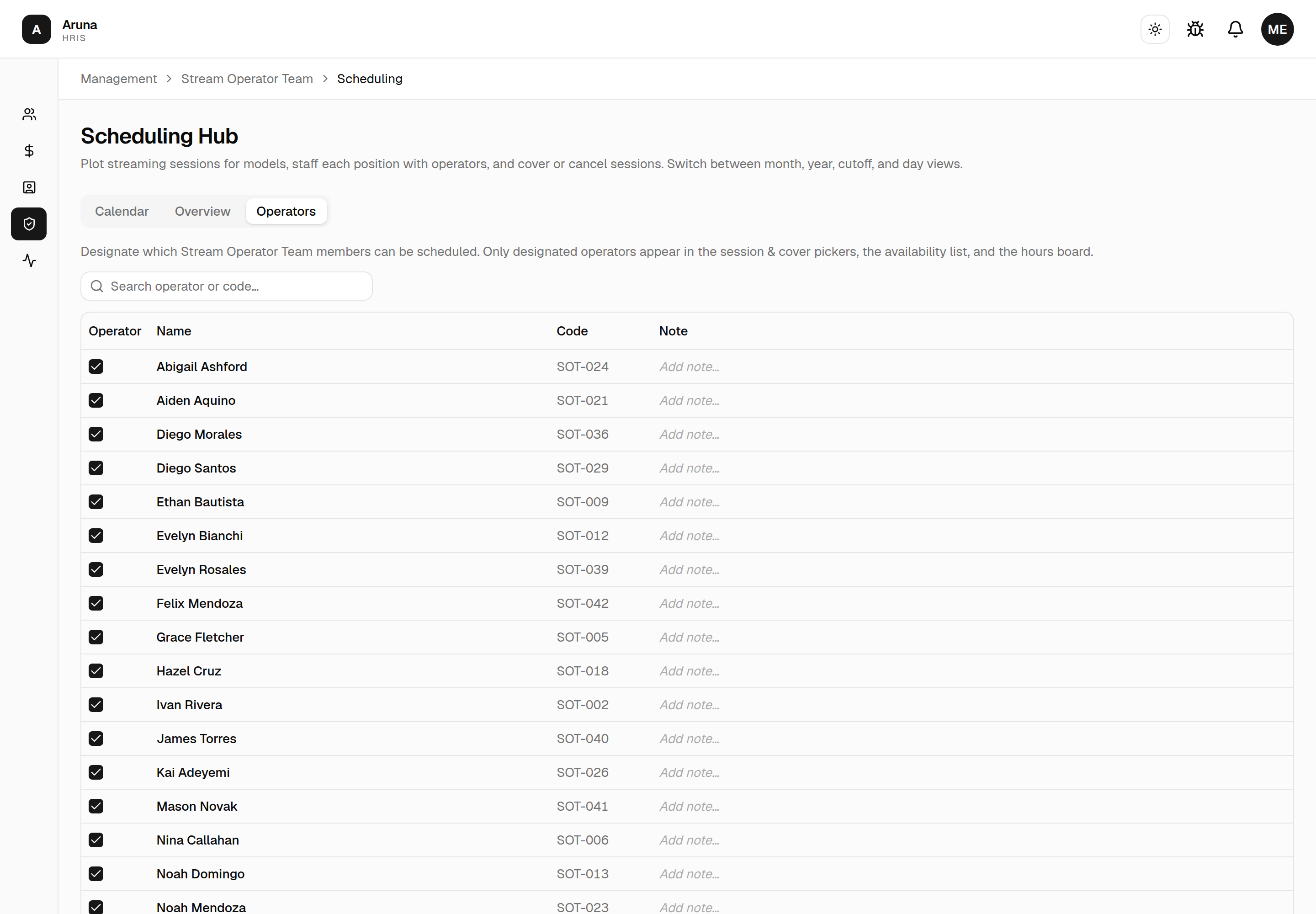
- Tick the Operator checkbox for each member who should be schedulable; untick anyone who never streams (back-office staff).
- Add an optional note per person (e.g. "No night shifts") — it also shows on the Overview board.
- Search by name or code; the list is paginated (50 per page).
Your existing team starts fully designated, so nothing breaks — just untick the people who aren't operators.
Someone you need isn't on the list? The tab shows people available to SOT, which normally means the SOT department. To borrow someone from another team — a Training member who streams, say — ask P&C to add SOT under Additional departments on that person's record. They'll then appear here for you to designate, while staying on their own team's payroll and code. See P&C admin → Additional departments.
Calendar
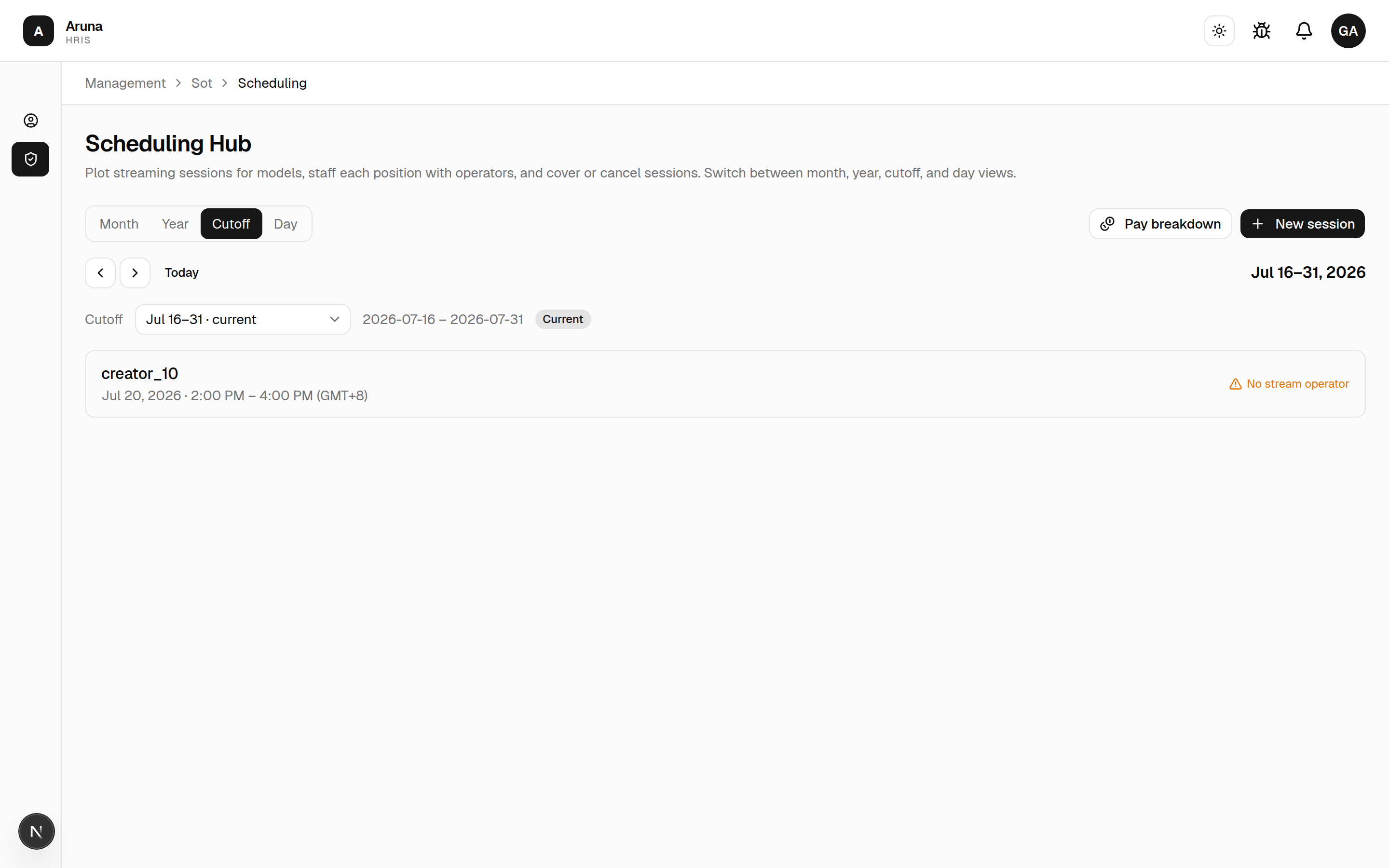
The Calendar tab is where you plot sessions. Switch between Month, Year, Cutoff, and Day views.
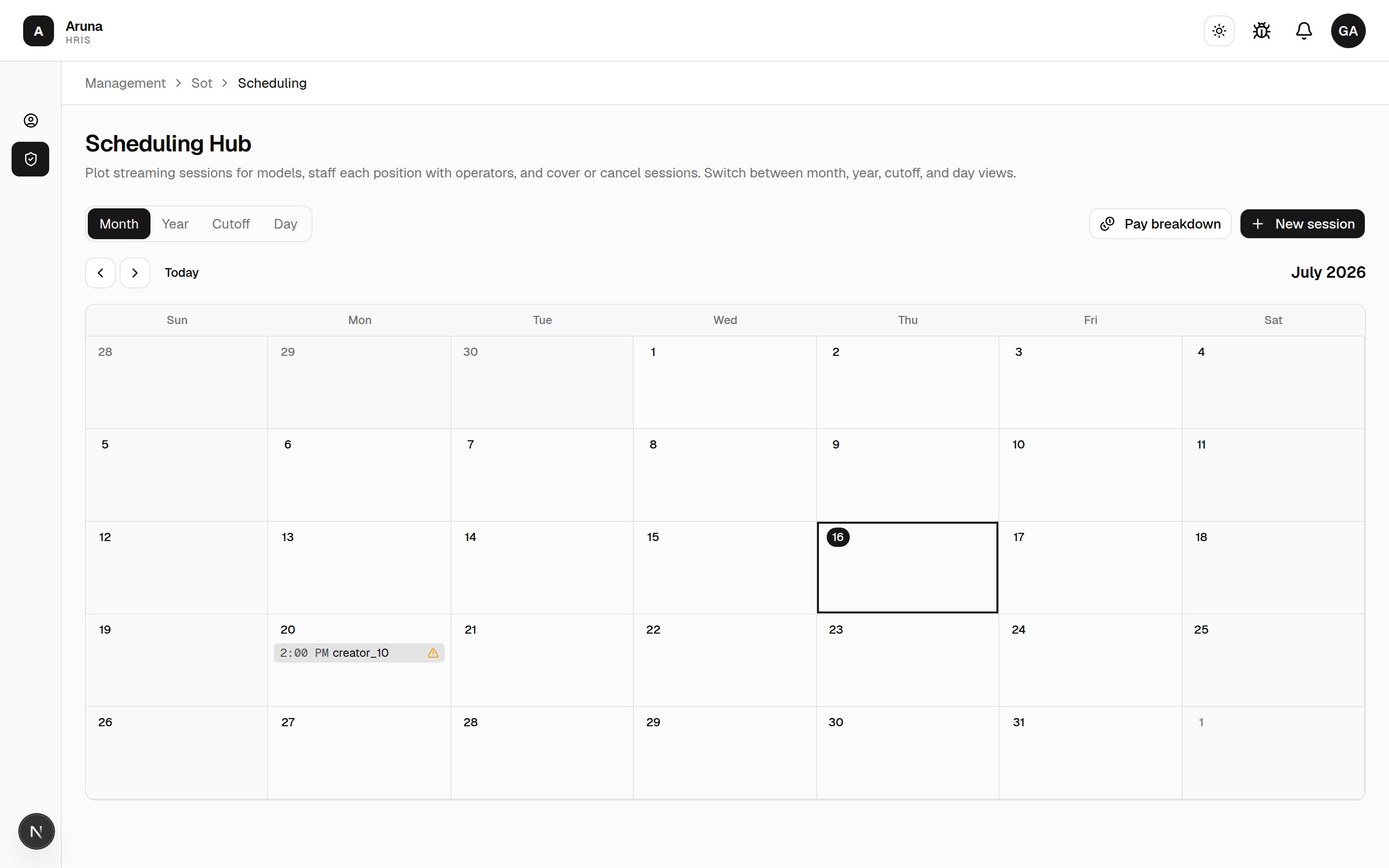
- The Cutoff view scopes to the selected pay period; the Day view drills into a single day's sessions.
 - Each session in the Day and Cutoff lists shows its subscription
count next to the staffing count — see
Subscription counts below.
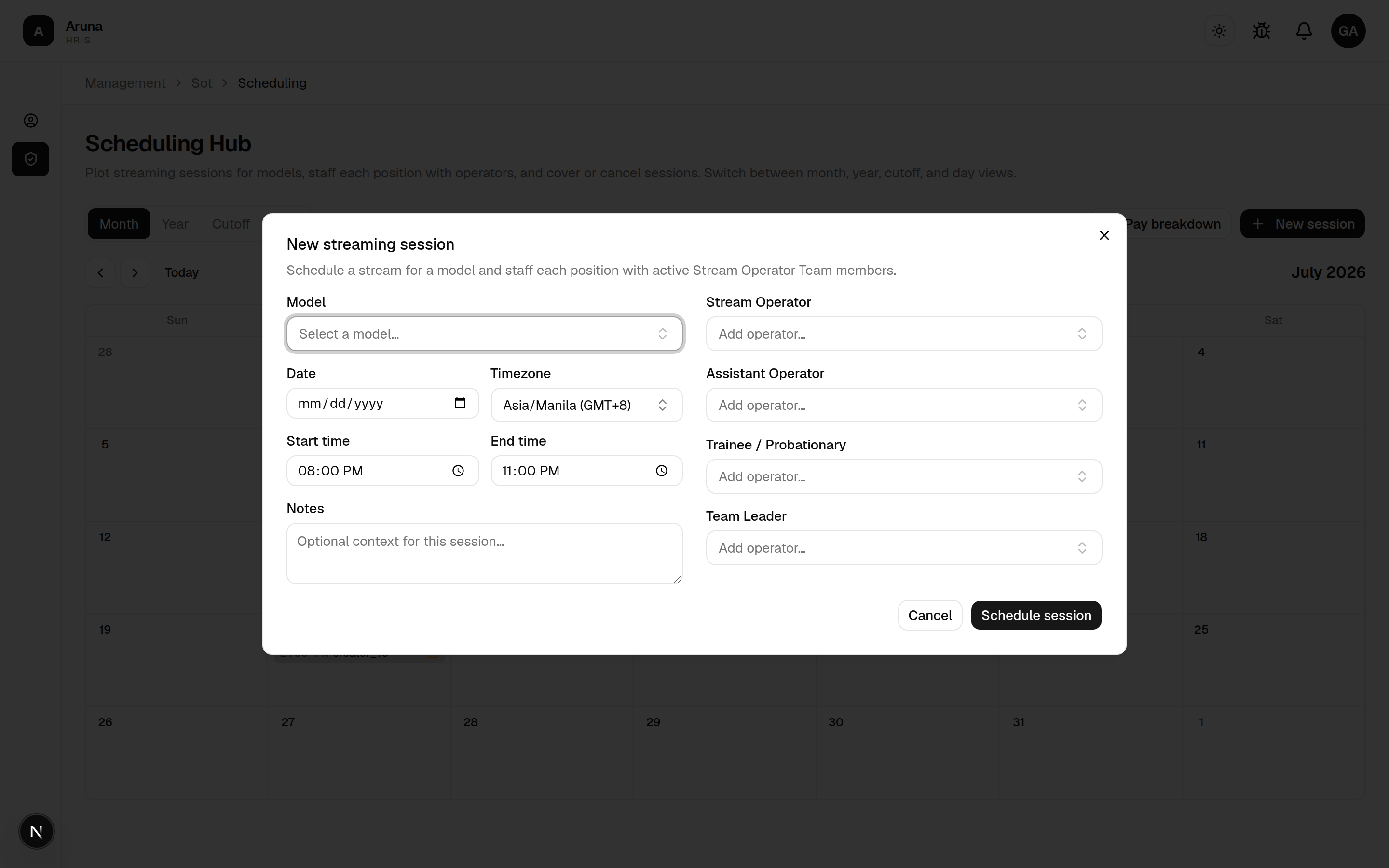
- New session opens a dialog: pick the model, date, timezone, and
start/end time, then staff each position — Stream Operator, Assistant
Operator, Trainee / Probationary, and Team Leader — and add optional
notes. Schedule session saves it.
- Each session in the Day and Cutoff lists shows its subscription
count next to the staffing count — see
Subscription counts below.
- New session opens a dialog: pick the model, date, timezone, and
start/end time, then staff each position — Stream Operator, Assistant
Operator, Trainee / Probationary, and Team Leader — and add optional
notes. Schedule session saves it.
- Use the calendar to cover a session (reassign the operator) or cancel it.
- Pay breakdown (top right) jumps to the read-only pay view.
When you pick an operator who's already scheduled that day, the form shows an amber note — an operator shouldn't be on more than one session a day.
Covering a position (full or partial)
Open a session and Cover the Stream Operator position to substitute someone. Pick the substitute, and — if they only stepped in mid-stream — tick Partial cover and set the window they actually covered.
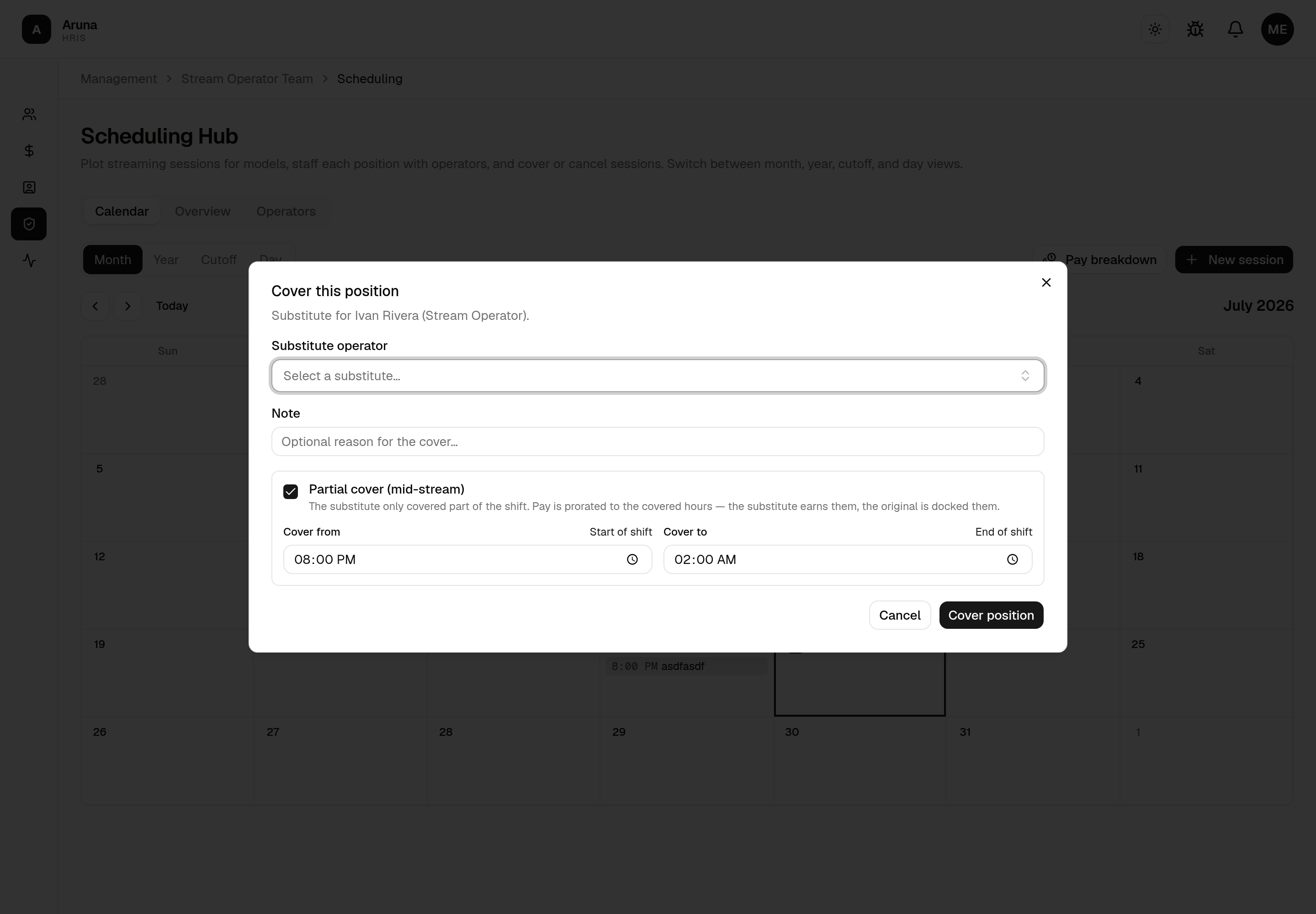
- Full cover (Partial unticked): the substitute is paid the shift's daily rate and the original operator is marked absent for the day.
- Partial cover (Partial ticked): pay is prorated to the covered hours — the substitute earns them and the original is docked them (no whole-day absence). Use Start of shift / End of shift to snap the window to the session's bounds.
Actual stream window (after the stream). When you edit an existing session you'll see an Actual stream window with an actual start/end time. It starts equal to the scheduled times — but if the stream ran later or longer, correct the real times here. Coverage pay is prorated against this window, so keep it accurate for substitutes to be paid correctly. (It no longer affects subscriber commission — that's driven by the count CT records, not by times.)
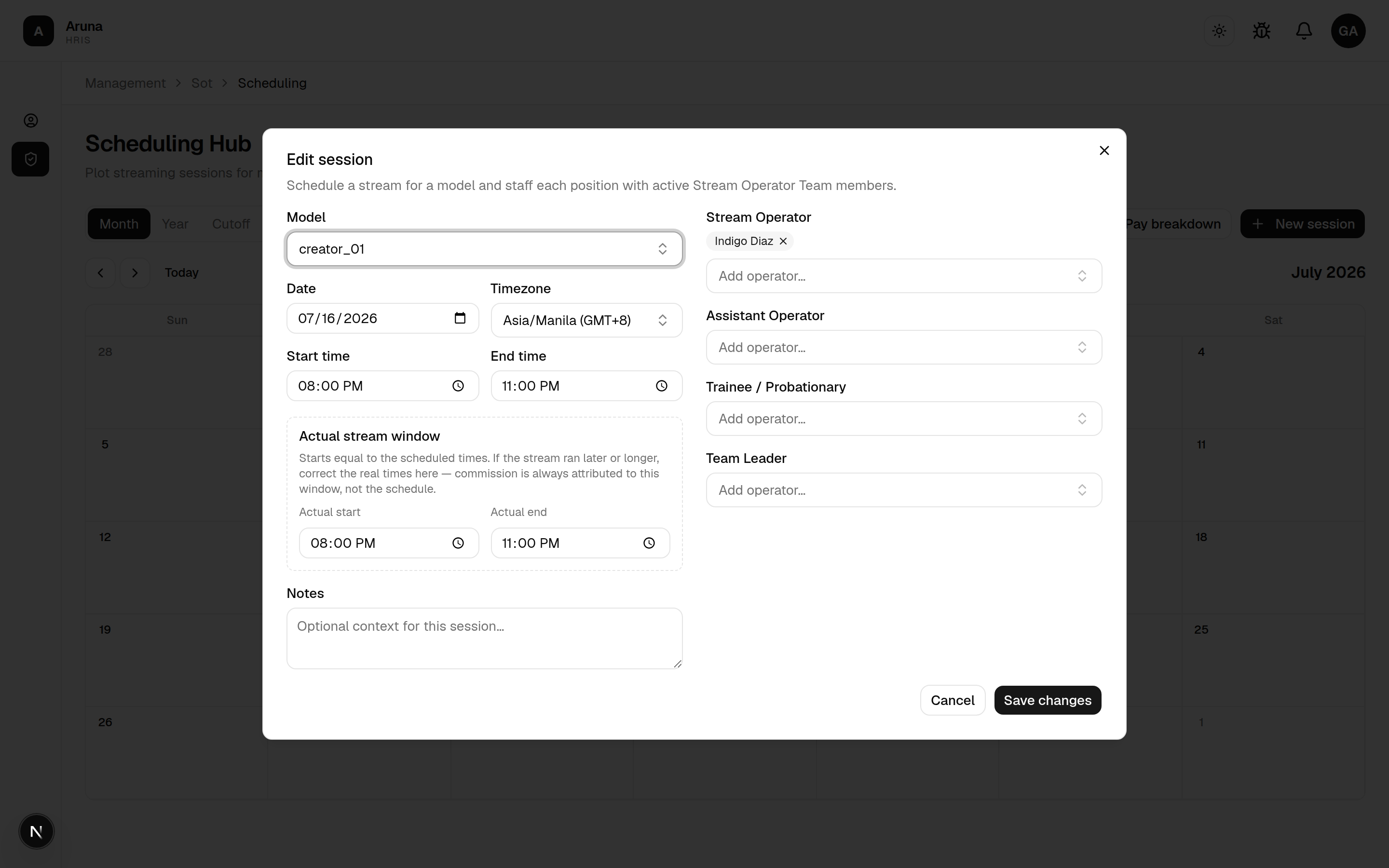
Session staffing and coverage here are what drive each operator's coverage pay for the cutoff.
Subscription counts
Open a session and you'll see a Subscriptions total — what that stream landed, and what its operators and team leaders are paid on.
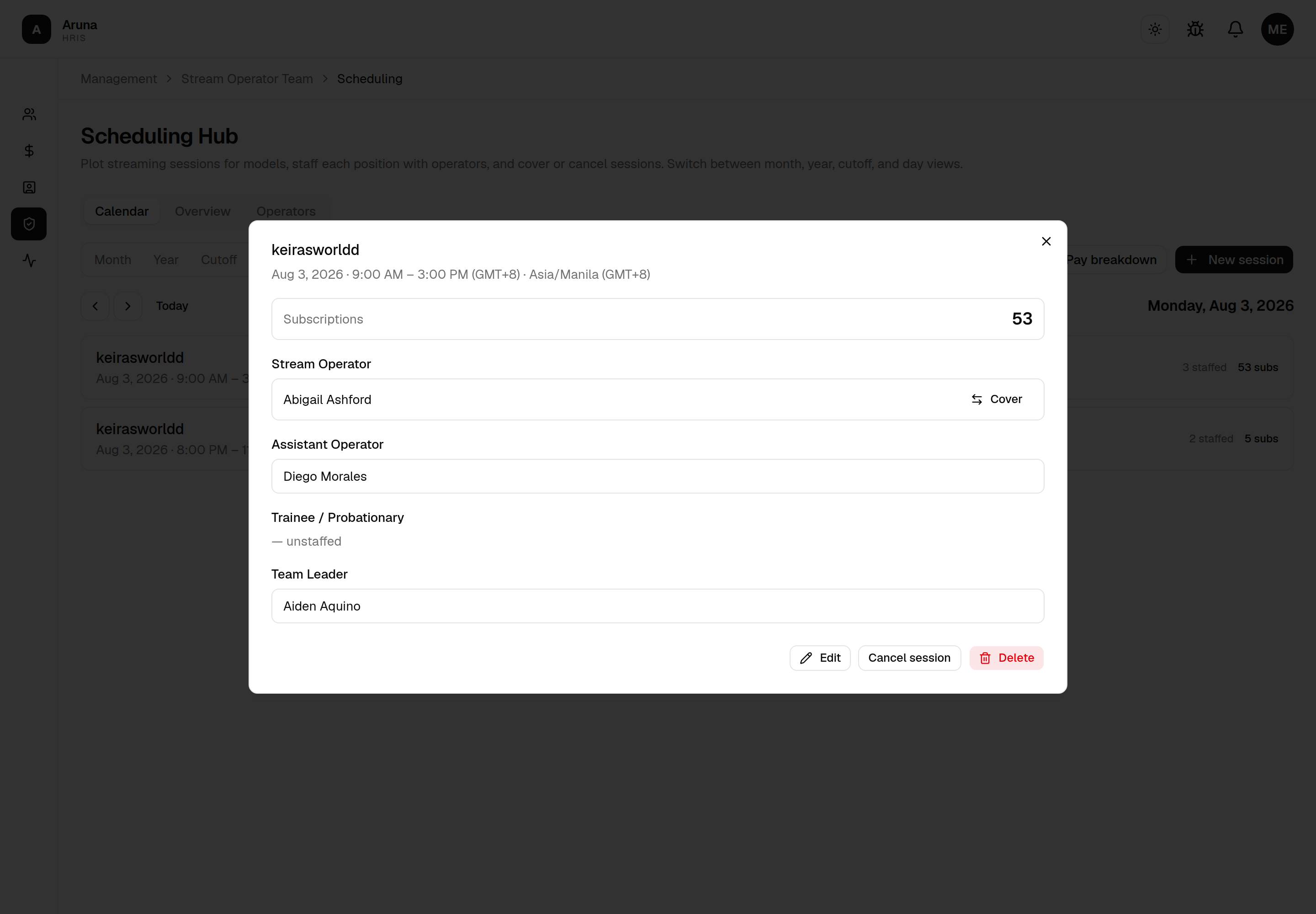
The number is recorded by hand by a CT manager on their SO-OF Model Sub Count board. Nothing about it is automatic — the system has no way to count subscriptions on its own.
It's read-only here, on purpose. CT does the counting — they're the ones watching the chat during a stream — and SOT sees the result. If a session reads 0, that usually means nobody has recorded it yet; ask the CT manager rather than looking for a fault in the schedule. What you control is the staffing, which decides who the count is split between.
Overview board
The Overview tab is an at-a-glance weekly board — no data entry, just a read-out of what you've scheduled. Use the ‹ This week › controls to move between weeks and Refresh to re-pull after edits.
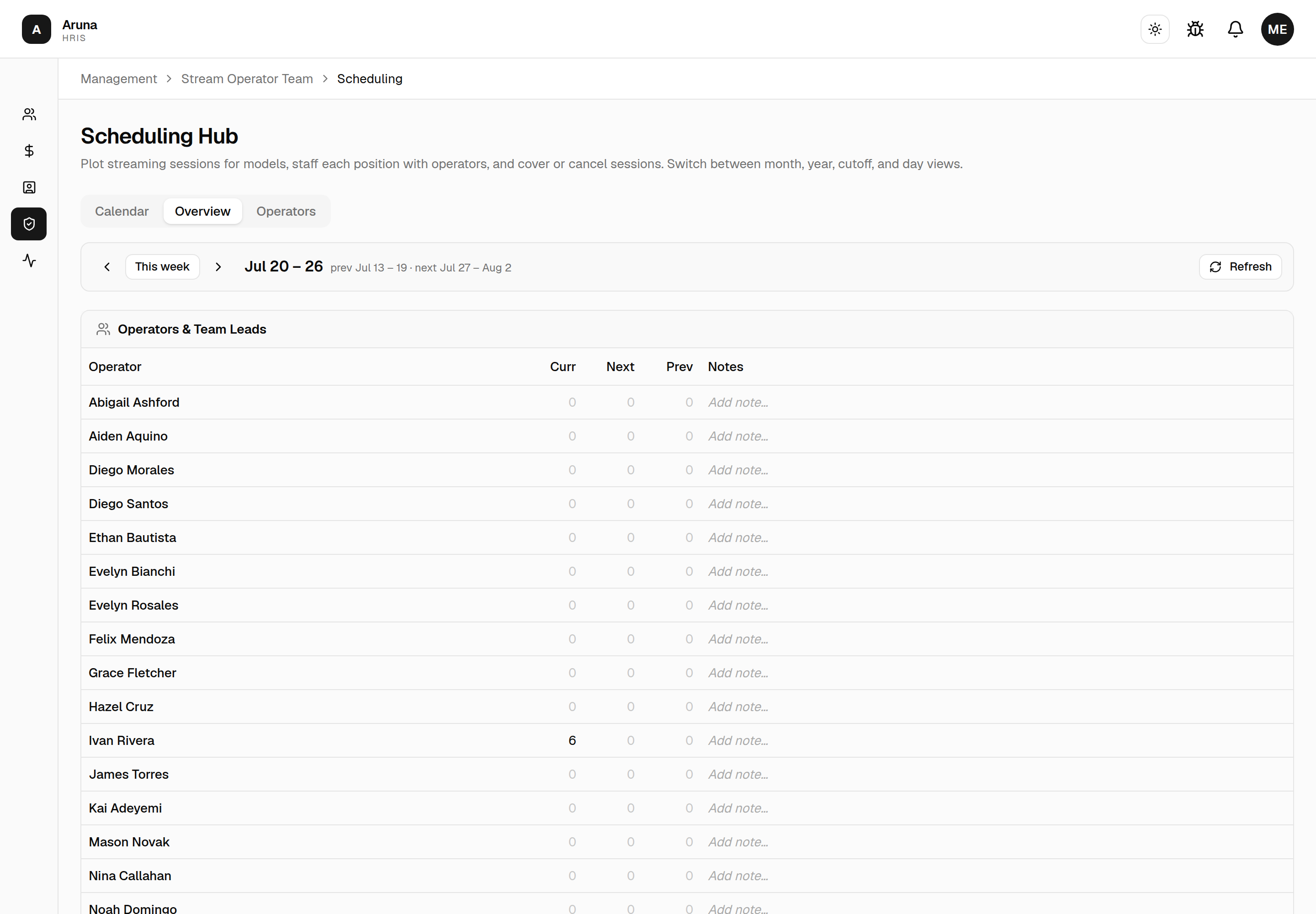
- Operators & Team Leads — each operator's scheduled hours for the current, next, and previous week, plus their note. A red DUP badge flags anyone booked more than once on a day. Covered hours follow the substitute (a partial cover splits them).
- Models — the same current/next/previous hours per model.
- Available operators — for each day of the current and next week, who's not yet booked — your free-to-schedule list.
2. SOT Quiz Winners
Open SOT Quiz Winners to submit quiz wins on behalf of employees. Approved wins become payouts Finance sees at payroll.
3. Pay Breakdown (read-only)
Open Pay Breakdown for the same commission and coverage figures Finance sees for a cutoff.
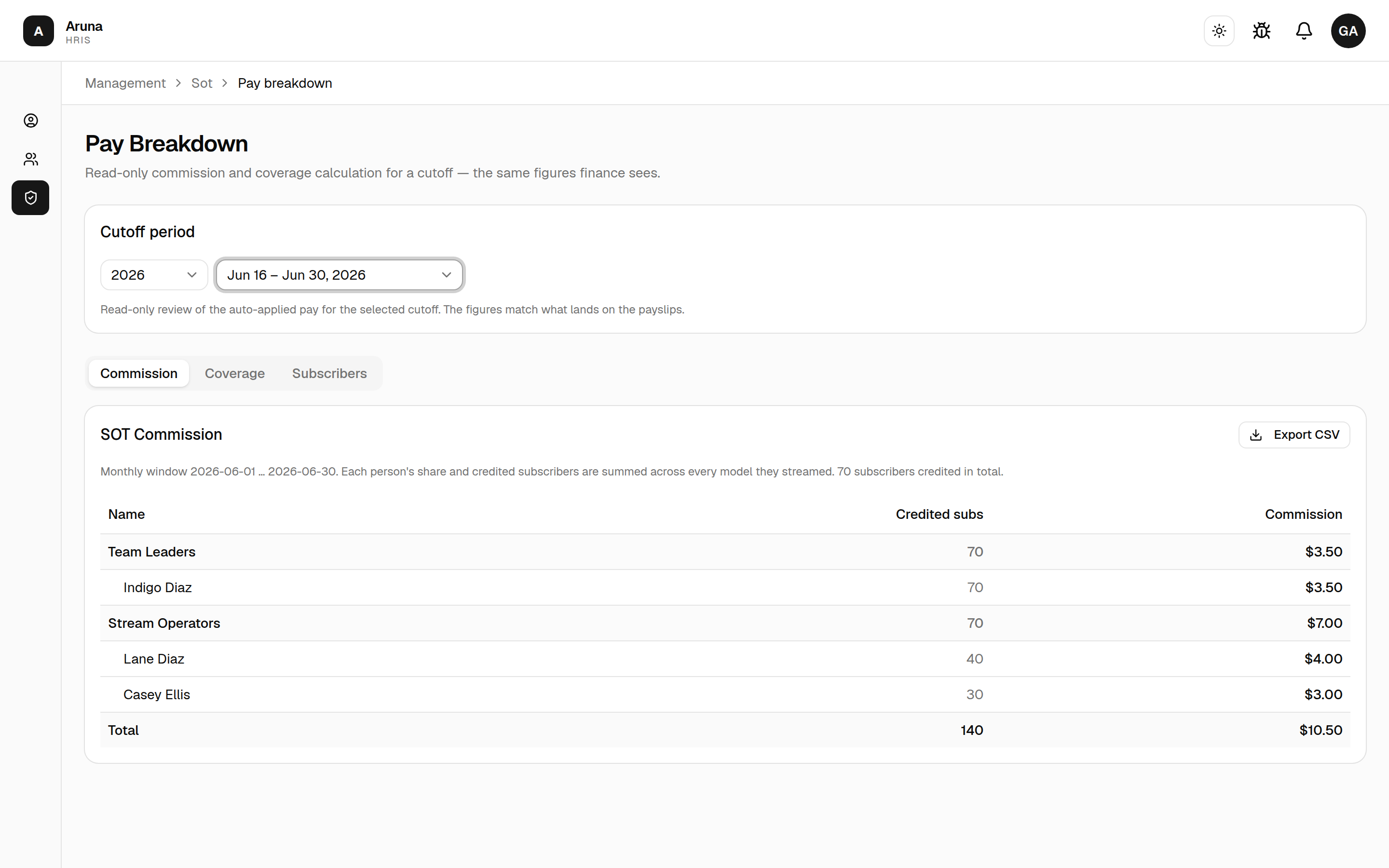
- Choose the cutoff period.
- The figures come from the sessions and coverage you staffed in the Scheduling Hub, and match what lands on payslips.
- Tabs cover Commission, Coverage, and Subscribers:
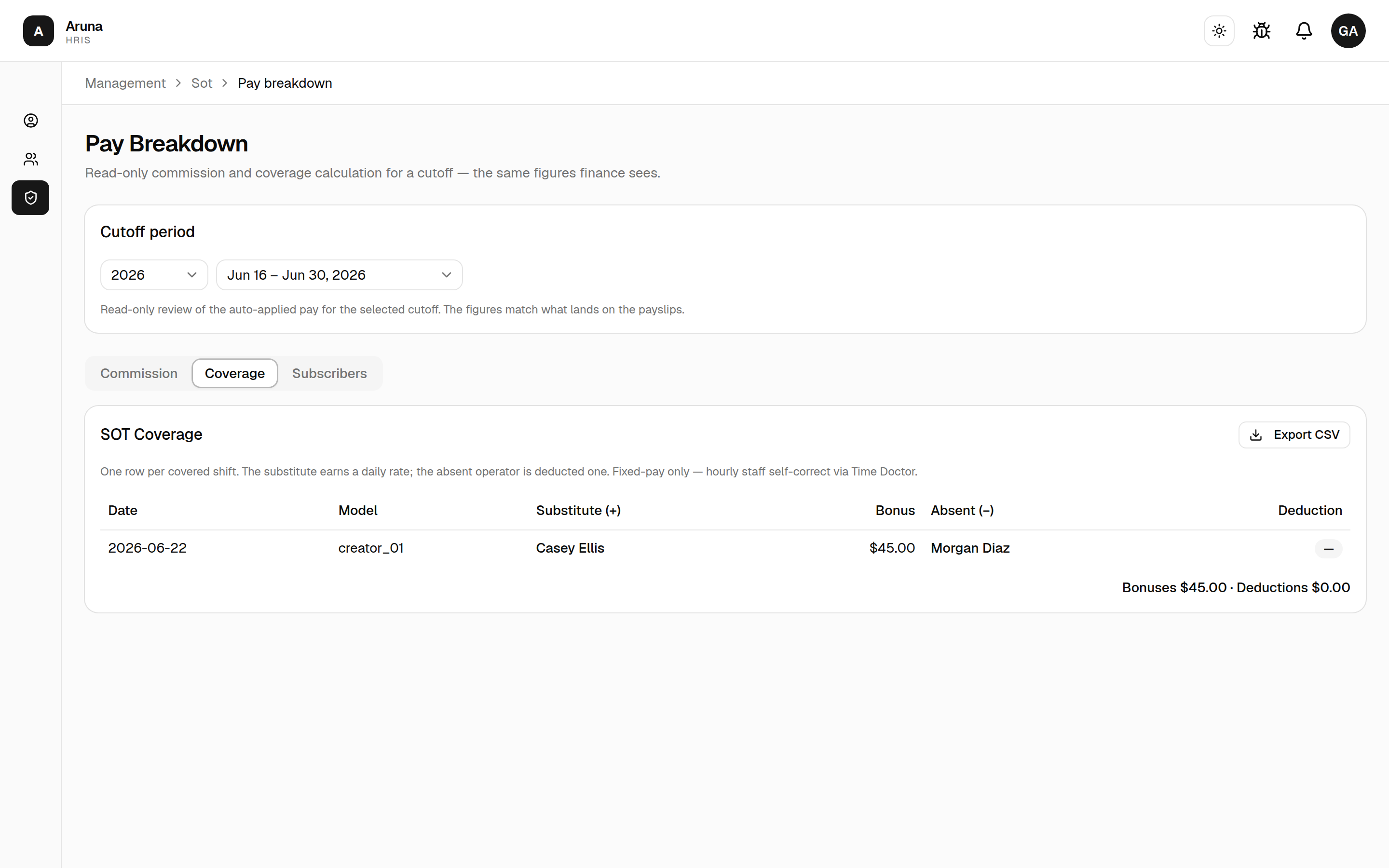
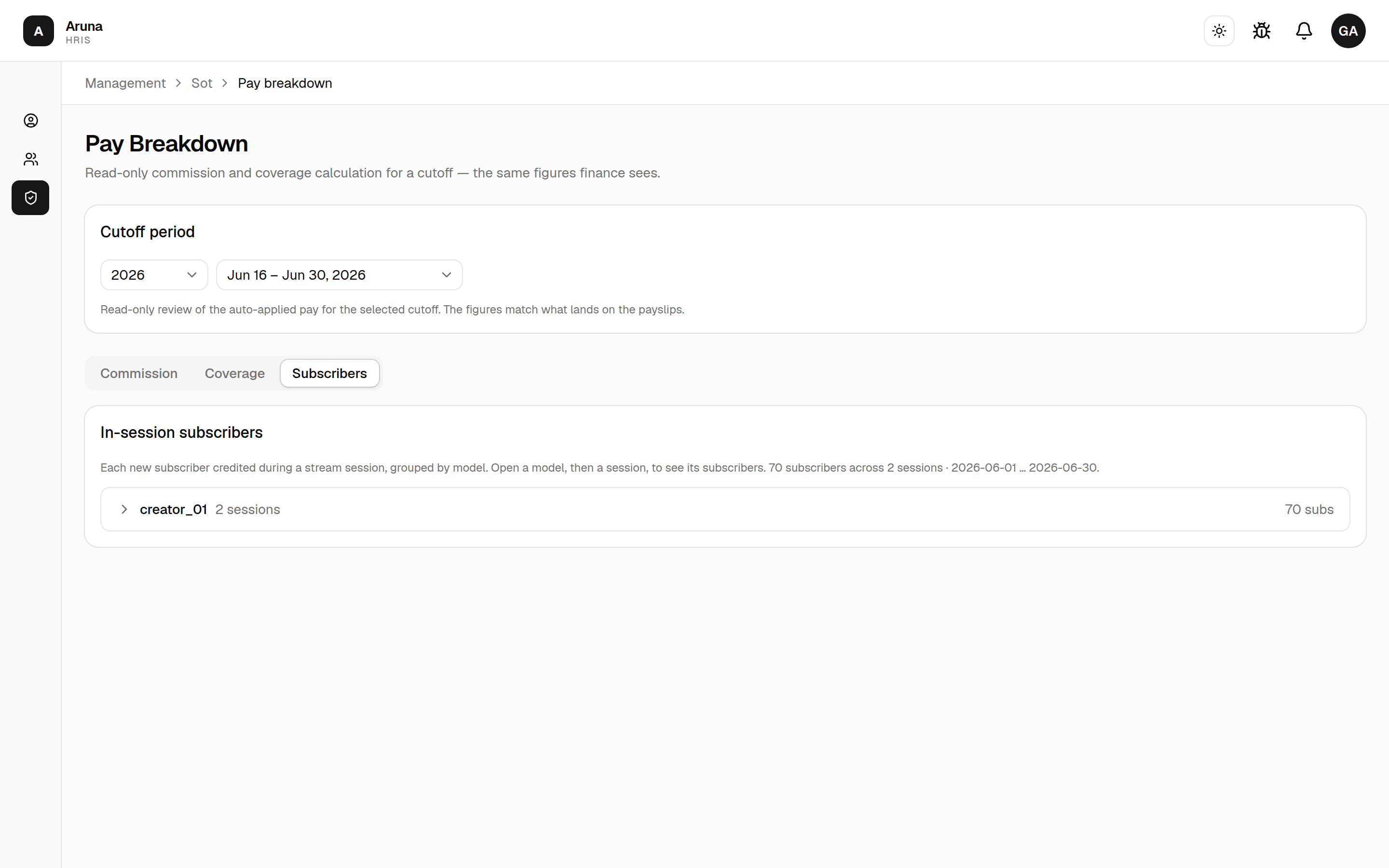
- Read-only — if a number is wrong, fix the underlying session / coverage in the Scheduling Hub.
Troubleshooting
| Problem | What to do |
|---|---|
| An operator isn't in the session dropdown | Tick them on the Operators tab — only designated operators are selectable |
| Someone's on the board who shouldn't be | Untick them on the Operators tab |
| A session has no operator | Open the session in the Scheduling Hub and staff the position |
| Coverage pay looks wrong | Check who's staffed on each session for that cutoff; adjust in the Hub |
| Cancelled session still showing pay | Make sure it's cancelled (not just unstaffed) in the Hub |
| Can't find a past session | Switch the Hub to Cutoff or Year view |
| Quiz win not paid | Confirm it was submitted and approved before the period closed |
| A session's subscription count reads 0 | The CT manager hasn't recorded it yet. Nothing is counted automatically |
| A session shows a subscription count but paid nothing | The model may have stream commission switched off in the Models module — the count is still recorded, but it credits nobody |
| Subscription counts changed after payroll went out | They're only frozen once a payslip is finalized. Anything still in draft picks up the latest counts on the next Pull/Sync |